.svg)
Copy your calendar link from the Timble app, then add it in Google Calendar, so your shifts sit alongside your own plans.
Copy your link in Timble
- Open Timble and tap Account at the bottom right.
- Under Settings, tap Calendar Sync.
- Tap Copy Subscription URL. It changes to Copied! and the link is on your clipboard.
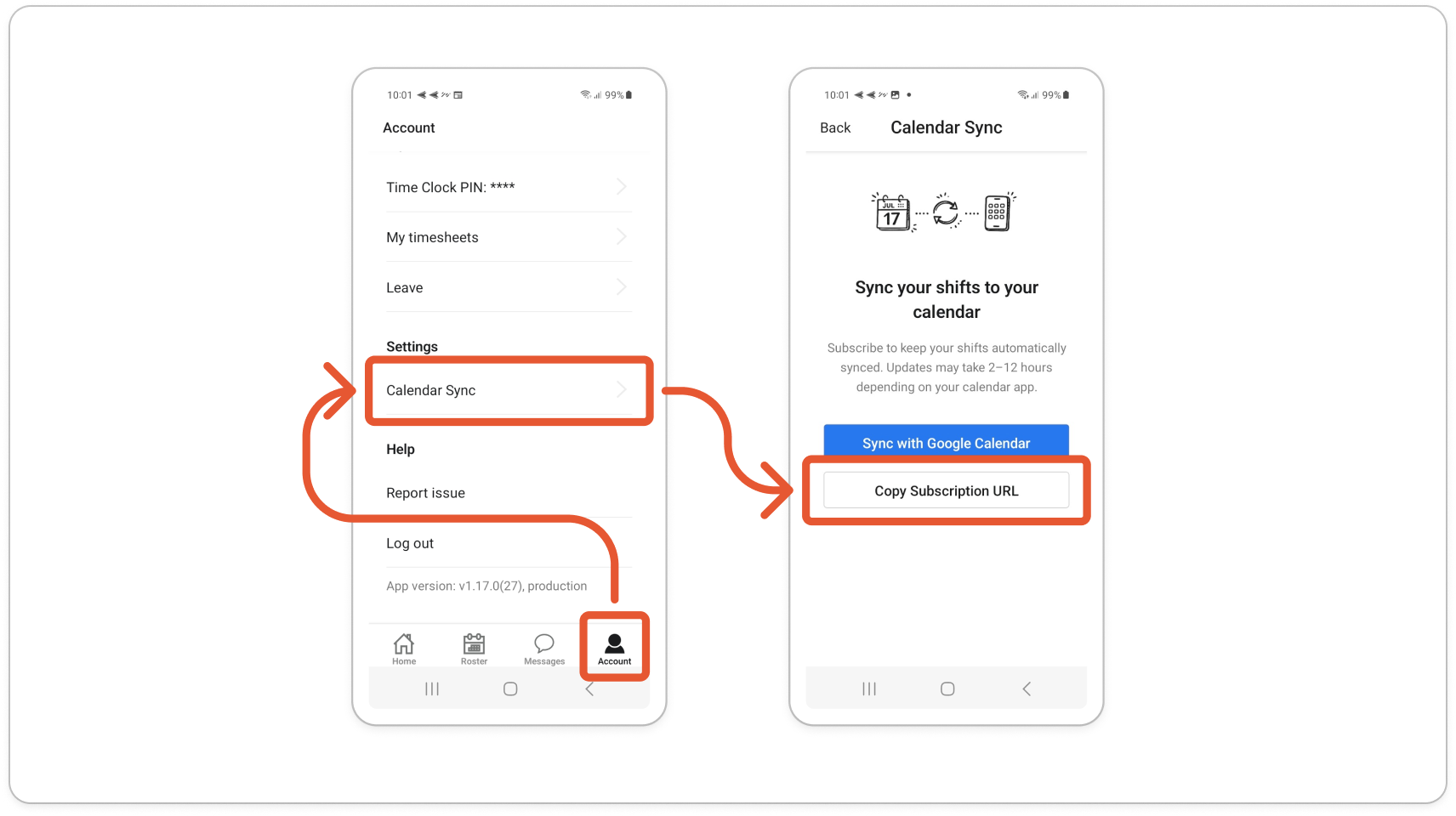
Note: The Sync with Google Calendar button only opens a help page. It doesn't add the calendar for you.
Tip: Send the link to yourself in a message or email, so it's easy to paste on a computer.
Add the link in Google Calendar
Google only lets you add a calendar link on a computer, in a web browser, not in the Google Calendar app.
- Go to calendar.google.com and sign in.
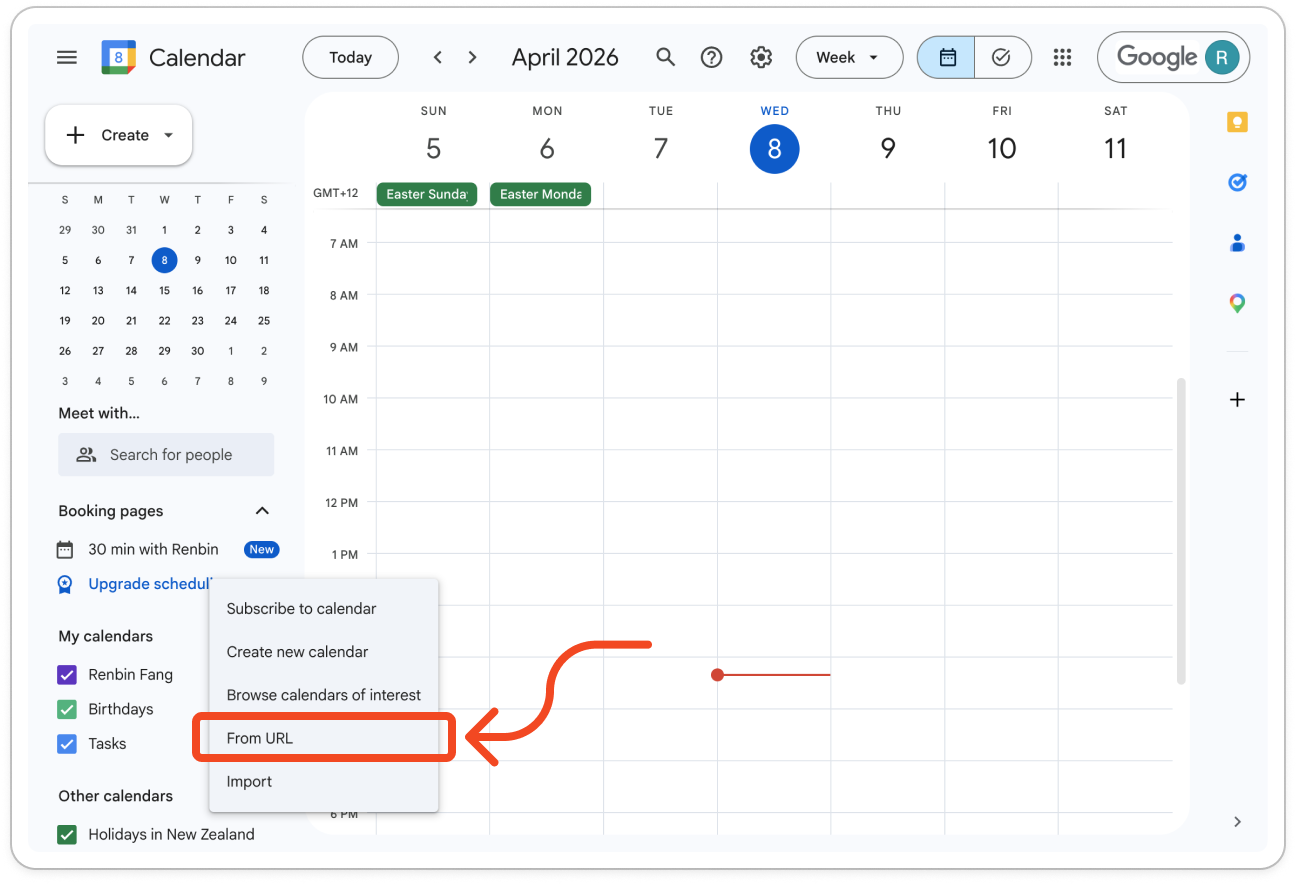
- Next to Other calendars, click + and choose From URL.
- Paste your Timble link into URL of calendar.
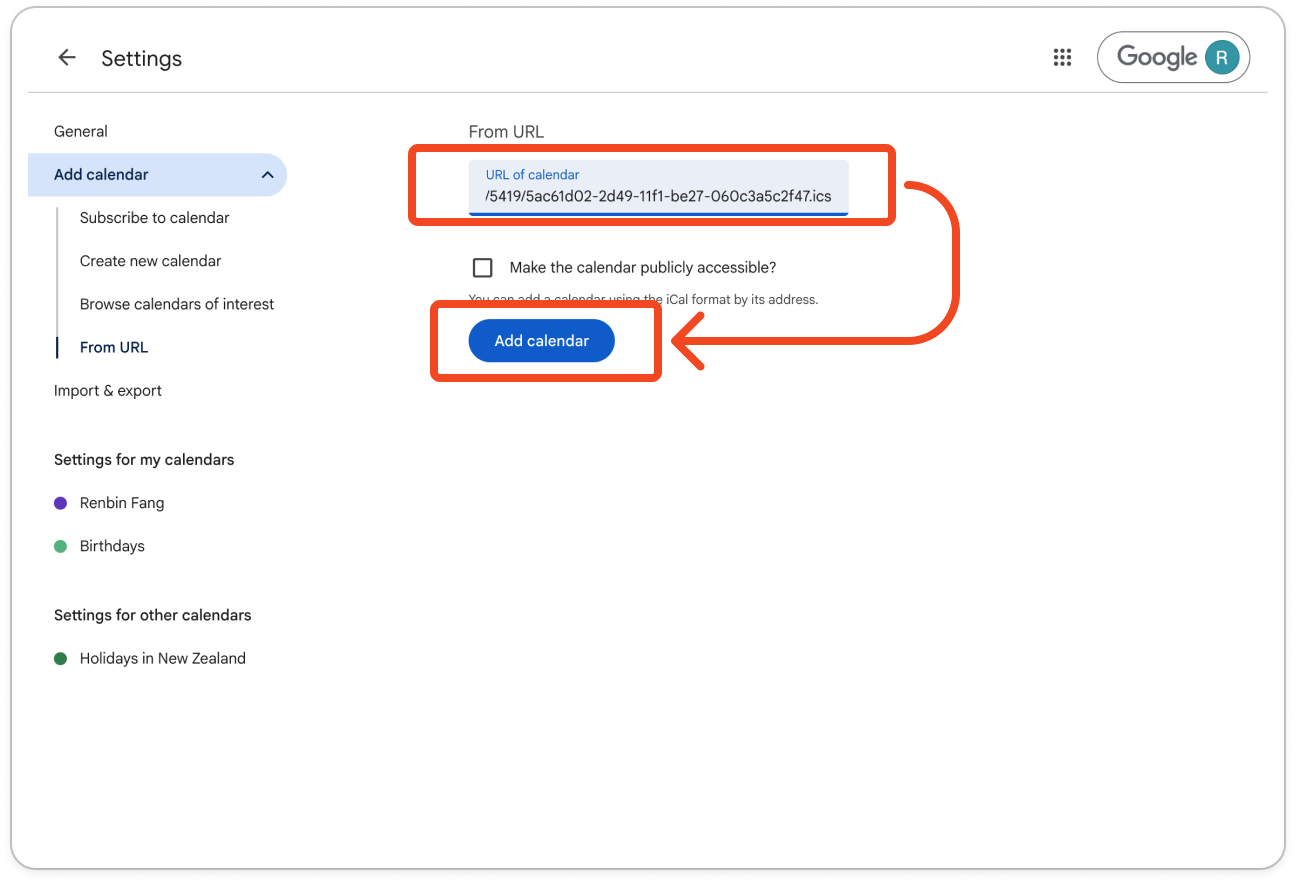
- Click Add calendar. A calendar called Timble App appears under Other calendars, and in the Google Calendar app on your phone.
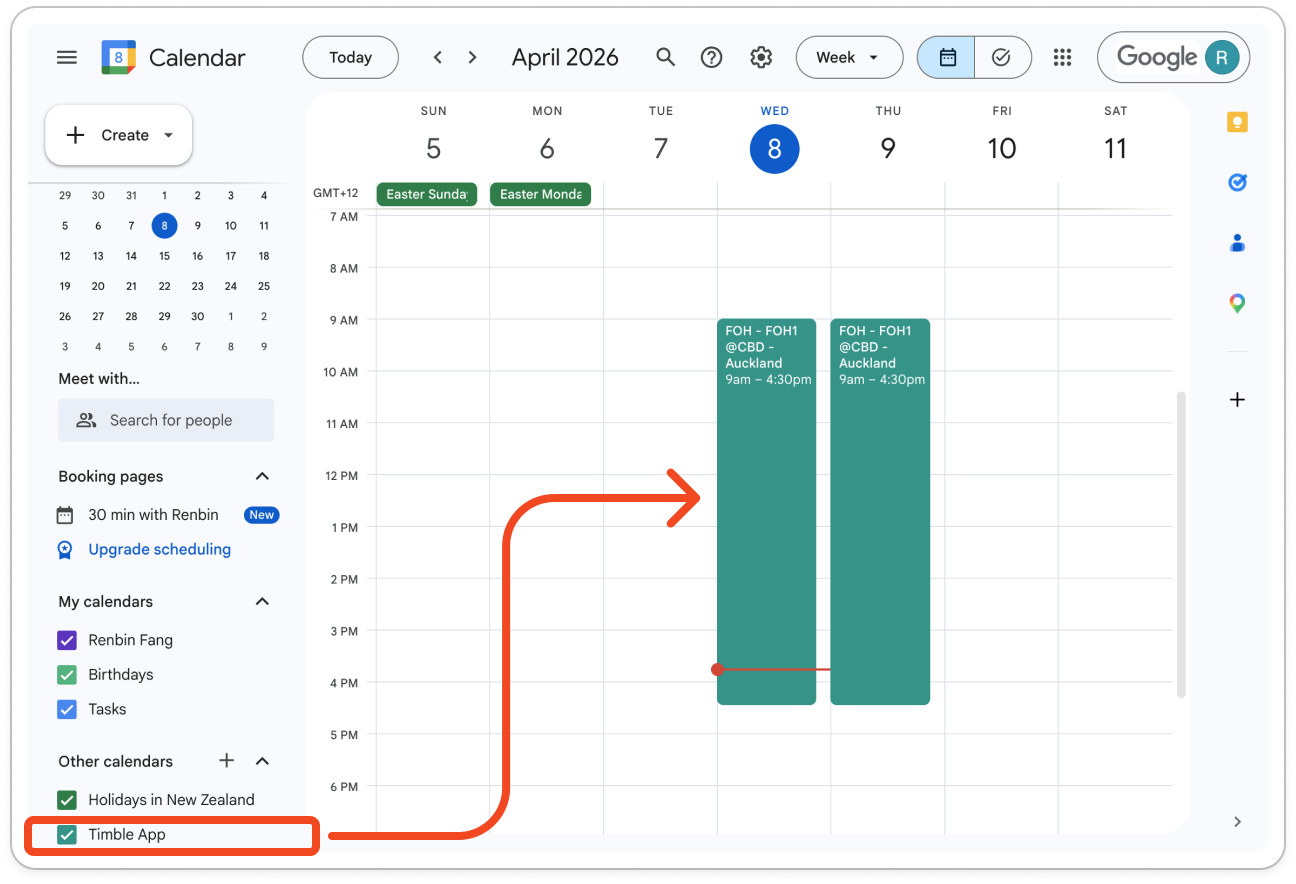
Note: Your calendar updates on its own when your roster changes. The Calendar Sync screen says this can take 2 to 12 hours.


