.svg)
Tell your manager the days and times you can't work, so they roster around them.
- Open Timble and tap Account at the bottom.
- Under My account, tap Unavailability.
Note: If you can't see this in the app, your business hasn't turned it on for members. Ask your manager.
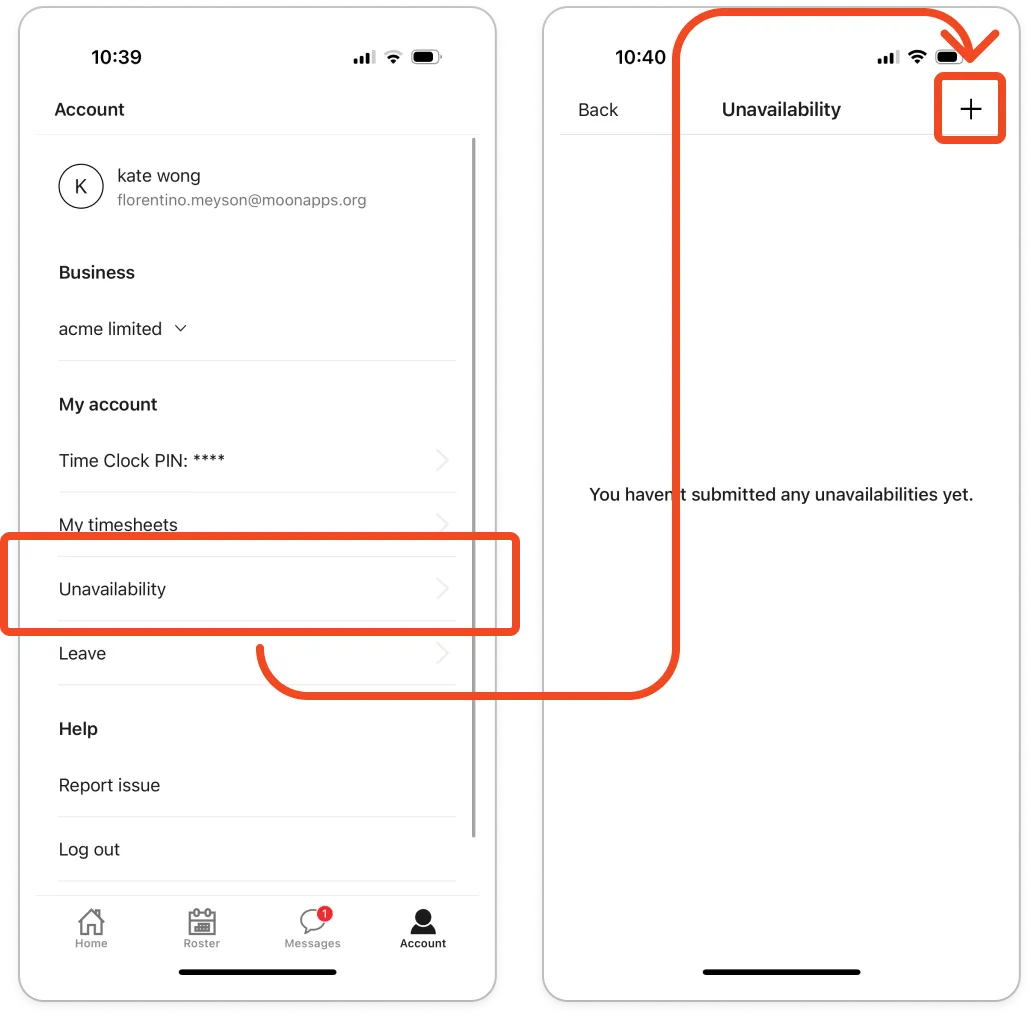
- Tap + in the top right. The New unavailability screen opens.
- Tap Date and pick the day you can't work.
- If you can work part of that day, turn on Include time and set a start and end in the Time row.
- If you're away for a run of days, turn on End date and set Starts and Ends.
- If the same day comes round every week, tap Repeat. On the Frequency screen, tap Repeat and choose Every Week, Every 2 Weeks, Every 4 Weeks or **Every Month, tick each weekday it applies to, then tap Done**.
Note: Repeat only shows while End date is off. An entry either repeats or covers a run of days, not both.
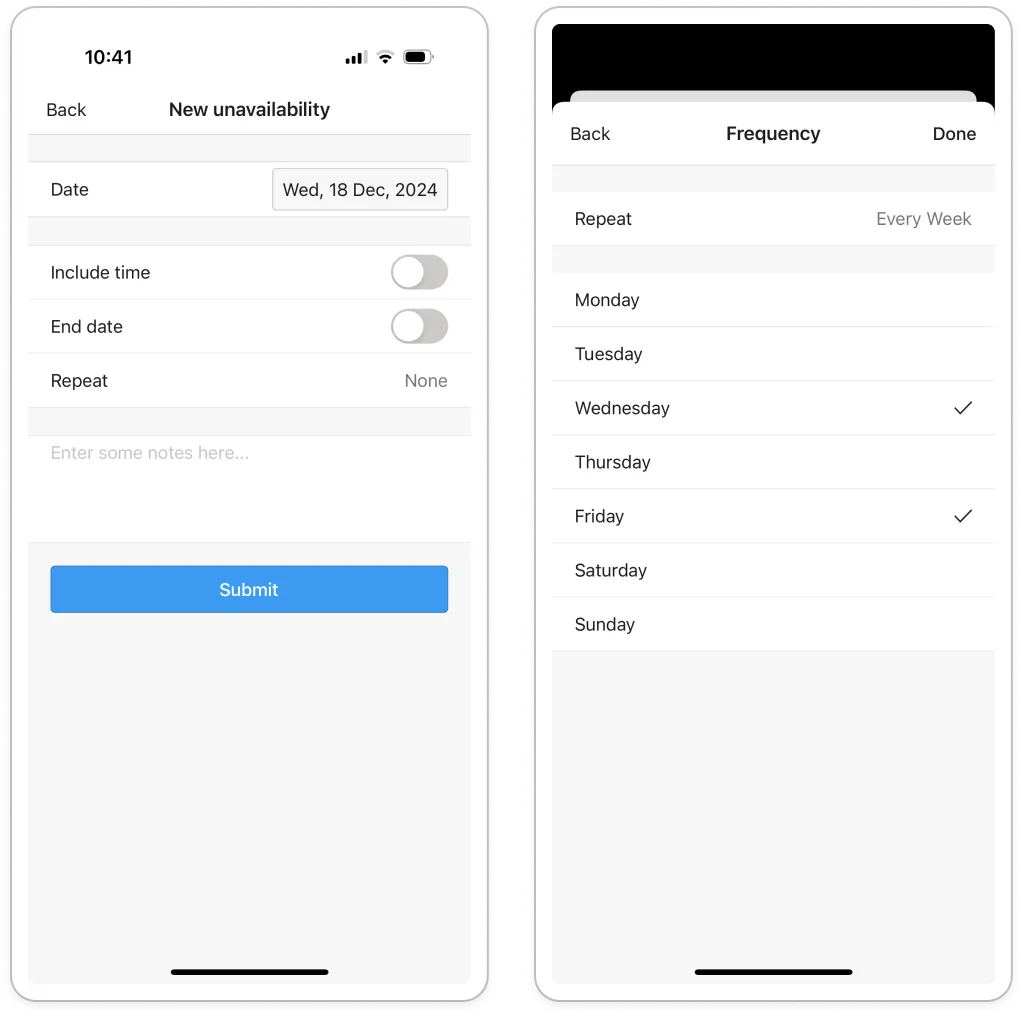
- Tap End repeat and choose Never or On date, then tap Done.
- Type a short reason in the notes box, such as "Study".
- Tap Submit.
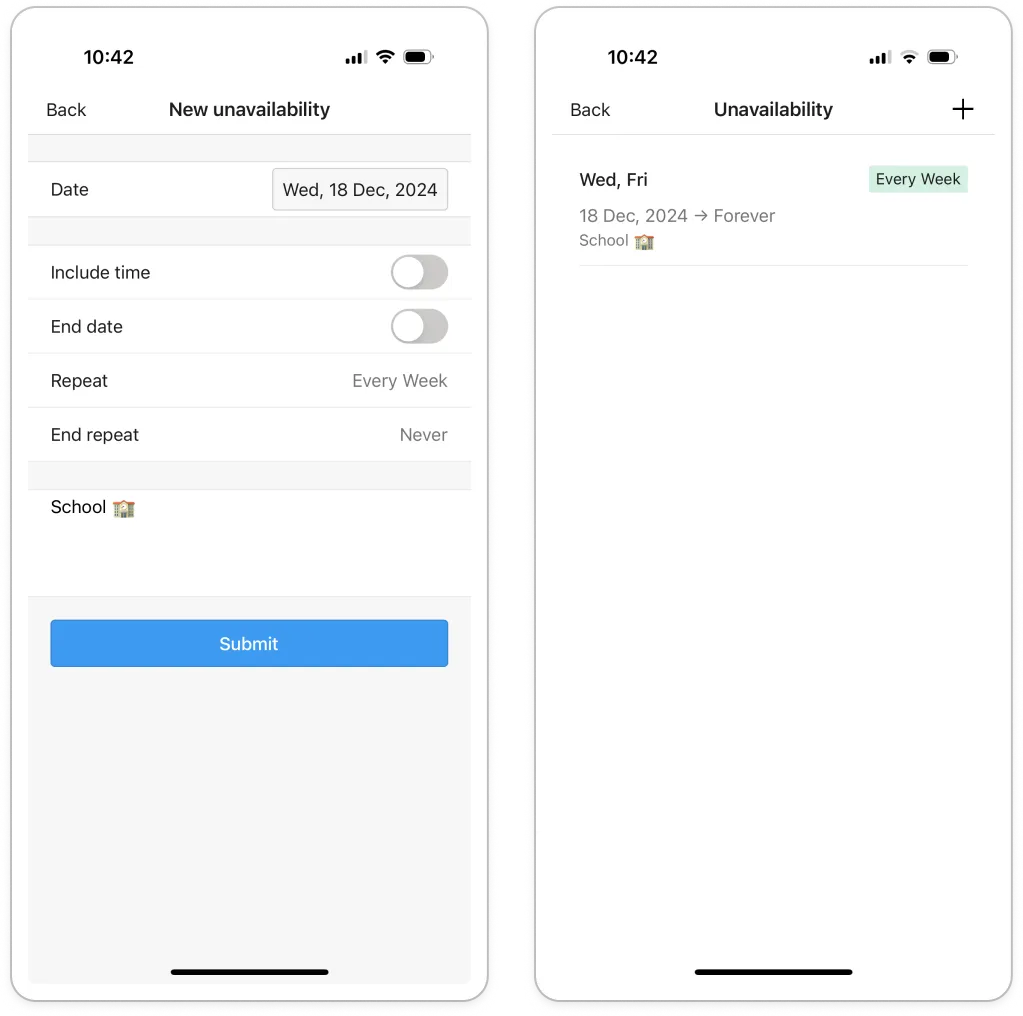
Note: Nothing needs approving. Your entry is in the list straight away, and your managers see it as an N/A marker on that day when they build the roster.


