.svg)
Give your manager the days and hours you would like to be rostered, so they can build the roster around when you are free.
- Open Timble and tap Account at the bottom.
- Under My account, tap Availability.
Note: If you can't see this in the app, your business hasn't turned it on for members. Ask your manager.
- Tap + in the top right. The New availability screen opens.
- Tap Add. A panel slides up set to today, 9:00 am to 5:00 pm.
- Tap Date and pick the day you can work.
- Turn All day on if you can work the whole day. Otherwise tap Time and set when you start and finish. The hours show underneath.
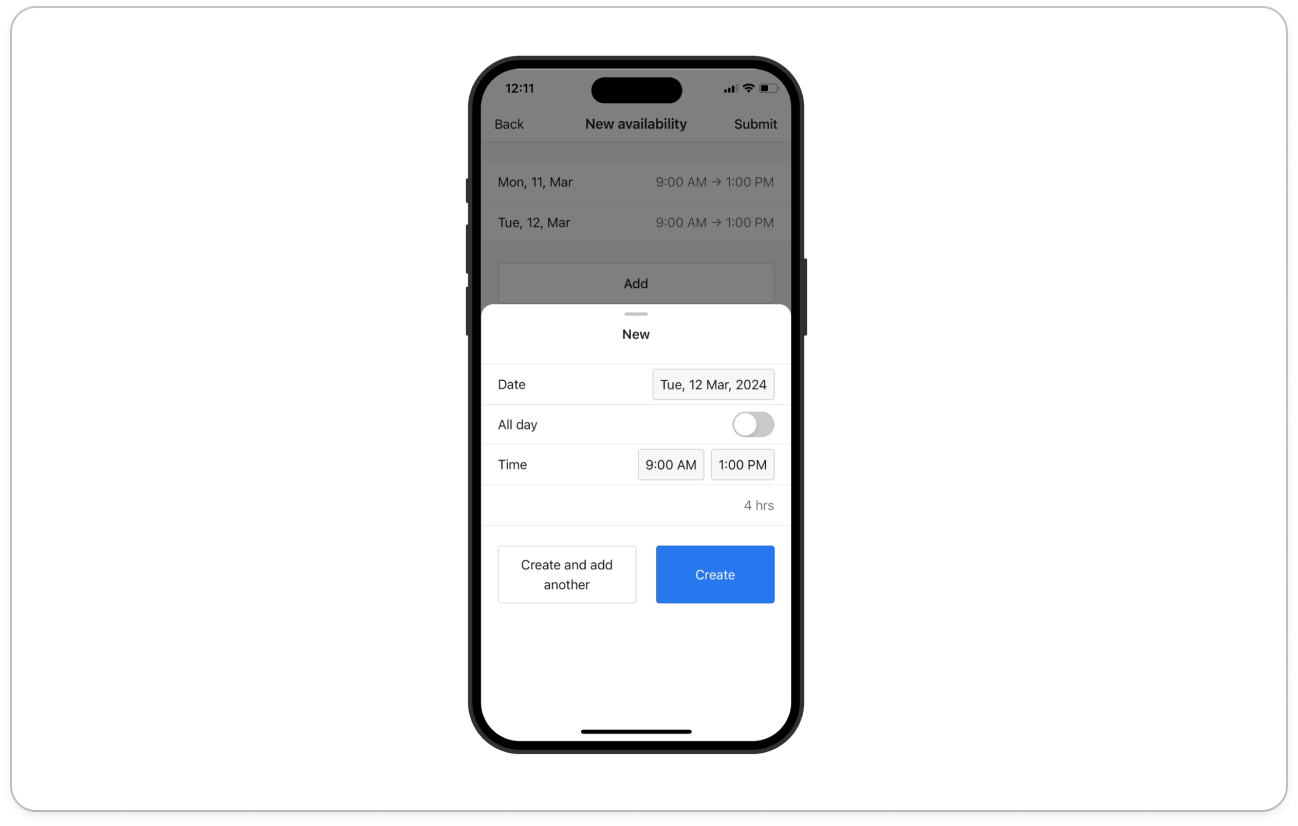
- Tap Create, or Create and add another to keep the panel open for the next day.
Tip: To change a day before you send it, tap it in the list. The same panel opens with Save and Remove.
- When every day you can work is in the list, tap Submit.
Note: Nothing is sent until you tap Submit. If you tap Back first, Timble asks "Are you sure you want to go back?" and Discard & go back throws your days away. To delete a day you have already sent, tap it on the Availability screen, tap Delete, then Delete again to confirm.


