.svg)
Start and end your shift from the time clock app on your own phone, with no PIN.
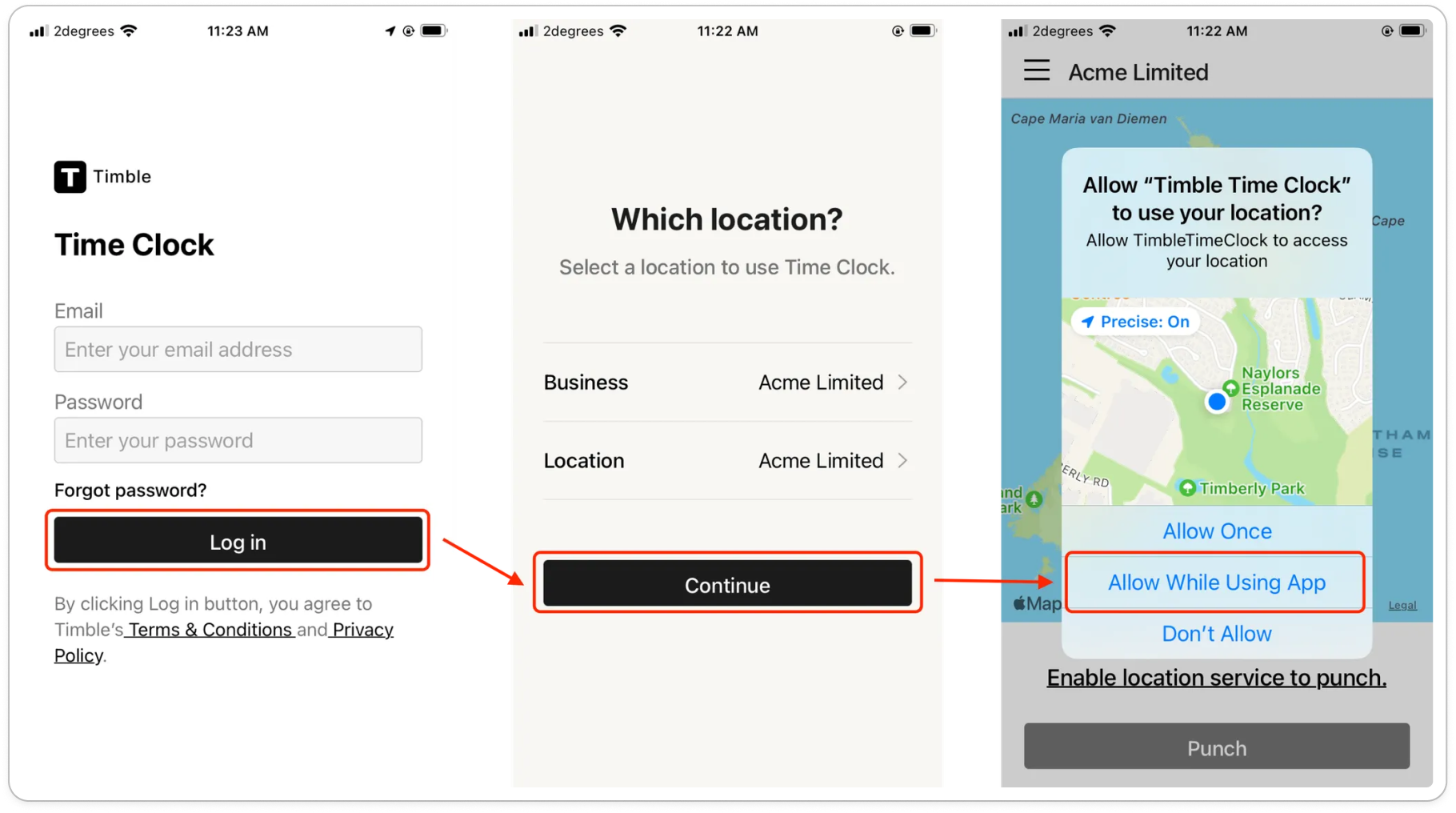
- Install Timble Time Clock from the App Store or Google Play and open it.
- Type the email address and password you use for Timble, then tap Log in.
Note: If the app says "Member time clock is not enabled", your business hasn't turned it on for members. Ask your manager.
- On Which location?, check the Business and Location rows say the right place. Tap a row to change it, then tap Continue.
Tip: You only do this once. Next time, the app opens straight to the Punch screen.
- Allow the app to use your location when your phone asks. If the screen says Enable location service to punch., tap it to turn location on in your phone's settings.
- Tap Punch to clock in. The screen turns green and says Clocked in, and You are on shift shows above the button until you finish.
- At the end of your shift, tap Punch again. The screen turns red and says Clocked out.
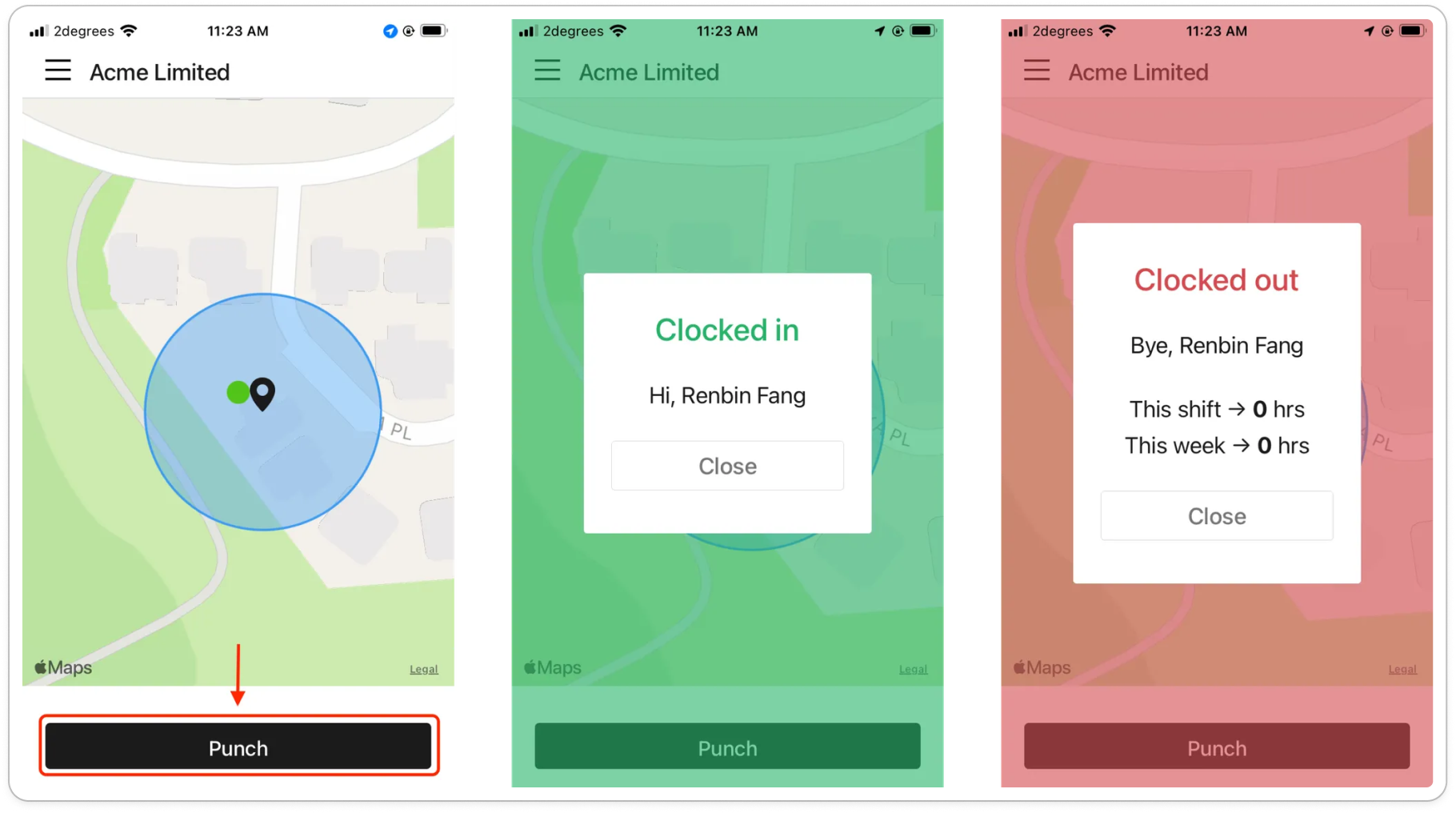
Note: If your business only lets you clock in at work, the map shows your workplace as a blue circle and you as a green dot. While you're outside the circle, the screen says Hmm, not at workplace yet. and Punch is greyed out. It turns on by itself once you're there.


