.svg)
Tap your name on the shared tablet at work and type your PIN to start your hours, then do the same to end them.
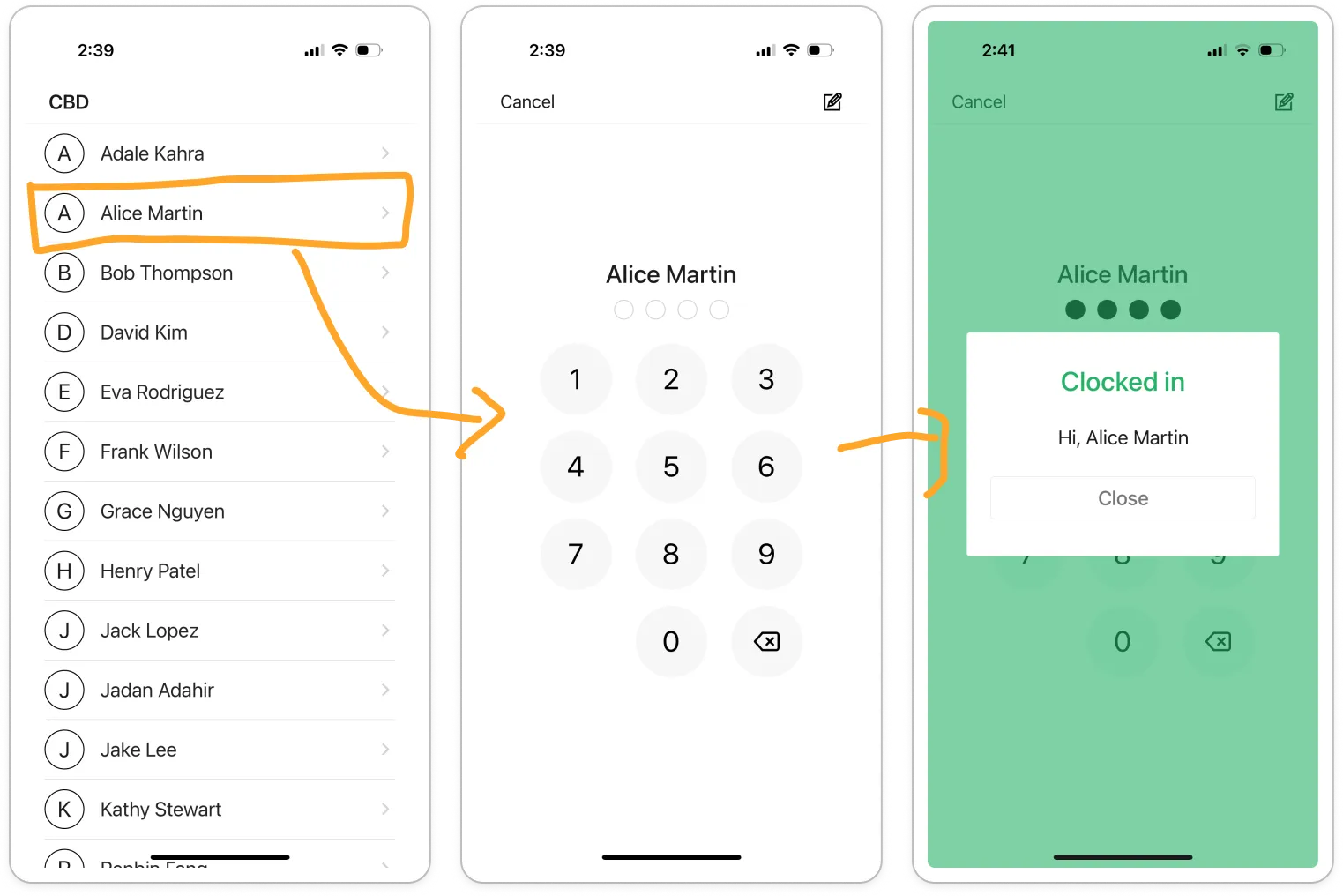
- On the time clock tablet, find your name in the list and tap it.
Note: You need your four-digit time clock PIN. If you don't know it, open the mobile app, tap Account, then tap Time Clock PIN.
- Tap your four digits on the keypad. There is no Enter button: the tablet checks your PIN as soon as you tap the fourth digit.
Note: If a camera preview shows above your name, the keypad stays greyed out until the camera is ready. If the tablet asks Which Role?, tap the role you're working.
- Wait for the green Clocked in message with Hi and your name. It closes on its own and returns to the list.
Tip: If you see Incorrect PIN, tap Close and try again.
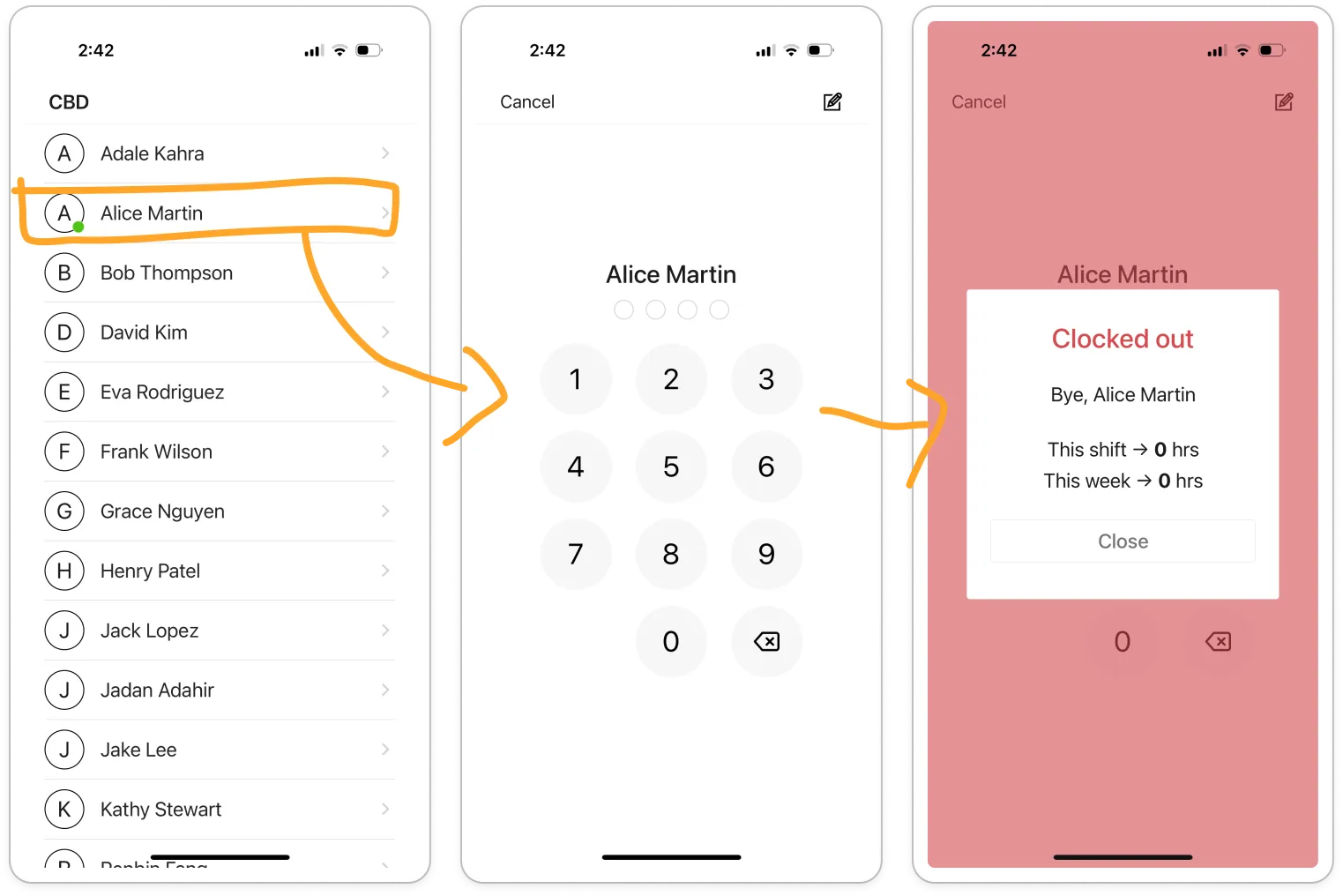
- At the end of your shift, tap your name again. A green dot beside your name shows you're clocked in.
- Tap your four digits.
Note: If the tablet asks What'd you like to do?, tap Clock out. Rest break and Meal break start a break instead.
- Wait for the red Clocked out message with Bye and your name. Some businesses also show your hours as This shift and This week.