.svg)
See the hours you have worked this week and whether your manager has approved them yet.
- Open Timble and tap Account at the bottom.
- Under My account, tap My timesheets.
Note: If you can't see this in the app, your business hasn't turned it on for members. Ask your manager.
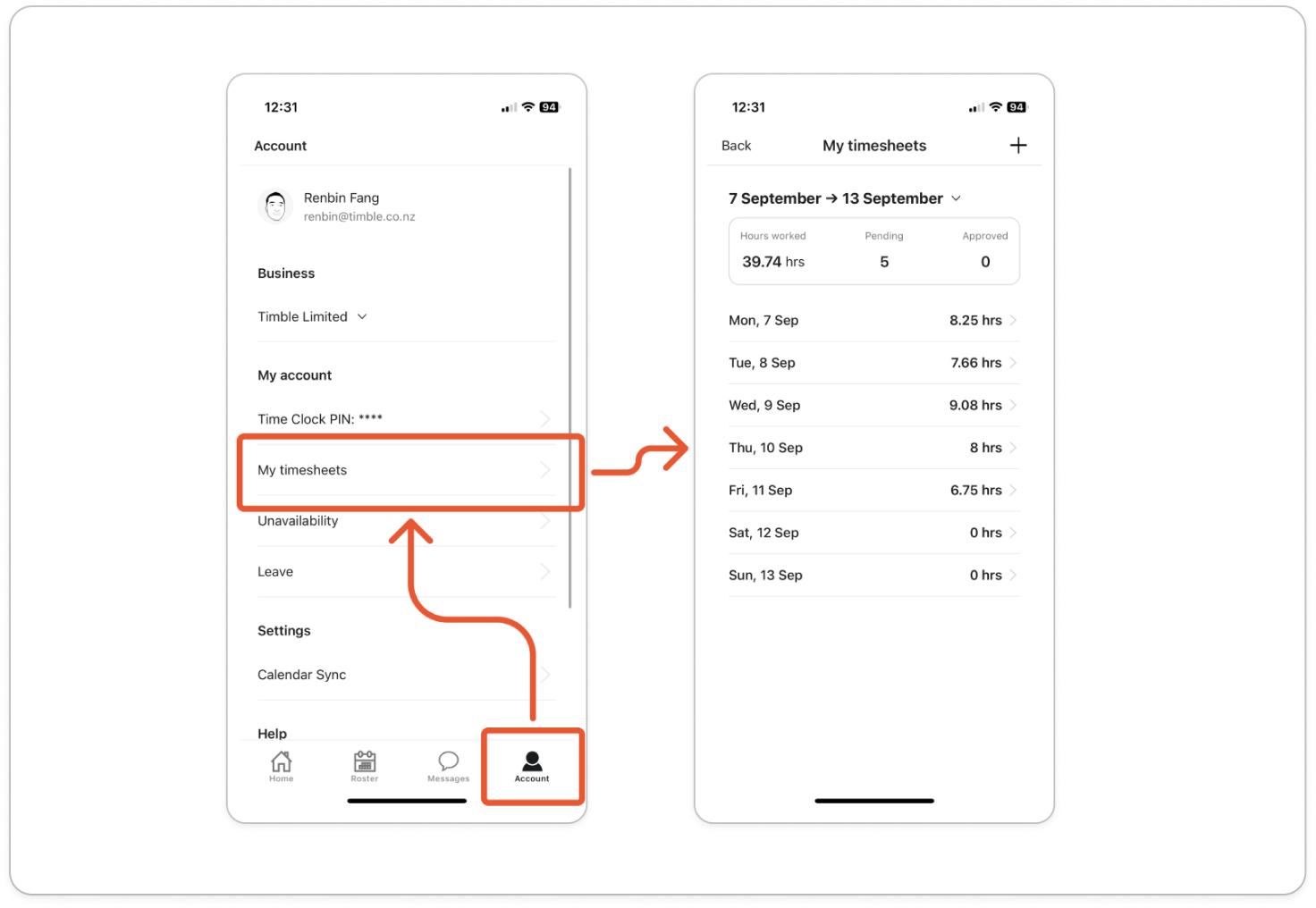
- Check the week at the top. It shows as two dates, such as 16 December → 22 December. To look at another week, tap the dates and pick any day in it.
- Read the box under the dates. Hours worked is your total for the week. Pending and Approved count the entries in each state, not the hours.
- Tap a day to open its entries. Each one shows the start and finish times and the hours between them, your role with its department and location, your meal and rest breaks in minutes, and a status label.
Tip: If you are still clocked in, the finish time shows as N/A until you clock out.
Note: Pending means your manager hasn't approved the entry yet. Approved means your manager has checked it and agreed to it.


