.svg)
See your own shifts on Home, then use the Roster tab to look at any week and to check who else is working.
- Open Timble and tap Home at the bottom. The Today card shows your shifts for today. If you aren't working, it says "You have no shifts today."
- Scroll down. Days are listed in order, starting with Tomorrow, and a day you aren't working says No shifts. Each shift shows its start and finish time and a coloured dot with your role.
Tip: Home covers today and roughly the next six weeks. Tap View all at the bottom to move to the Roster tab.
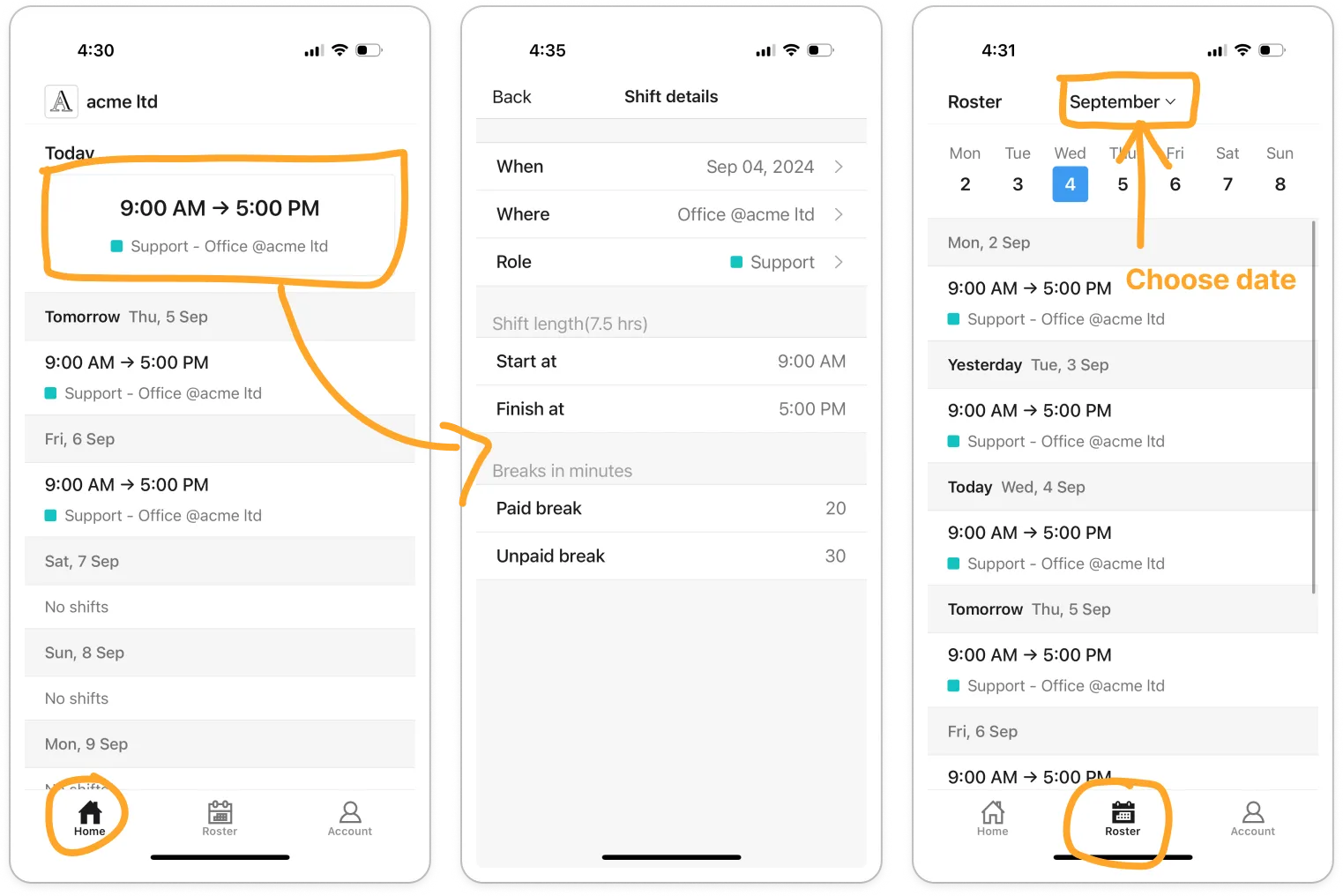
- Tap Roster at the bottom to look at any week. Tap a day in the strip at the top, or tap the month name to pick a date.
- Tap a shift to open Shift details.
- To see who else is working, tap Roster on the switch at the top. Everyone rostered in your departments is listed day by day, with the number of people on each day. Tap the button under the switch to change the location, departments or member you're looking at.
Note: If you can't see this in the app, your business hasn't turned it on for members. Ask your manager.
Note: Only shifts your manager has published reach your phone. If one you expected is missing, pull down to refresh. If it's still not there, the roster may not be out yet.


