.svg)
Add the hours for a shift you worked but didn't clock in for.
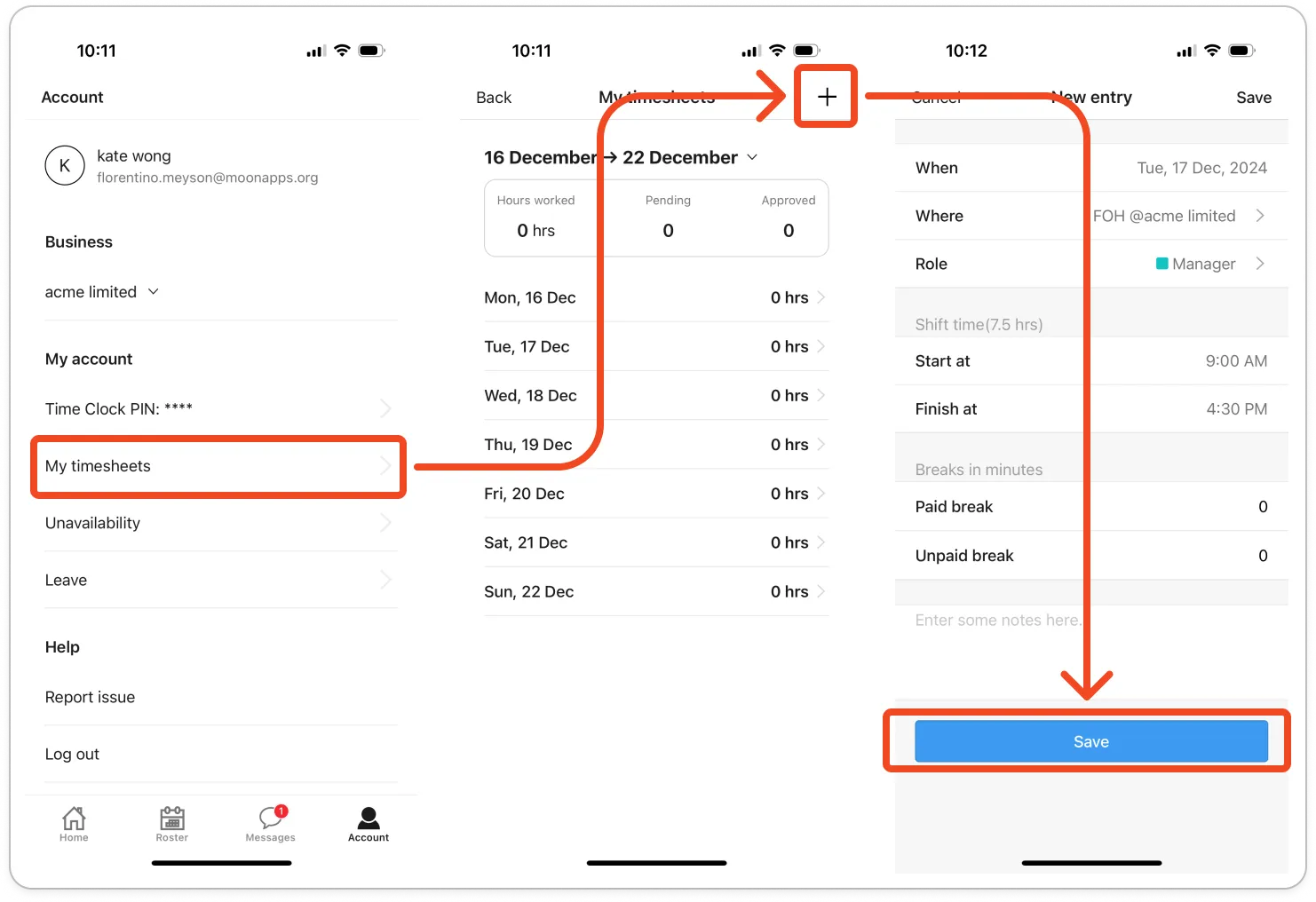
- Open Timble and tap Account at the bottom.
- Under My account, tap My timesheets.
- Tap + at the top right. The form that opens is called New entry.
Note: If you can't see this in the app, your business hasn't turned it on for members. Ask your manager.
- Tap When and pick the day you worked.
- Tap Where and pick your location, or your department and location.
- Tap Role and pick the role you worked. Not every location has this line.
- Tap Start at and Finish at and set your times. They move in 15 minute steps.
- Under Breaks in minutes, enter your Paid break and Unpaid break, or leave them at 0.
Tip: Shift time above your times shows your hours in brackets and updates as you go. Your unpaid break comes off those hours. Your paid break doesn't.
- Type anything your manager should know in the notes box.
- Tap Save.
Note: The entry shows as Pending on My timesheets until your manager has looked at it.
Edit an entry
While an entry shows as Pending, tap its day on My timesheets, then tap the entry. The form is called Edit entry. When and Where are fixed, so if the day or the place is wrong, ask your manager. Change anything else and tap Save.


