.svg)
Leave a short note with your punch, so your manager sees why the shift was different from the roster when they check your timesheet.
Note: If you can't see this in the app, your business hasn't turned it on for members. Ask your manager.
On the time clock tablet
- Tap your name on the member list.
- On the keypad, tap the pencil in the top right corner.
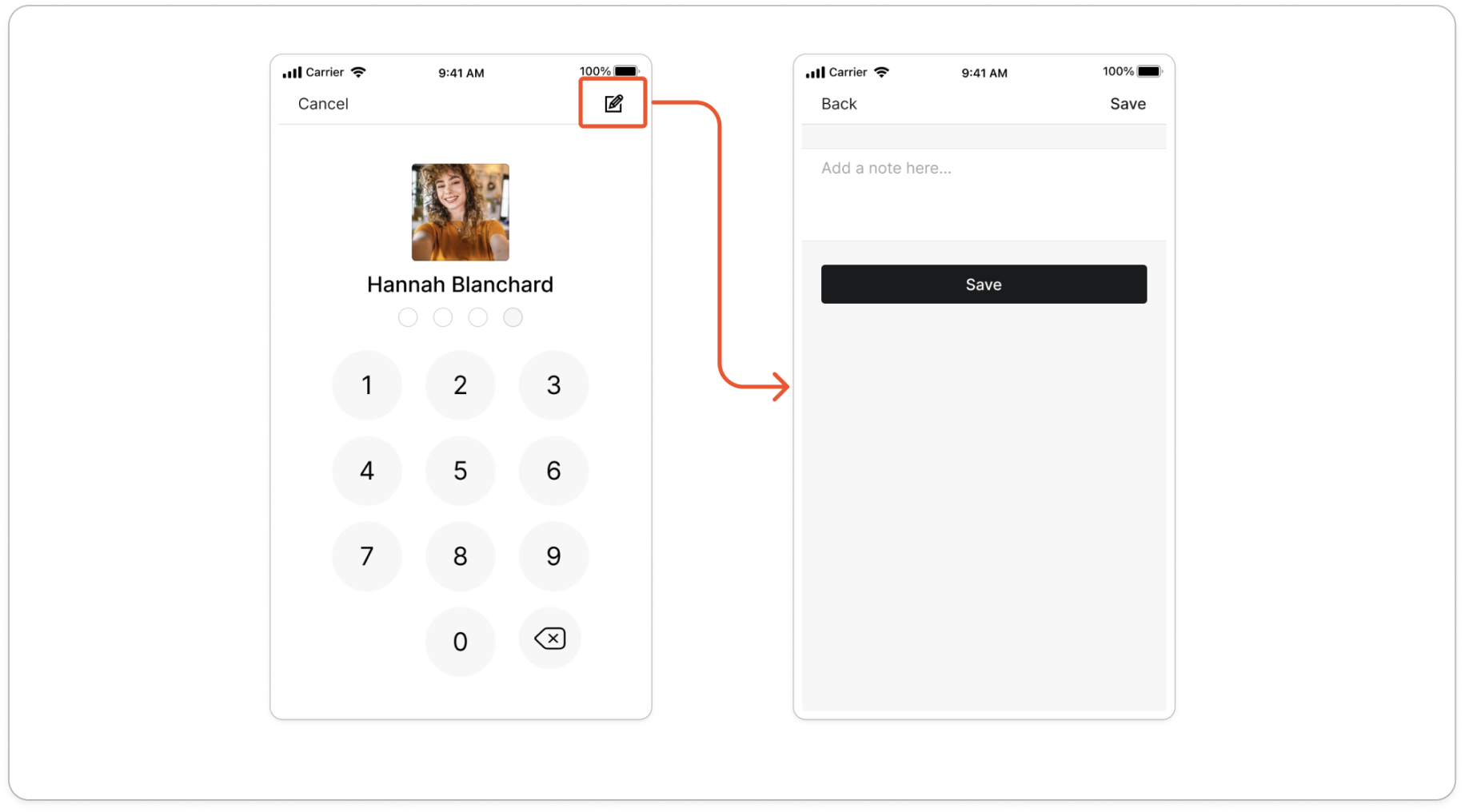
- Type your note where it says Add a note here....
- Tap Save.
- Type your PIN to punch.
Tip: The keypad doesn't show your note. To check or change it, tap the pencil again before you type your PIN.
On your own phone
- Tap the pencil in the top right corner.
- Type your note where it says Add a note....
- Tap the arrow button. Your note shows above Punch. Tap it to change it.
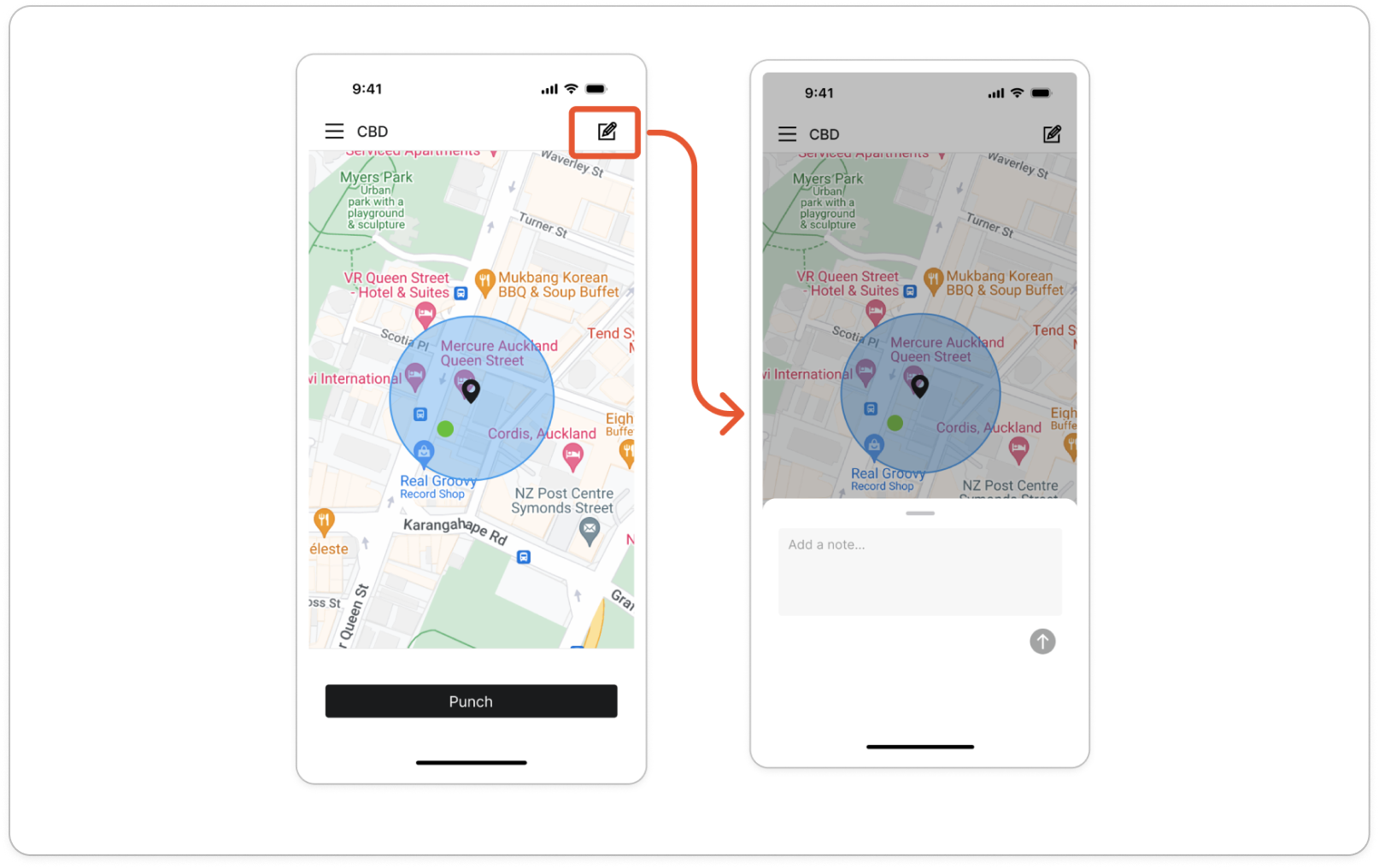
- Tap Punch.
Note: The note goes with that one punch and clears once it goes through. If you want a note when you clock out as well, add a new one first.


