.svg)
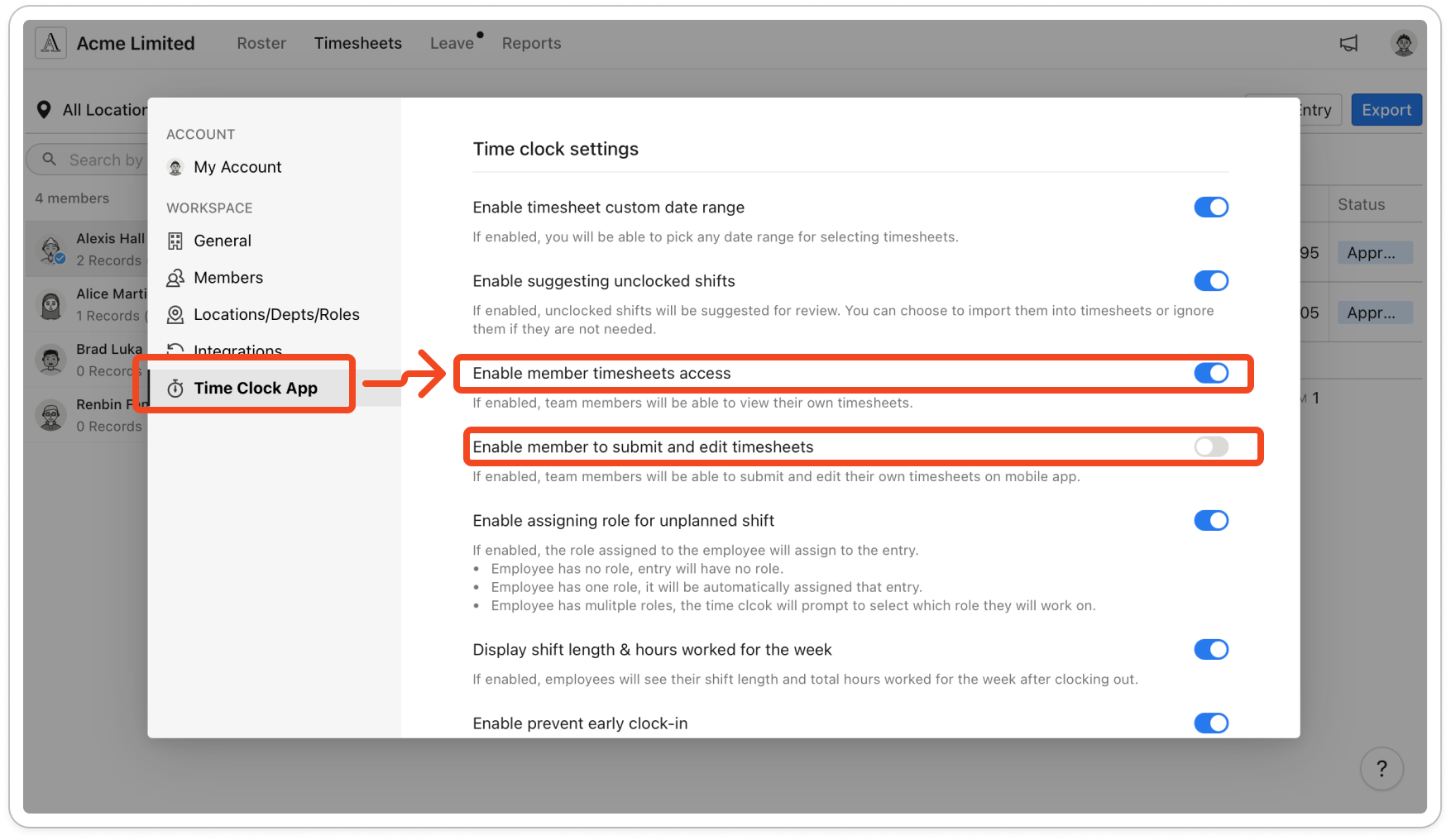
Two settings on the Time Clock App tab control this, and both are off until you turn them on.
If a member can't see My timesheets on their Account screen, member timesheets access is turned off. If they can see My timesheets but there is no + at the top right, submitting and editing is turned off. Submitting and editing is also off if they see "Timesheet submission and editing are disabled. Please speak with your manager and then try again." when they save an entry.
- Click your profile picture in the top right, then click Settings.
- Click Time Clock App on the left.
- Under Time clock settings, turn on Enable member timesheets access. Members can now see their own timesheets.
- To let members add and edit entries too, turn on Enable member to submit and edit timesheets. This switch only appears once Enable member timesheets access is on.
Note: Members need to fully close and reopen the mobile app before they see the change. Entries a member adds or edits stay Pending until a manager approves them. Only Pending entries can be edited.


