.svg)
The member most likely forgot to clock out, and only clocked out the next day or a few days later. The Actual column shows the clock-in and clock-out times but not the dates they fall on. An entry that reads 2:30 PM → 3:28 AM can be a single shift that ran across two days.
- Click Timesheets at the top of the page, then click the member's name in the list on the left.
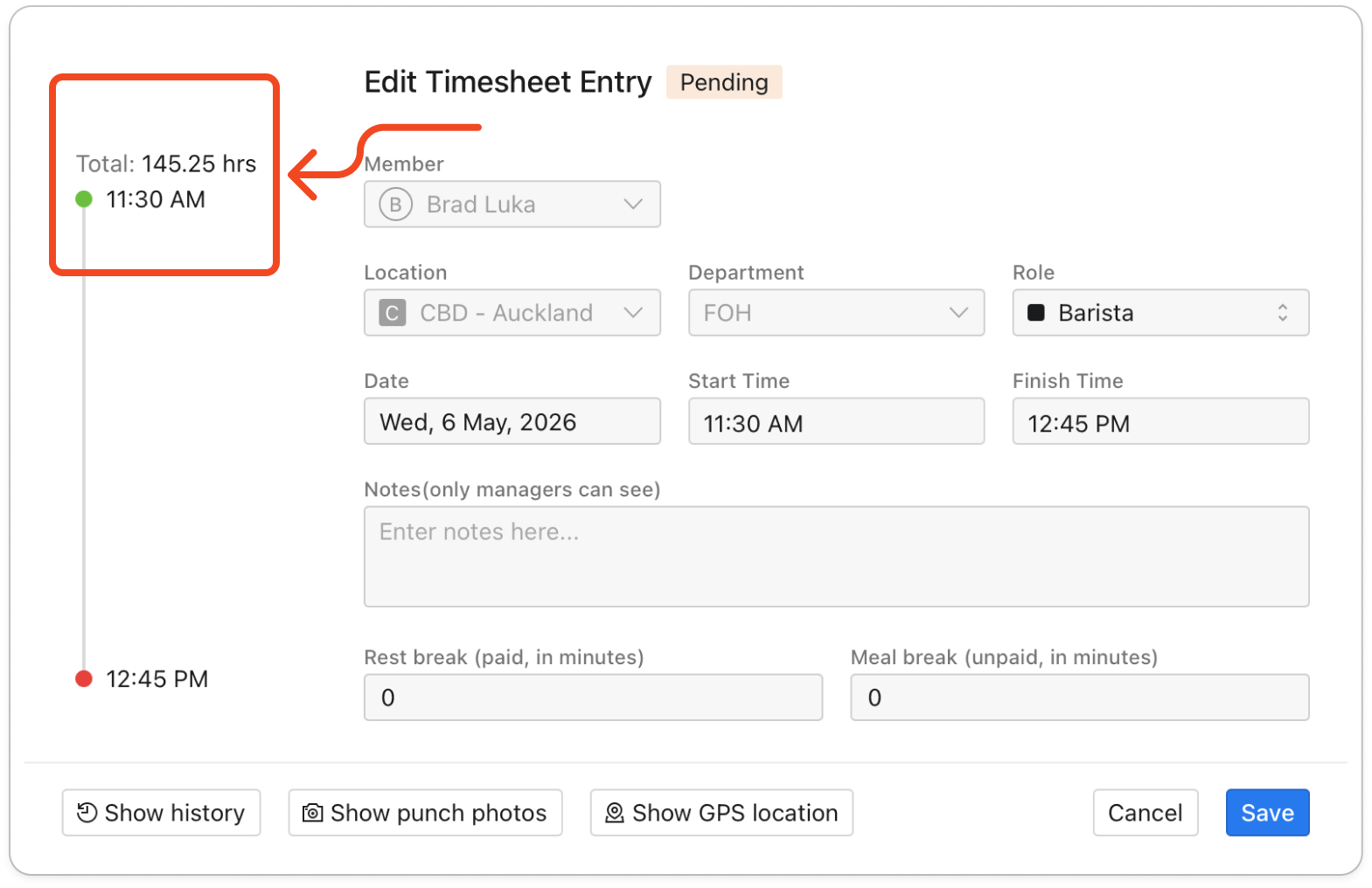
- Click the entry with the unusually long total in the Hours column. The Edit Timesheet Entry window opens.
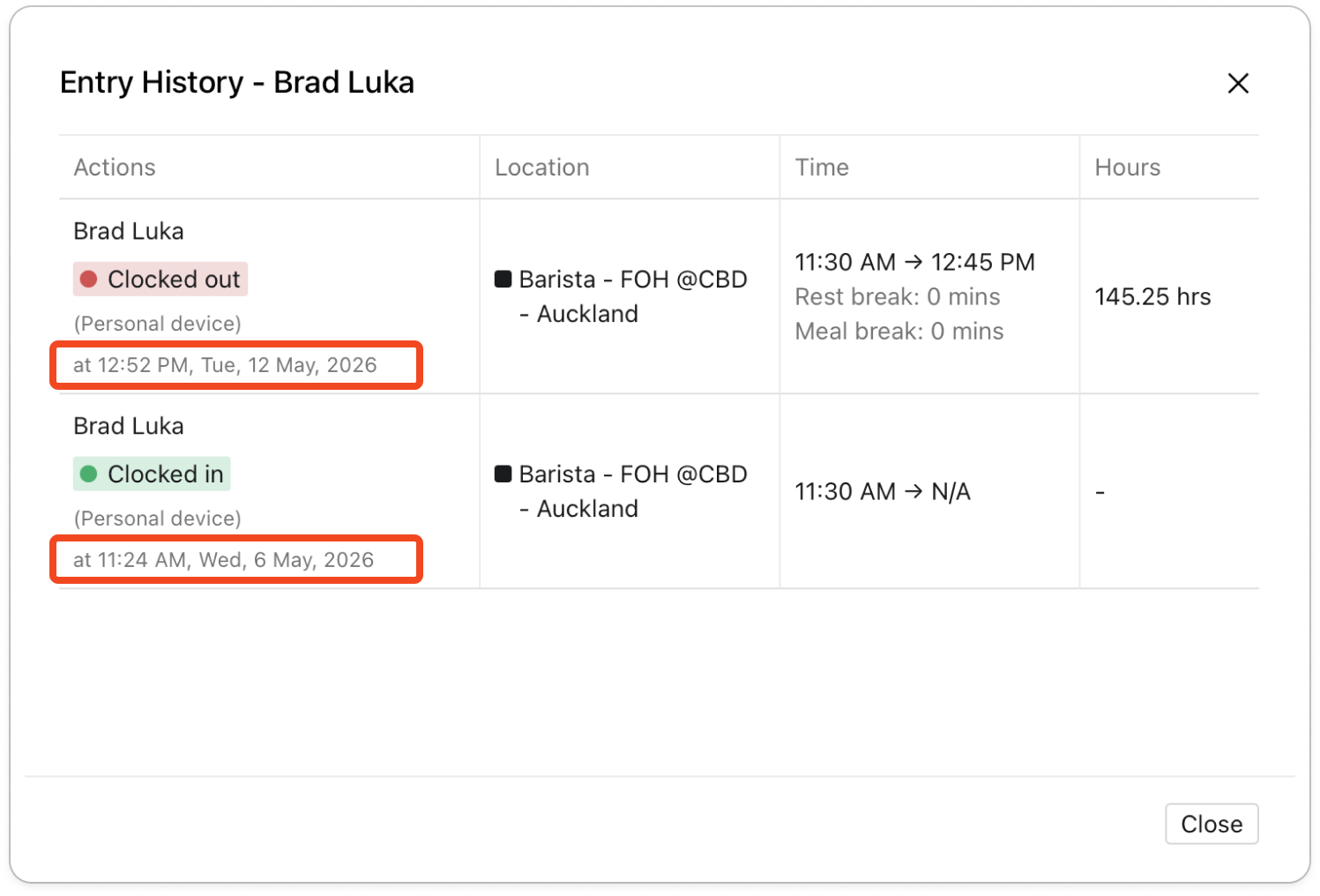
- Click Show history, then find the Clocked in and Clocked out rows. Under each of those labels is a line starting with "at", which gives the day and time that clock-in or clock-out happened.
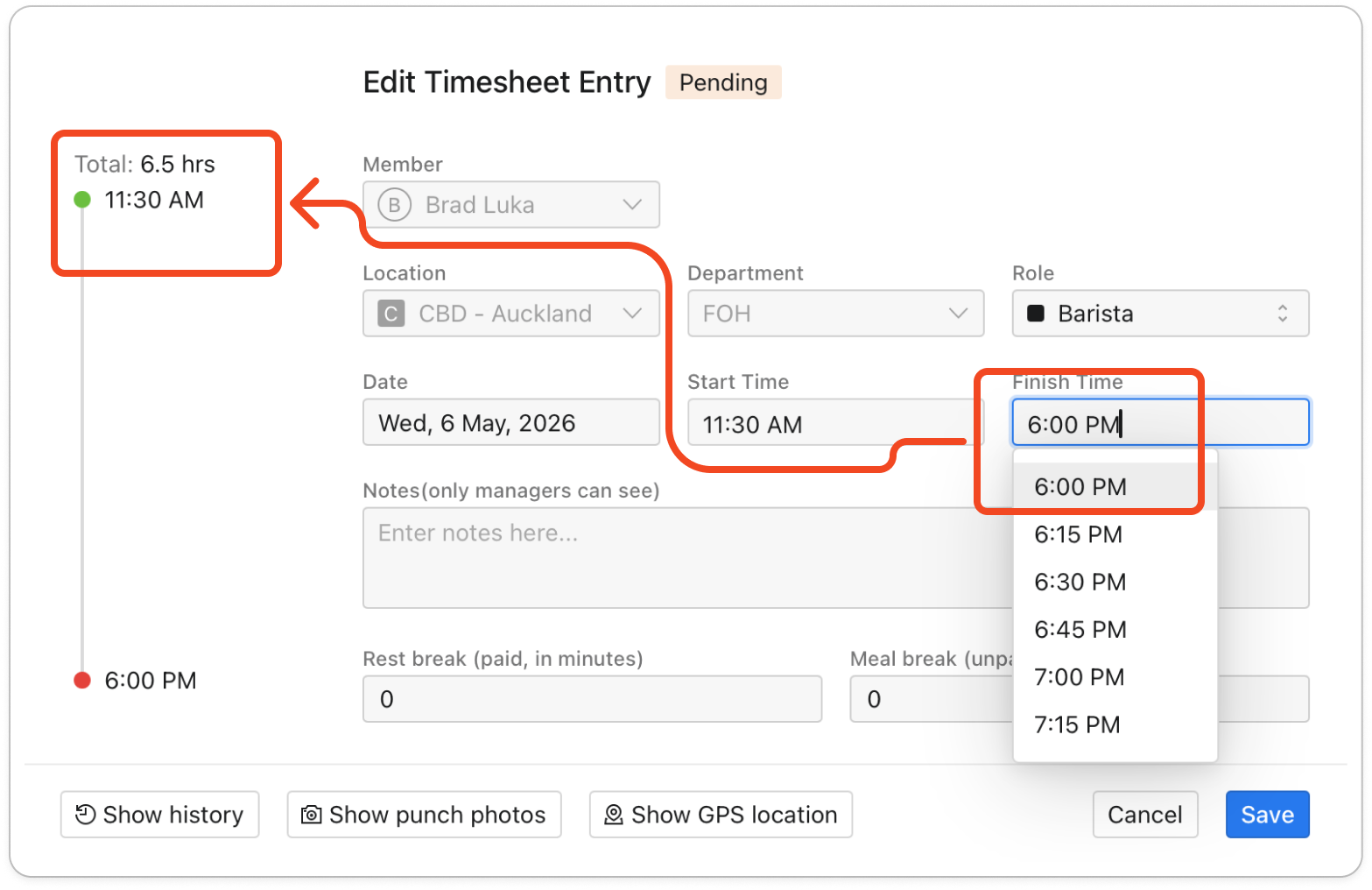
- Check with the member when they actually finished. Click Close to go back to the entry, change the Finish Time, then click Save. Timble puts the finish time on the entry's own date, unless the finish time is earlier than the start time, in which case it moves to the next day. The hours on the entry are then worked out again.