.svg)
Every timesheet entry keeps a history, so you can see who clocked in and out, who edited the entry, who approved or discarded it, and when each change was made.
- Click Timesheets at the top of the page.
- Click the member you want in the list on the left.
- Click the entry you want to check. The Edit Timesheet Entry window opens.
- Click Show history at the bottom left.
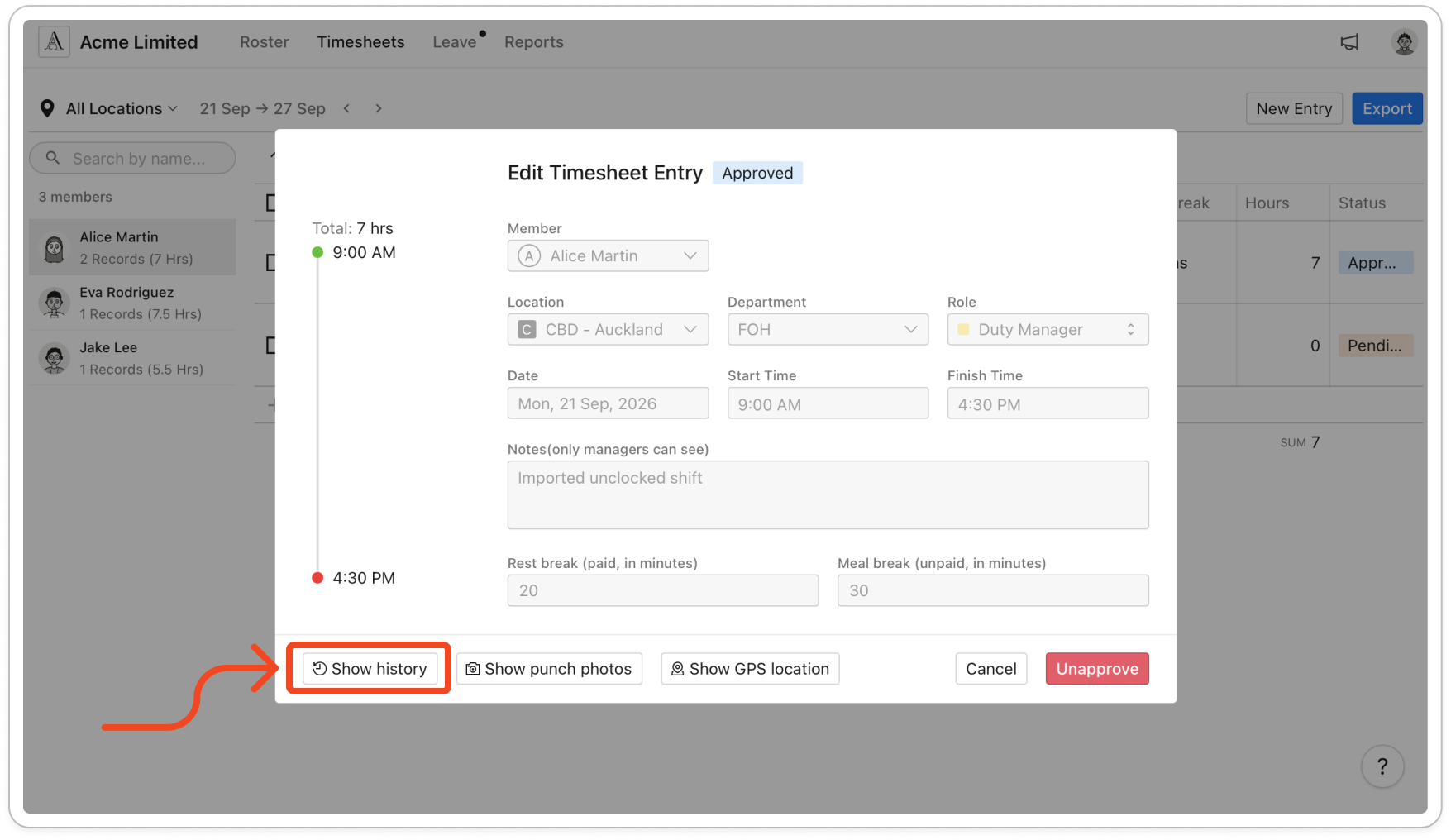
Tip: You can also hover over the entry's row and click the history icon at the right of the row. For a discarded entry, that icon is the only way to open the history, because a discarded entry doesn't open when you click it.
- Read the Entry History window, where the newest change sits at the top. Each row shows:
- Actions: the person who made the change, what they did, and the date and time of the change
- Location: the role, department and location recorded on the entry at that point in its history
- Time: the start and finish times, plus the rest and meal breaks in minutes on every row except Clocked in. While the member is still clocked in, the finish time shows N/A
- Hours: the hours on the entry after that change, or a dash while the member is still clocked in
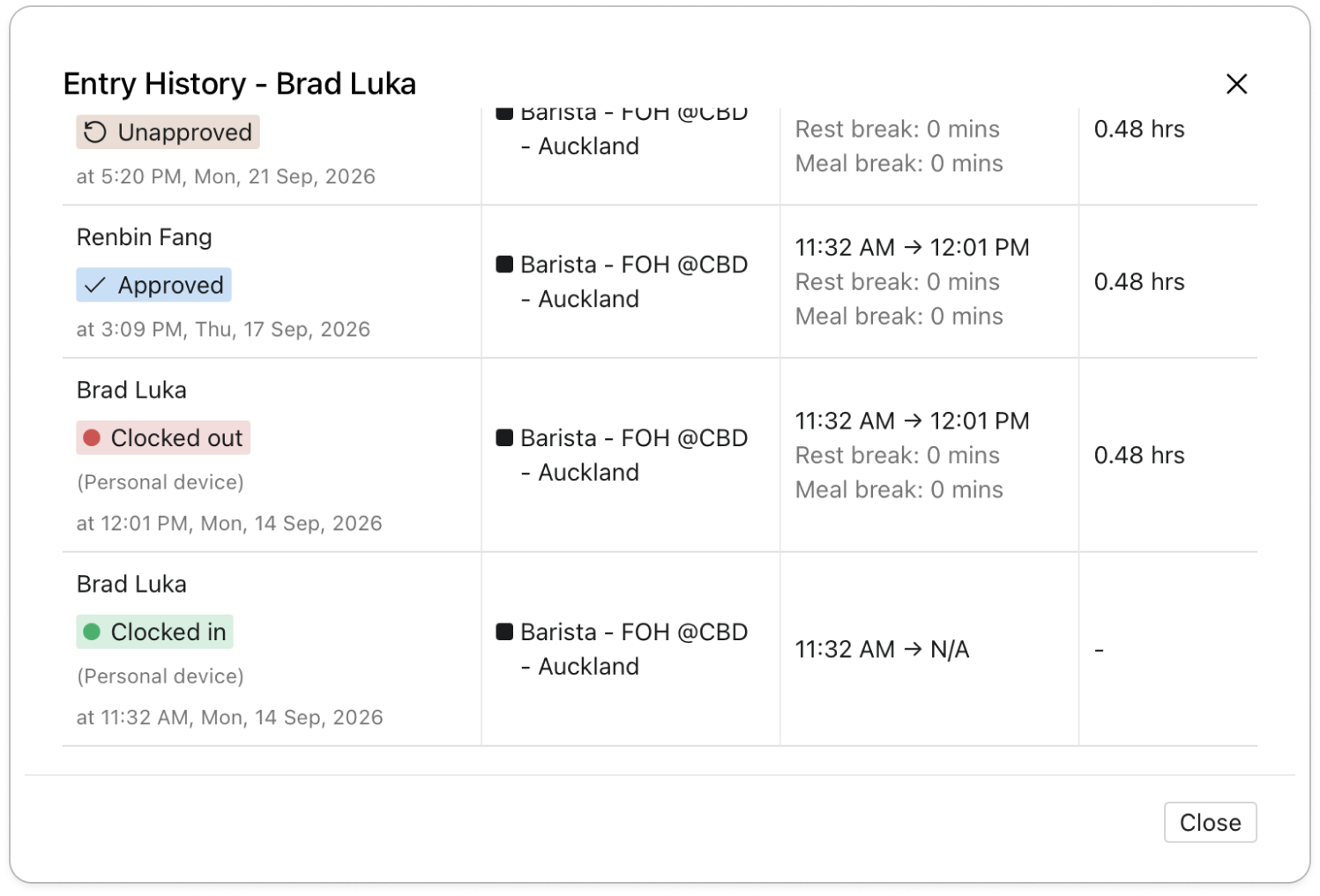
The actions are Clocked in, Clocked out, Started rest break, Ended rest break, Started meal break, Ended meal break, Added, Edited, Imported, Approved, Unapproved and Discarded. Imported means the entry was imported from a suggested unclocked shift.
Under the action, (On-site terminal) means the member used the time clock tablet, and (Personal device) means they used the time clock app on their own phone. (Mobile app) means the member added or edited the entry in the mobile app. A change made on the web app has no label.
- Click Close to go back to the entry.


