.svg)
See who is on leave, and who has asked for it, in one month view before you build the roster.
- Click Leave at the top of the page.
- Click Calendar in the list on the left. The current month opens, with the days running Monday to Sunday and today's date circled in red.
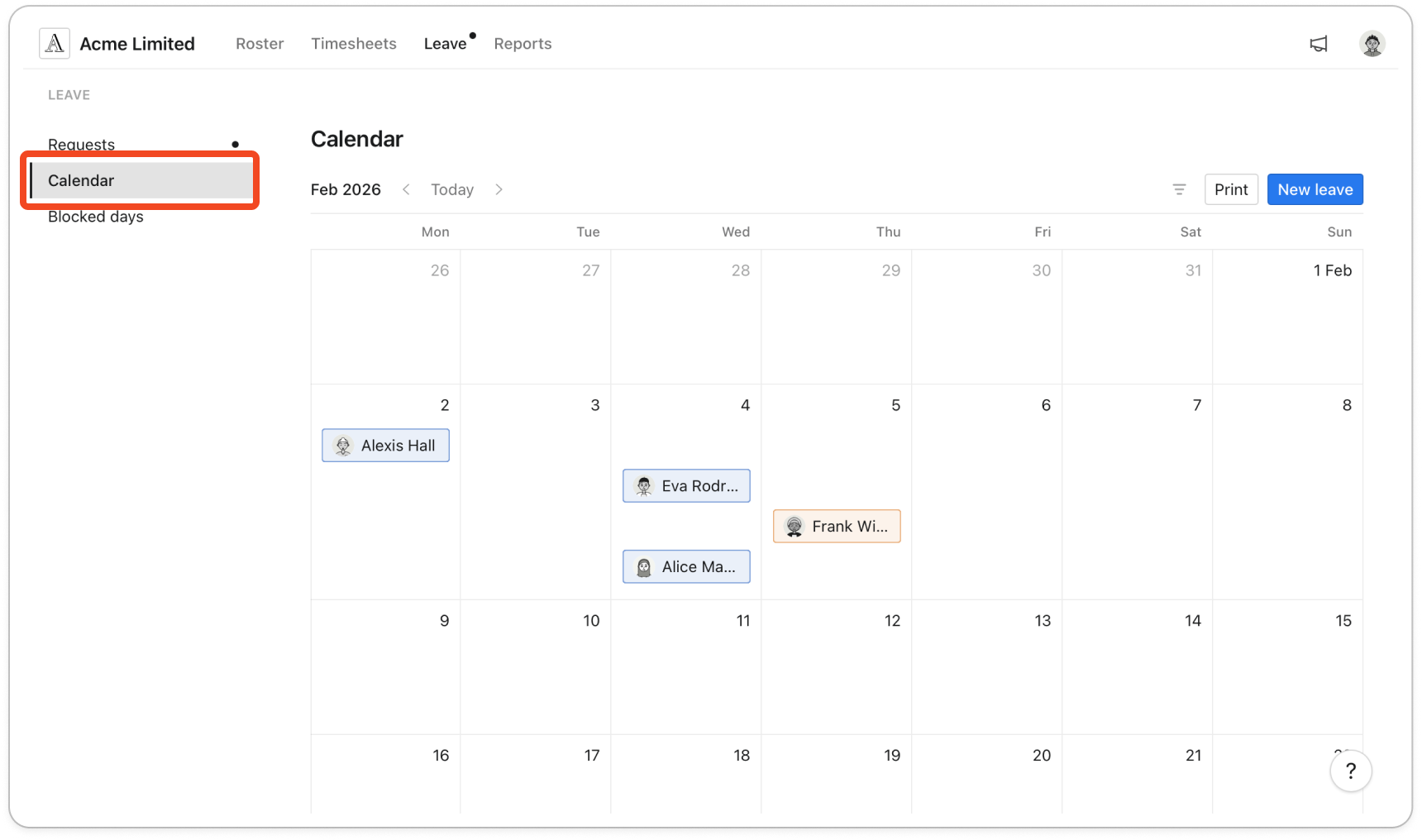
- Each bar on the calendar shows a member's name and runs across the days of their leave. A blue bar is approved leave. An orange bar is a pending request that has not been approved or declined yet. Declined requests do not appear on the calendar.
Note: The calendar only shows leave you can act on: the members you manage, plus your own requests. An admin sees leave for everyone in the business.
- Use the arrows beside the month name to move to another month. Click Today to jump back to the current month.
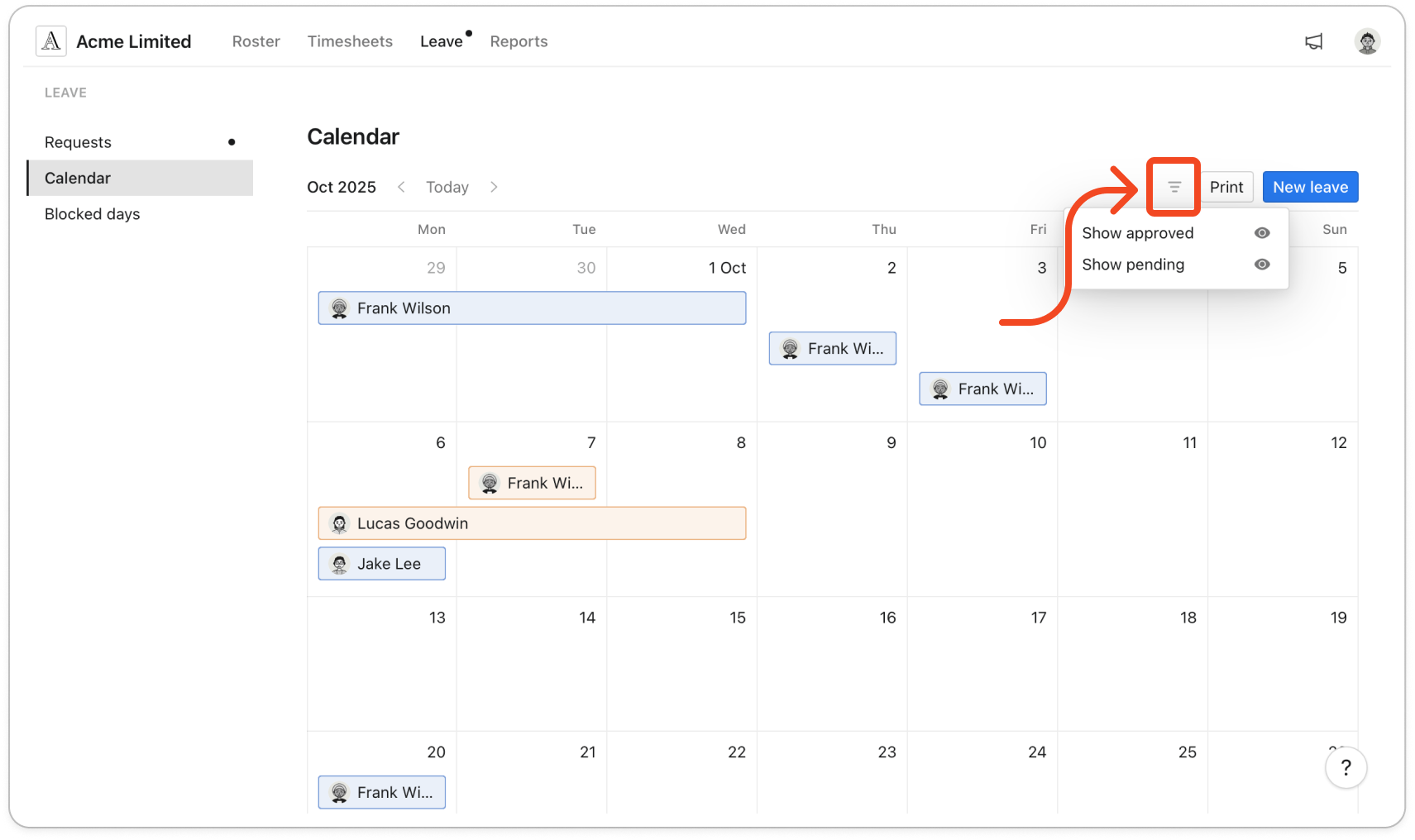
- To hide one status, click the filter icon on the right of the toolbar, then click Show approved or Show pending to turn that status off. Both are on by default, and the eye icon beside each one shows whether it is on.
- To print the month you are looking at, click Print. Your browser's print window opens with the calendar in it.


