.svg)
Save a typical week as a template, then load it into any week instead of building the roster again.
Save a rostered week as a template
- On the Roster page, go to a week rostered the way you want.
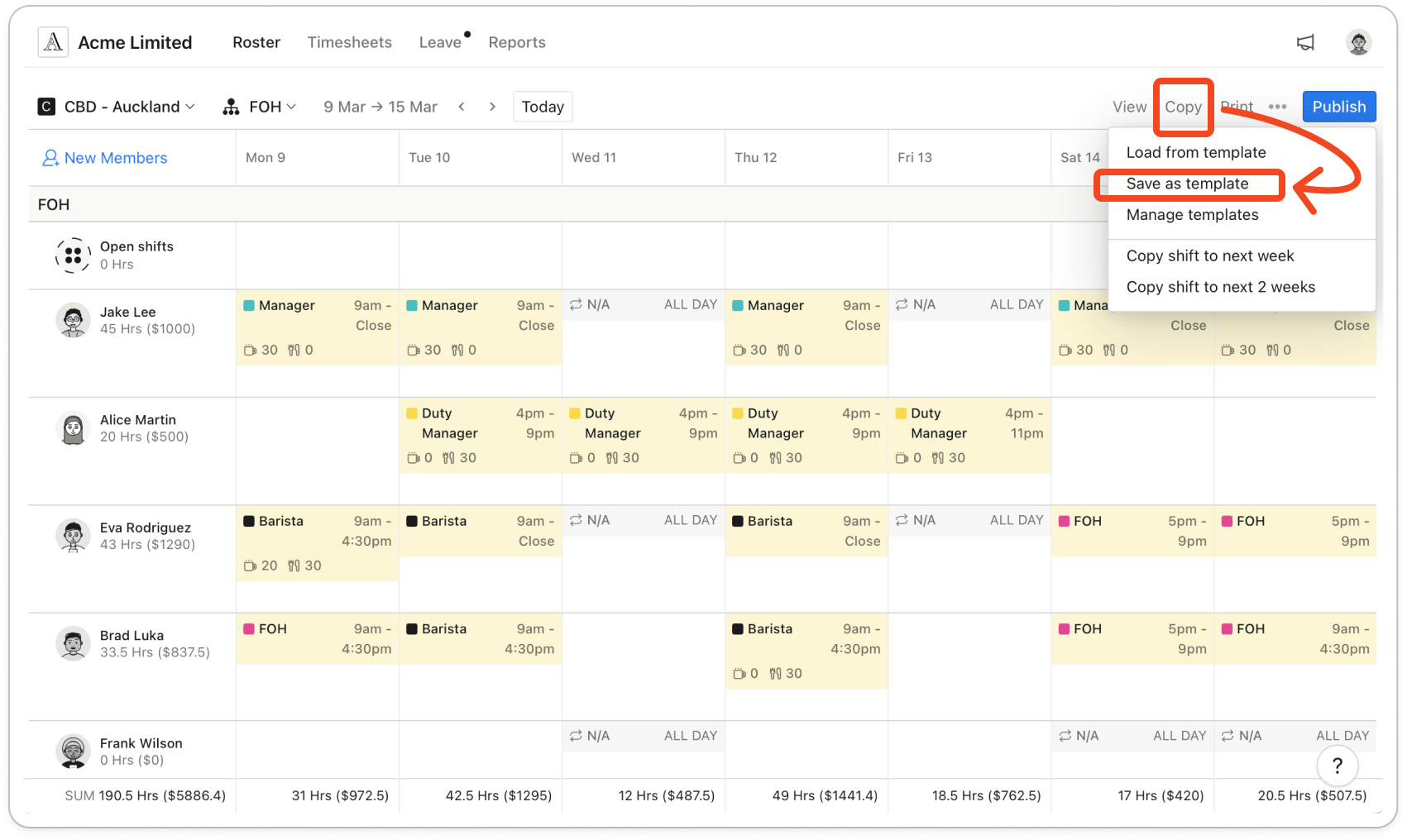
- Click Copy in the toolbar, then click Save as template.
Note: The template options only show in the weekly view. If they're missing, click View and choose Weekly.
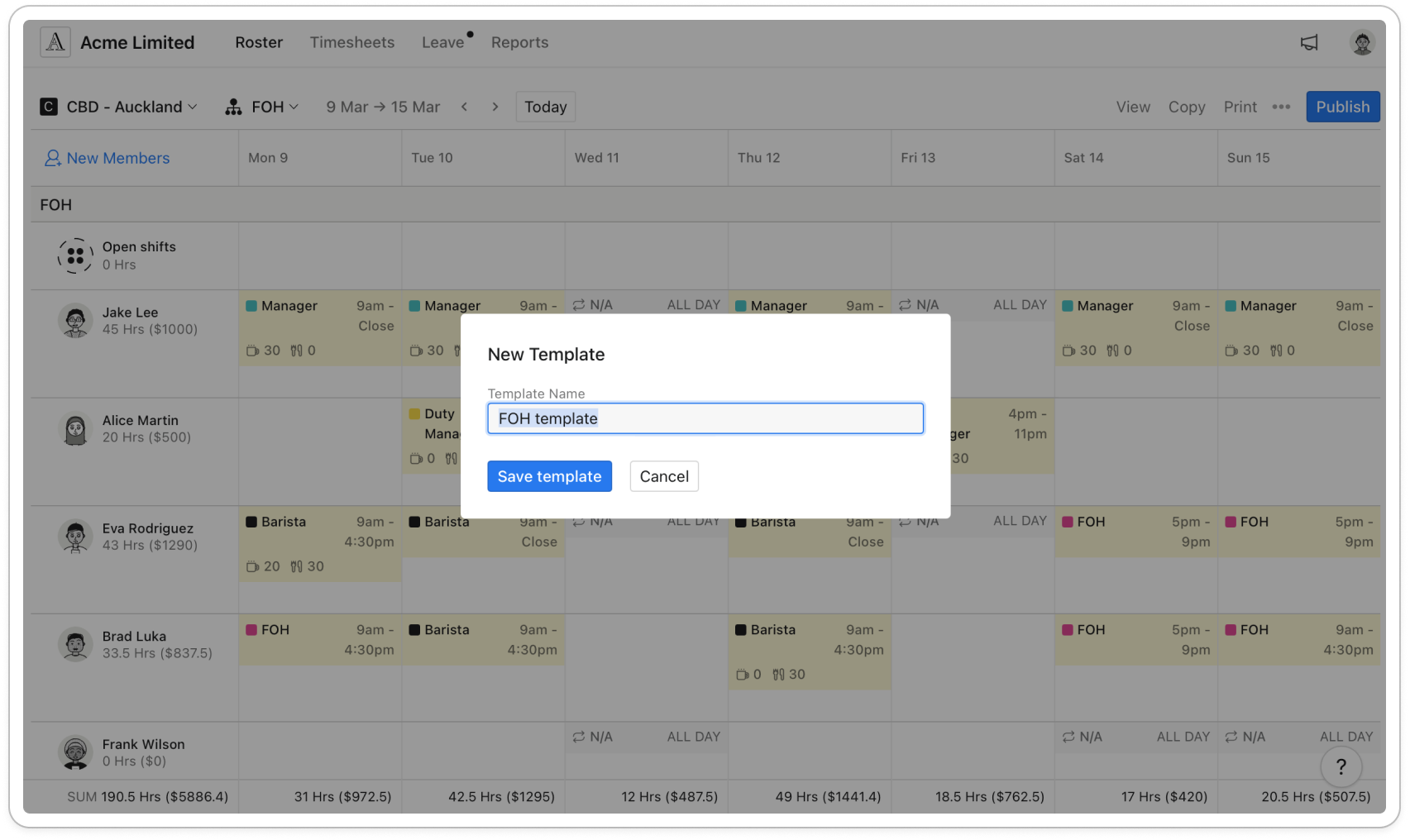
- Check the Template Name, which starts as the department name plus "template". If more than one department is showing, choose the Department.
- Click Save template. Every shift and open shift in that department for the week is saved. If the week is empty, no template is saved.
Build a template from scratch
- On the Roster page, click Copy, then click Manage templates.
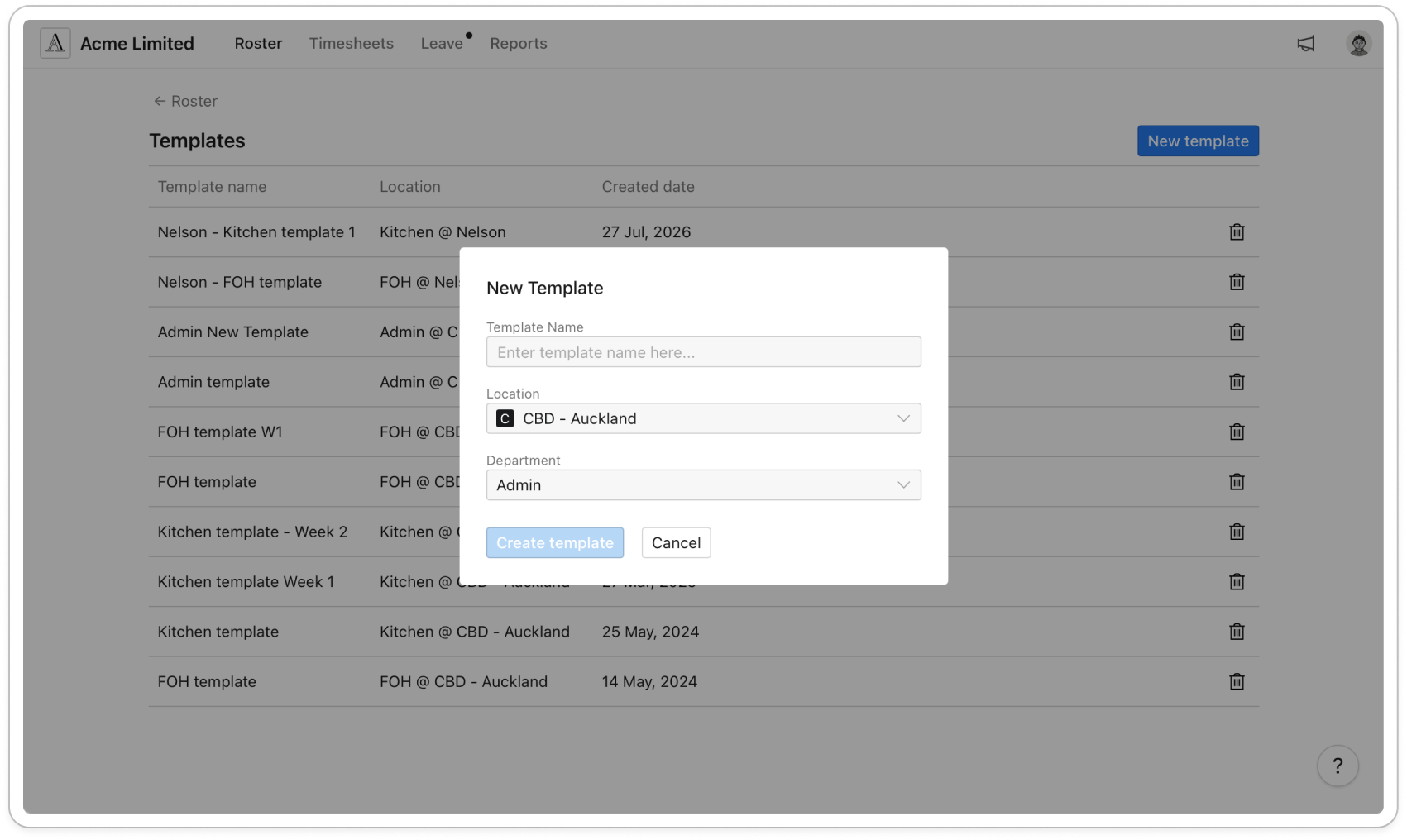
- On the Templates page, click New template.
- Enter a Template Name, choose the Location and Department, then click Create template.
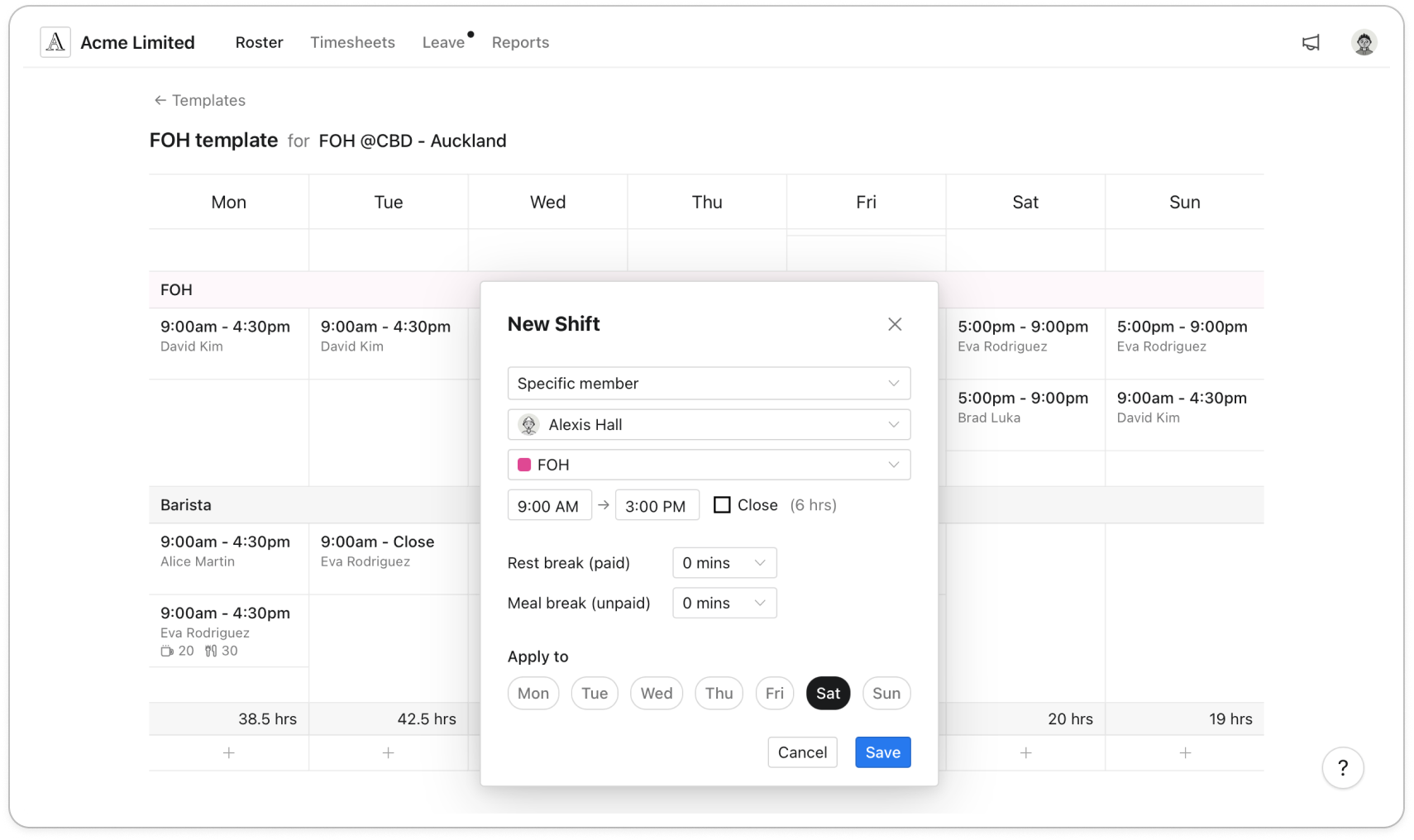
- Click the template to open it. It shows a row for each role and a column for each day.
- Point at a day in a role's row and click the plus.
- In New Shift, choose Open shift or Specific member, then pick the member.
- Set the times, Rest break (paid) and Meal break (unpaid). Under Apply to, pick any other days needing the same shift, then click Save.
To change or remove a shift, click it. To rename the template, click its name at the top.
To delete a template, click the bin icon on its row, then click Delete.
Load a template into a week
- On the Roster page, go to the week you want to fill.
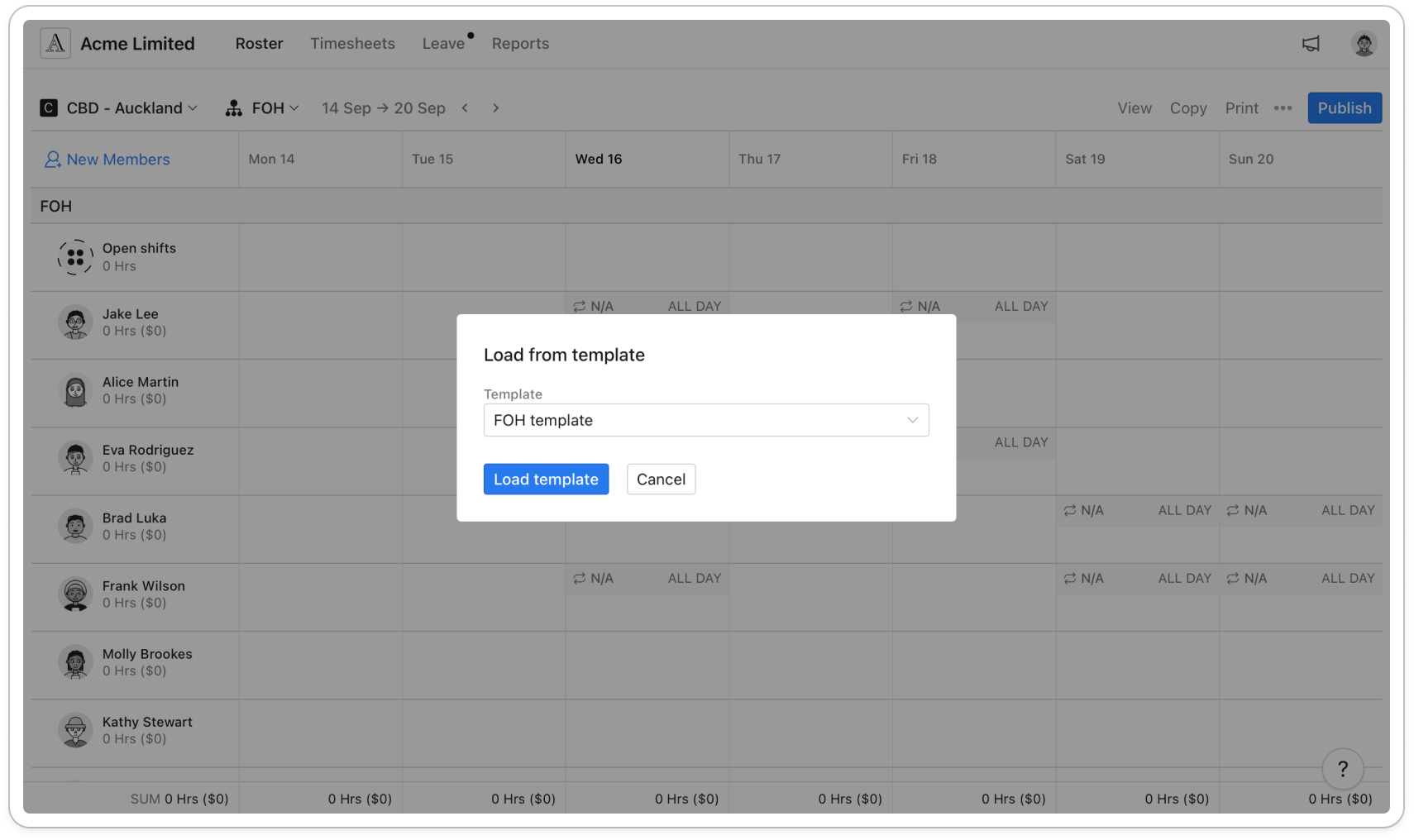
- Click Copy, then click Load from template.
- Choose the template under Template and click Load template. The shifts go into the department it was made for.
- Timble says "Template loaded successfully!". Check the week, then publish when you're ready.
Note: Loaded shifts are drafts, so members don't see them until you publish. Timble doesn't check for clashes or approved leave, so look for double-ups first. Shifts for a role the department no longer has are left out.
Give out unassigned shifts
An Unassigned shifts row appears at the top of the roster when a template shift can't go to its member: they have left the department, been deactivated, or no longer hold that role. Only loading a template puts a shift there.
- Drag a shift onto the member you want to work it, and it becomes their draft shift. It won't drop on a member without that role.
- To offer it to the team, drag it to the Open shifts row.
- To change its times, breaks or role first, click it, then Save. To get rid of it, click it and click Delete.
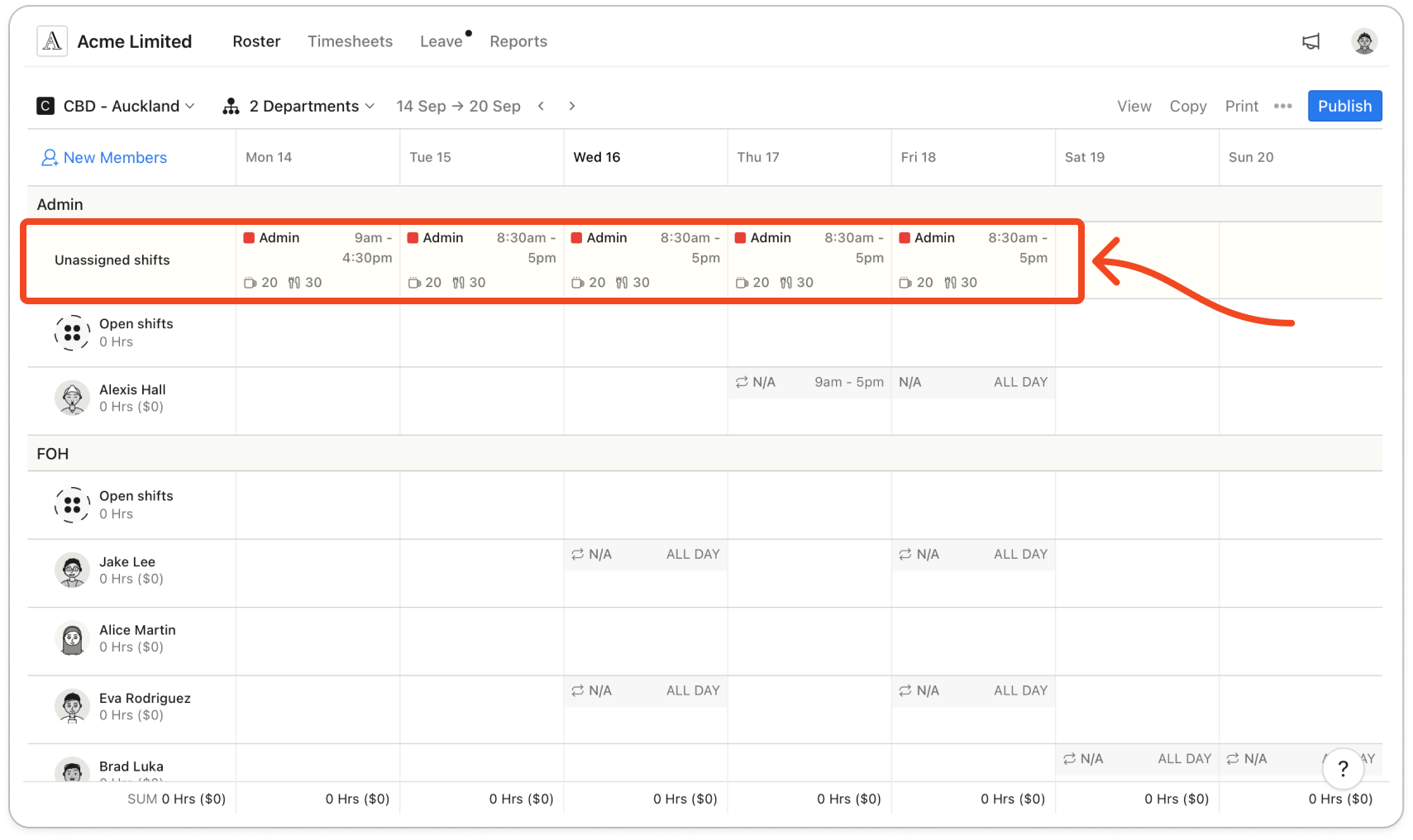
Note: Nobody is rostered on while a shift sits in this row, and members never see it. The row goes once it's empty.


