.svg)
Replace the card that Timble charges for your subscription.
- Click your profile picture in the top right, then click Settings.
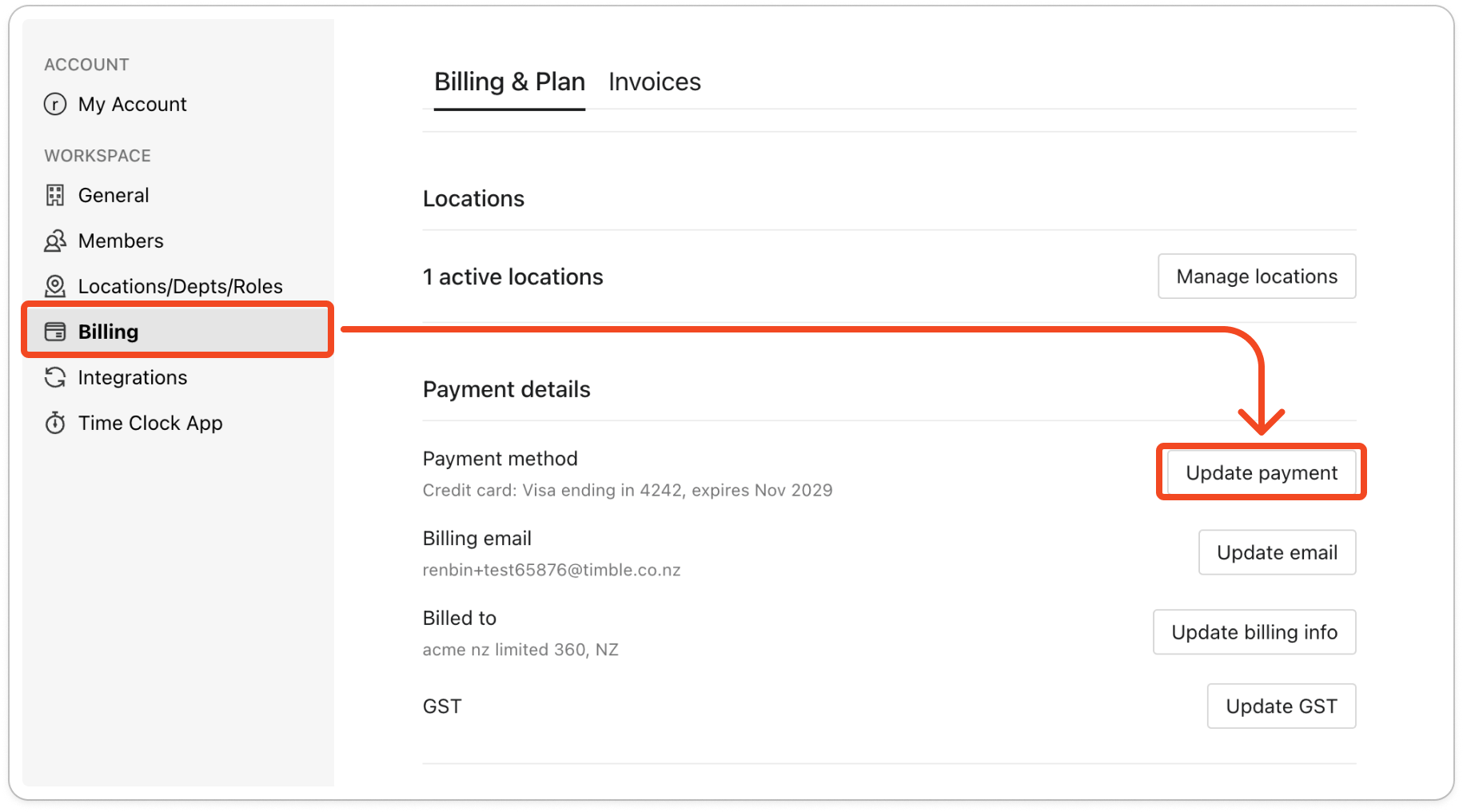
- Click Billing on the left. The Billing & Plan tab opens.
Note: If the tab says "Your account is on manual billing.", Timble doesn't hold a card for you. Email support@timble.co.nz about payment instead.
- Scroll down to Payment details. The Payment method row shows the card you pay with now, with its last four digits and expiry date.
- Click Update payment.
- In the Update your payment method window, enter the new card's details.
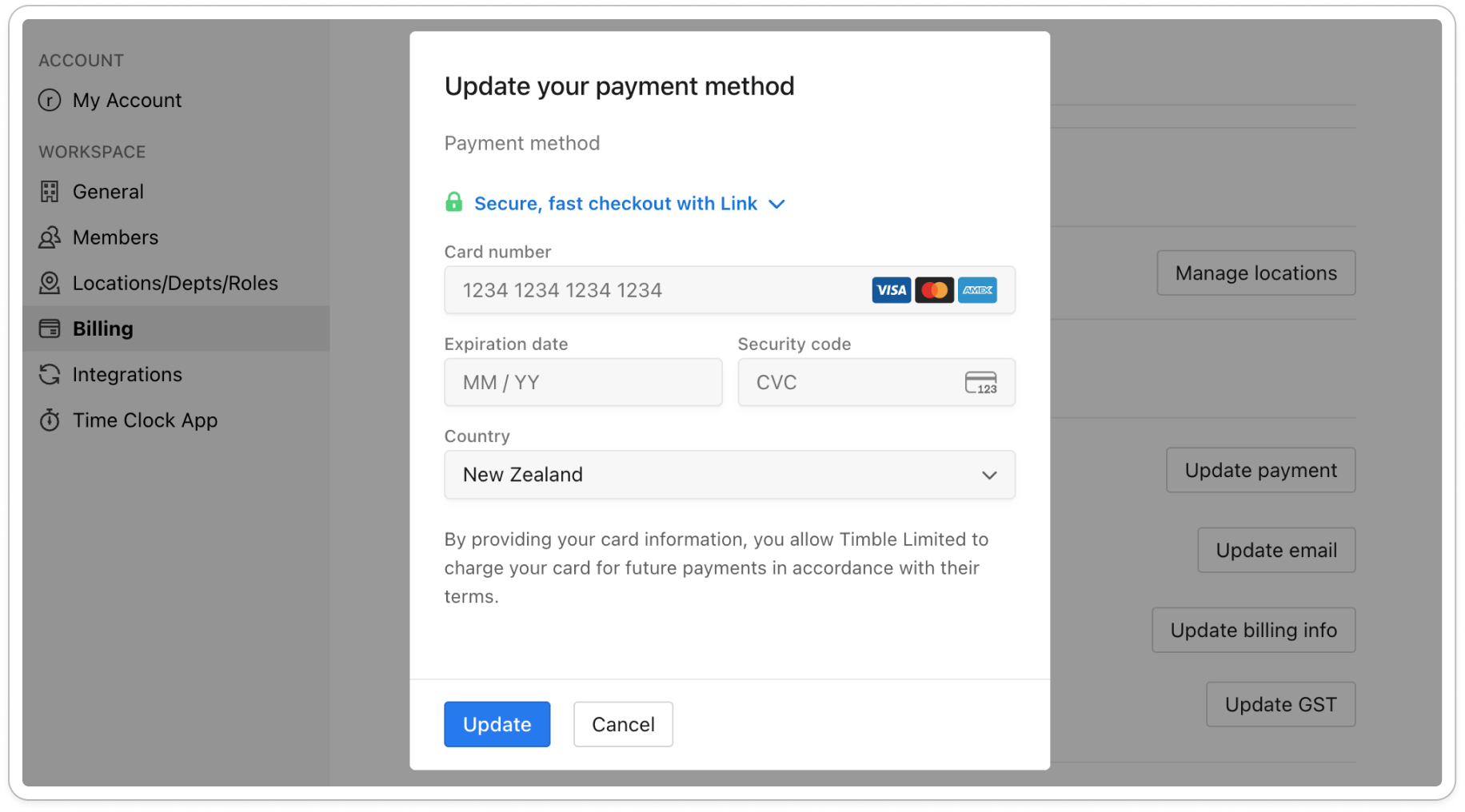
- Click Update.


