.svg)
Keep the details on your Timble invoices up to date: where the invoices are sent, who they are billed to, and your GST number.
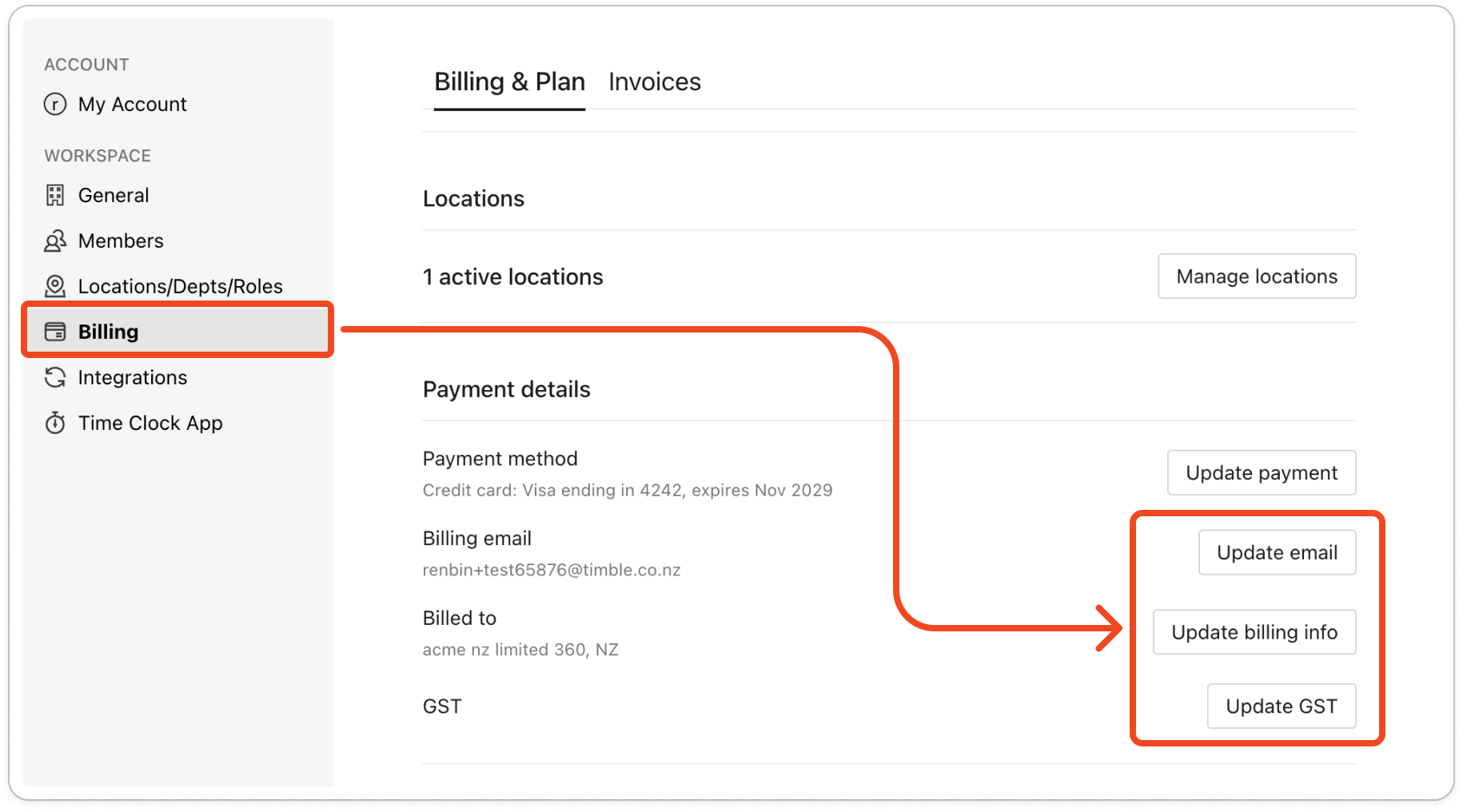
All three are in the Payment details section of the Billing tab.
- Click your profile picture in the top right, then click Settings.
- Click Billing on the left. The Billing & Plan tab opens.
- Scroll down to Payment details. You'll see your current Billing email, the name and address under Billed to, and your GST number, each with its own button.
Change the billing email
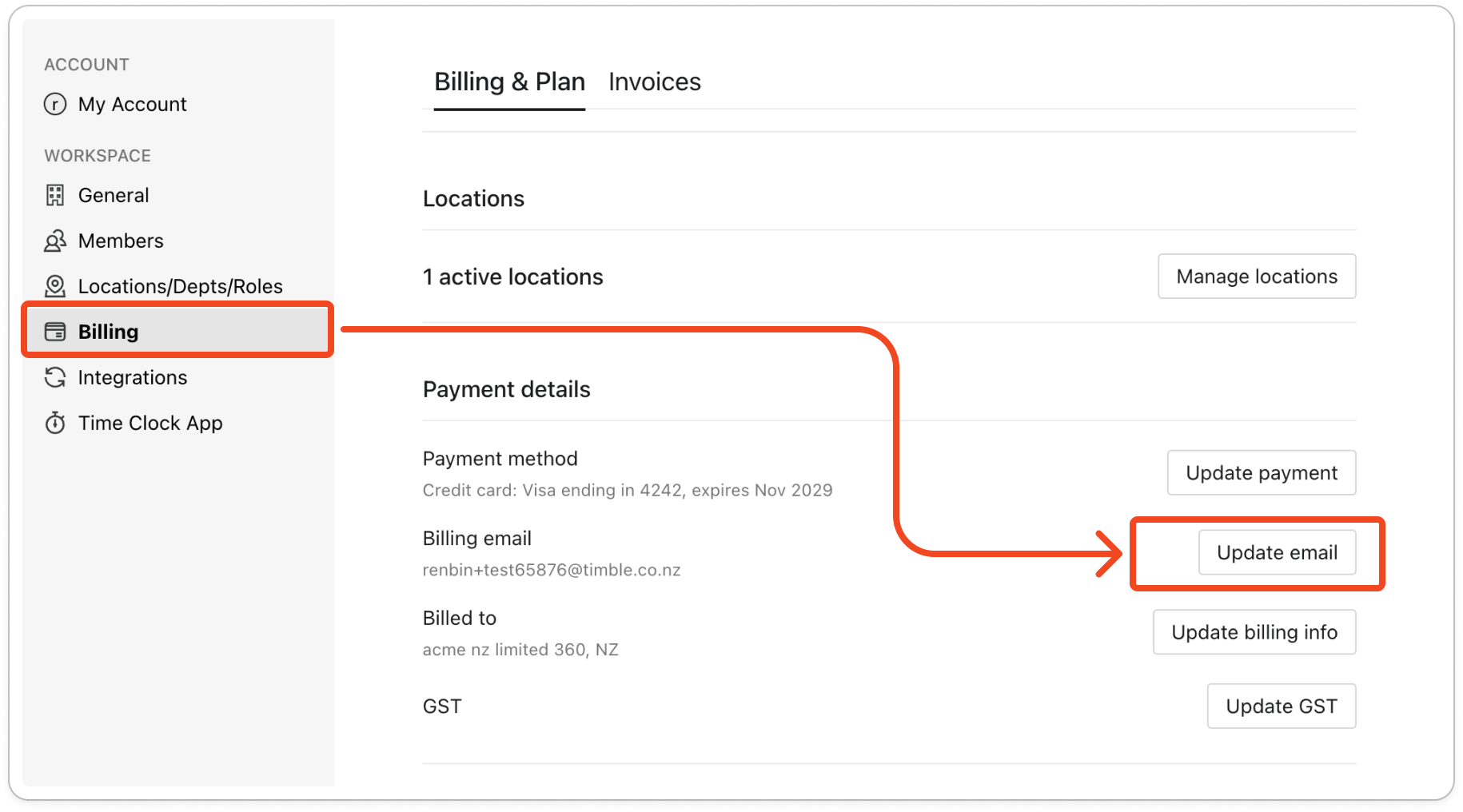
- Beside Billing email, click Update email.
- In the Update billing email window, replace the address in the Email field.
- Click Update.
Note: The billing email is separate from the email you sign in to Timble with. Changing one doesn't change the other, so your sign-in stays the same when invoices start going to a new address.
Change the name and address on your invoices
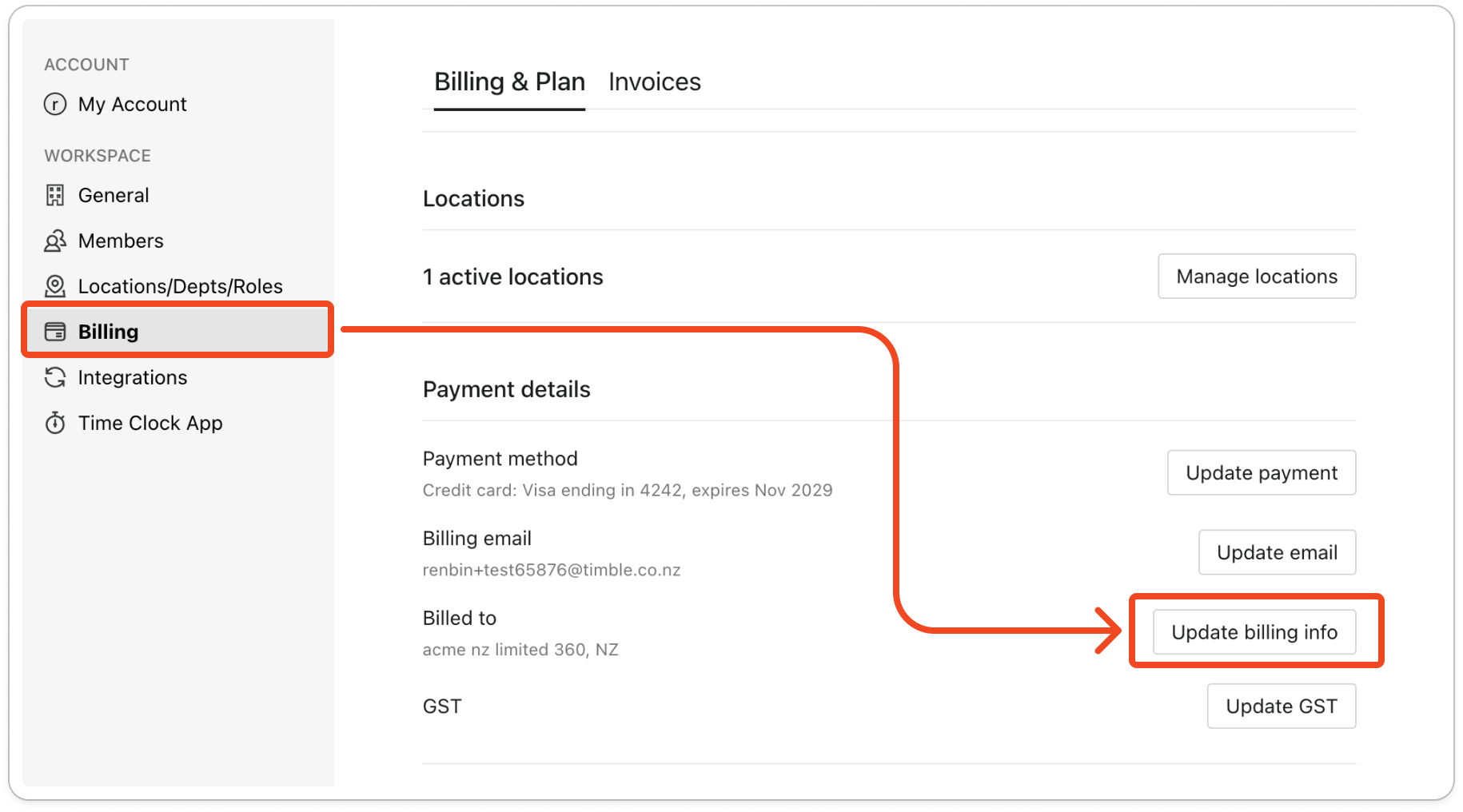
- Beside Billed to, click Update billing info.
- In the Update billing info window, change the name, country or address.
- Click Update. The new details appear under Billed to.
Add or change your GST number
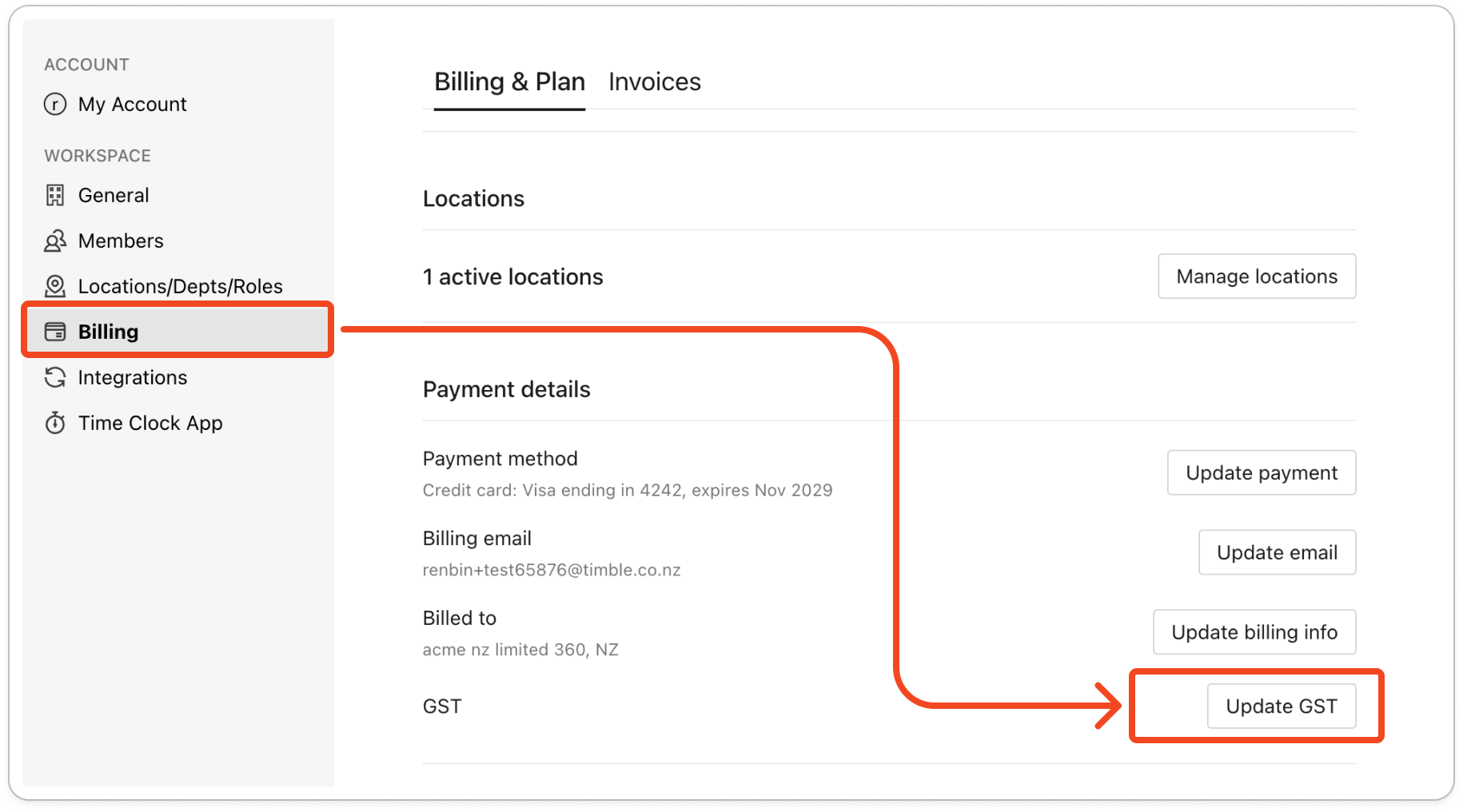
- Beside GST, click Update GST.
- In the Update GST window, type your GST number into the GST field. The field starts empty each time, so type the full number even if you're only correcting one digit.
- Click Update. The number now shows under GST on the Billing tab.
Note: Saving a GST number replaces the one you had before. The number is displayed on your invoices from then on.


