.svg)
Turn on the time clock so your members can clock in and out with the Timble Time Clock app.
- Click your profile picture in the top right, click Settings, then click Time Clock App.
If your Timesheets page shows Setup Timble Time Clock to collect timesheets, you can click Enable Time Clock App there instead. It opens the same tab.
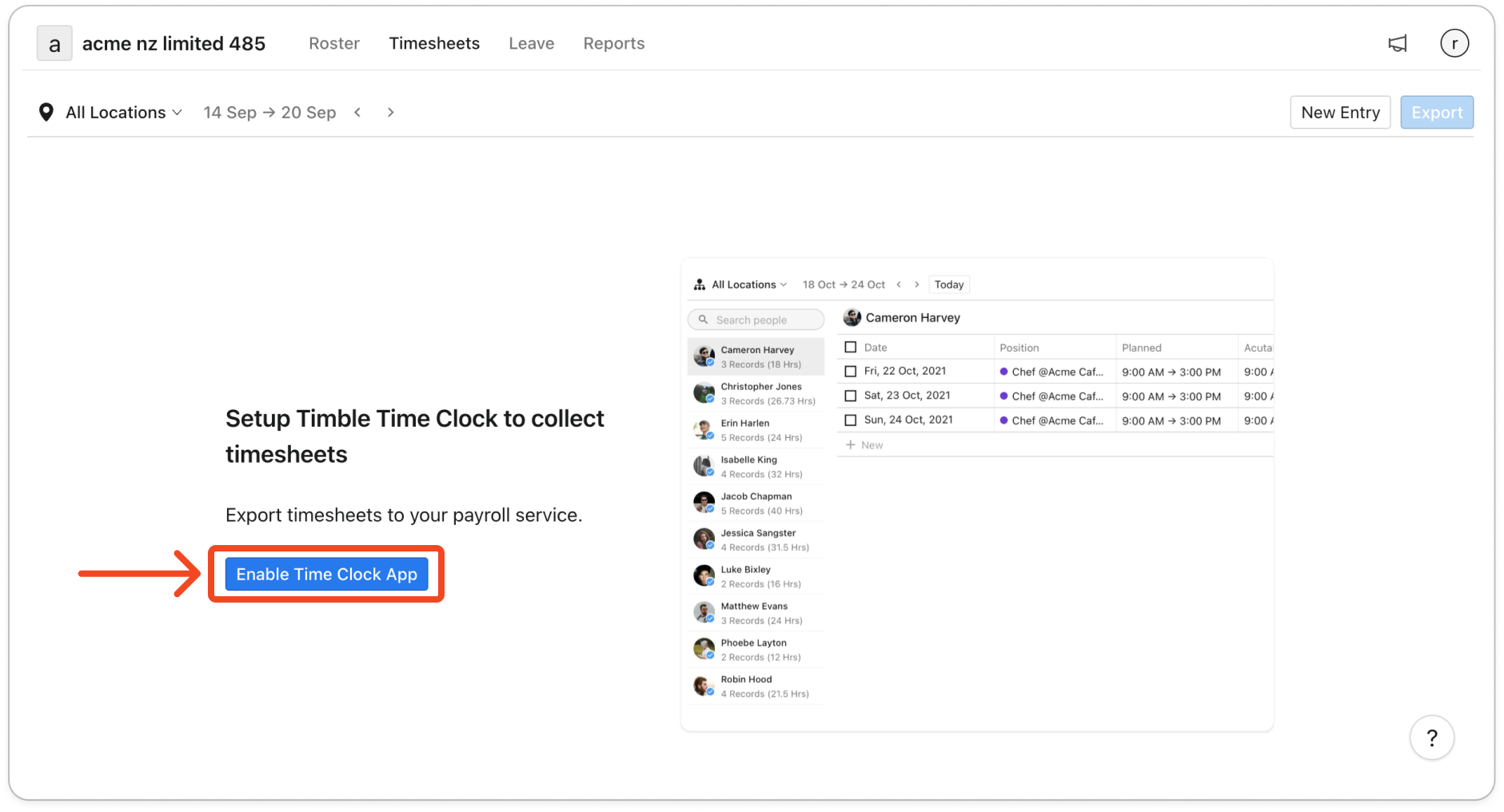
- Under Time clock settings, click Enable Time Clock App.
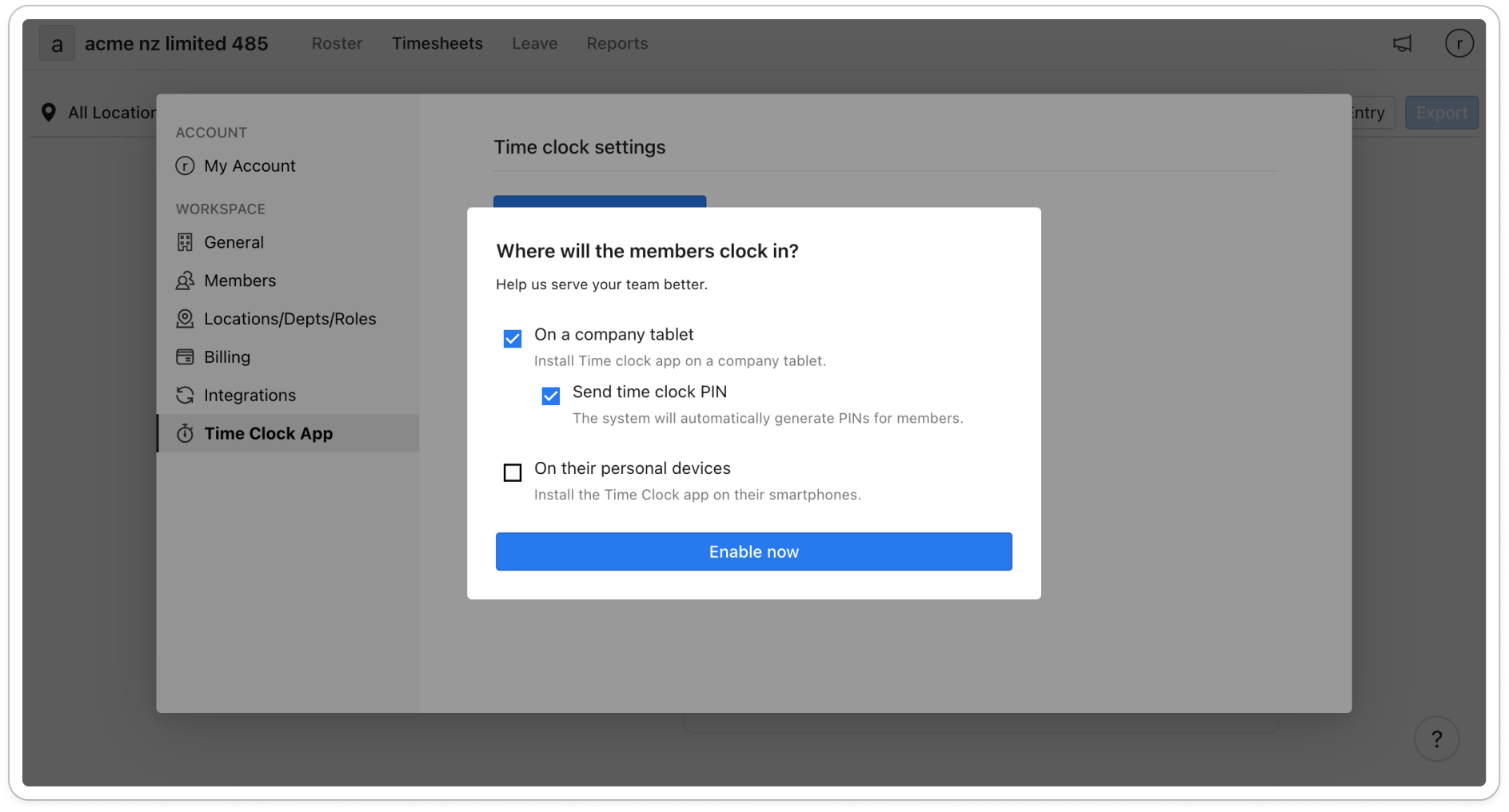
- In the Where will the members clock in? window, tick the places your members will clock in:
- On a company tablet if members share a tablet at your workplace.
- Send time clock PIN, under it, to email members the PIN they type on the tablet.
- On their personal devices if members clock in on their own phones.
You can tick both places. The two place ticks tell Timble how you plan to use the time clock and don't change any setting. Only Send time clock PIN changes what happens next.
Note: Ticking On their personal devices doesn't let members clock in on their own phones. Once the time clock is on, turn on Enable member time clock under Time clock(personal devices) on the same tab.
- Click Enable now.
- A window confirms it's done, with App Store and Google Play links for the Timble Time Clock app. If you ticked Send time clock PIN and some members have no email address, it lists their names and PINs under Members have no email, inform them PIN in person. Give those members their PIN yourself, then click Okay.
Note: The window always says members will receive their PIN by email, but PINs are only emailed if you ticked Send time clock PIN. Members have a PIN either way. To email PINs later, open Members in Settings and click Send Time Clock PIN.


