.svg)
Mark what happened on a shift: Late, Sick, No-show or Shift covering.
Note: You can only tag a shift that is already on the roster, and tagging one doesn't turn a published shift back into a draft.
On the web
- Click Roster in the top bar.
- Click the shift you want to tag.
- Click the tag icon beside the times.
- Under Tag shift as, click the tag you want, or None to take one off.
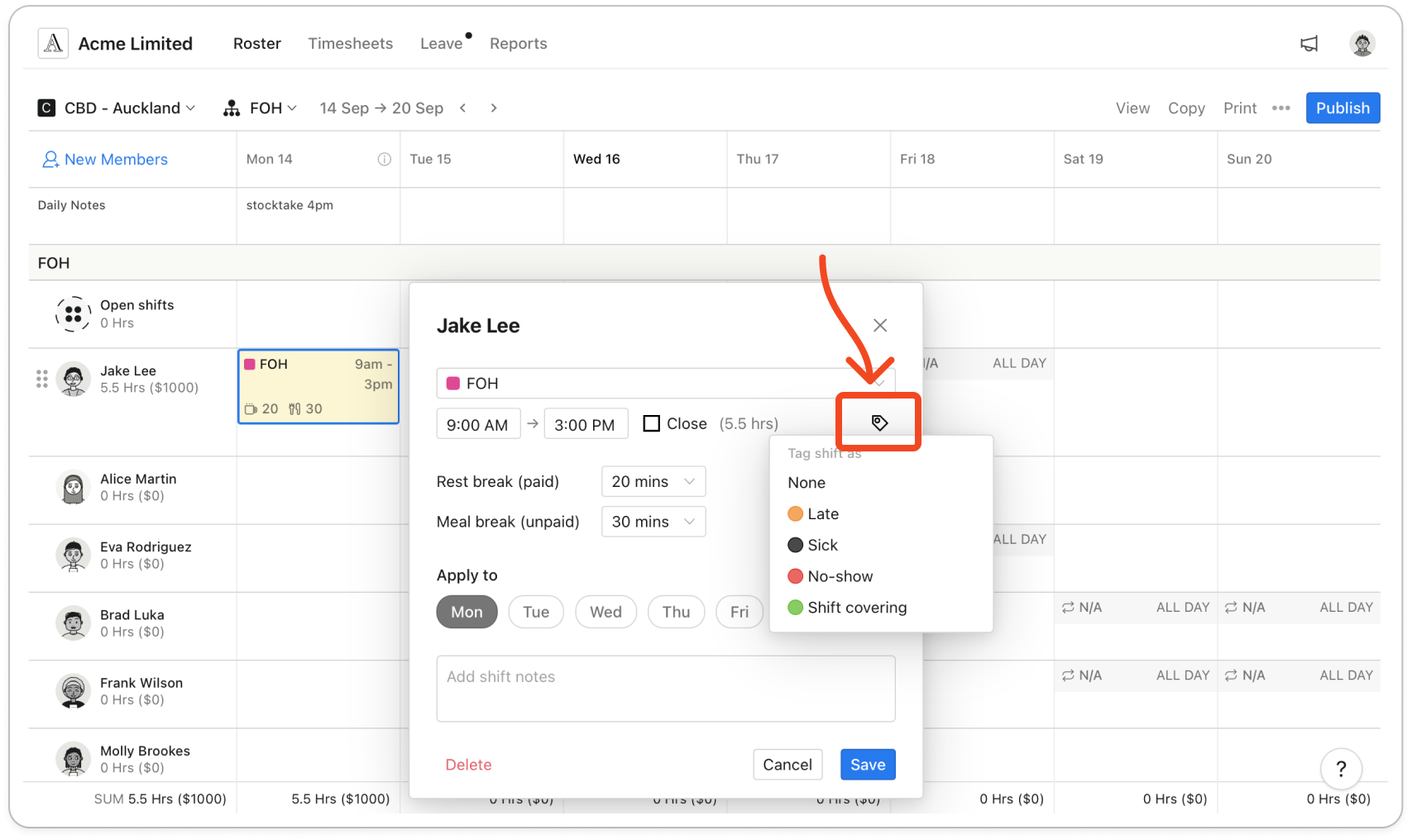
- Click Save. The shift shows its tag colour on the roster.
On your phone
- Tap Roster, then tap the shift to open Actions.
- Tap Tag.
- Tap the tag you want, or None to take one off. A tick shows the current one.
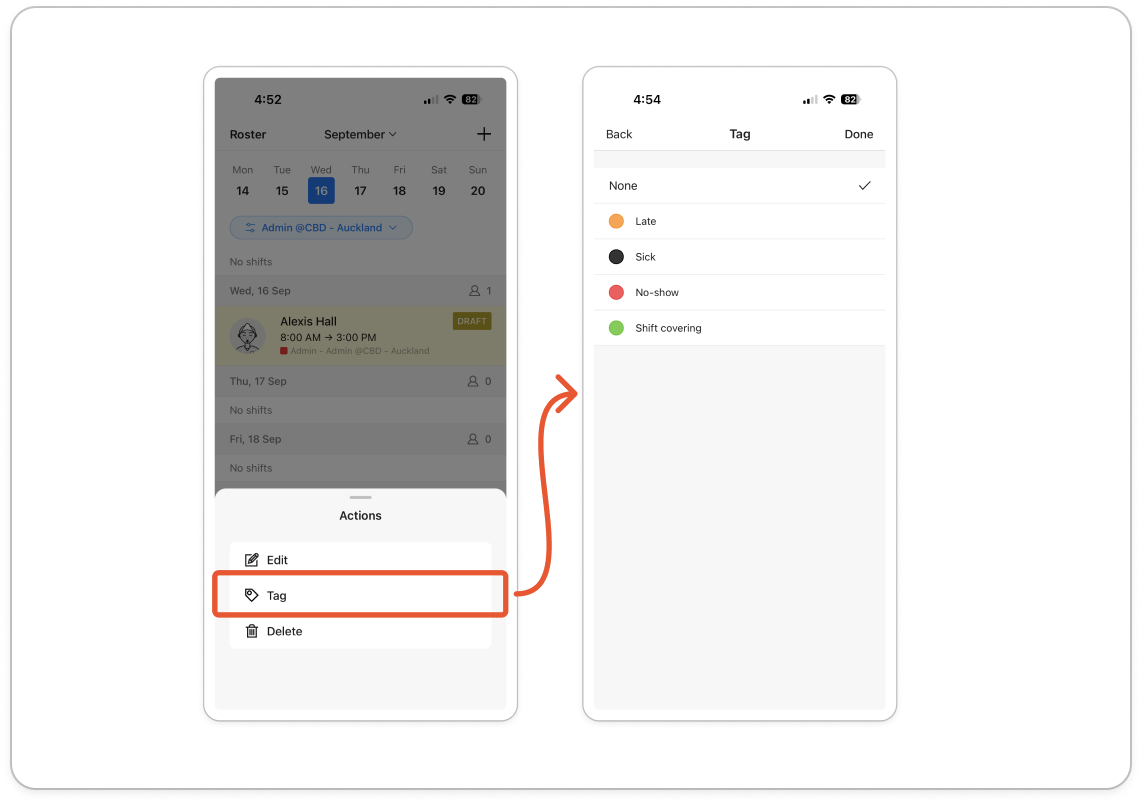
- Tap Done.
Note: Tags are for you and your other managers. A member doesn't see a tag on their own shift, and tagging one doesn't change its hours.


