.svg)
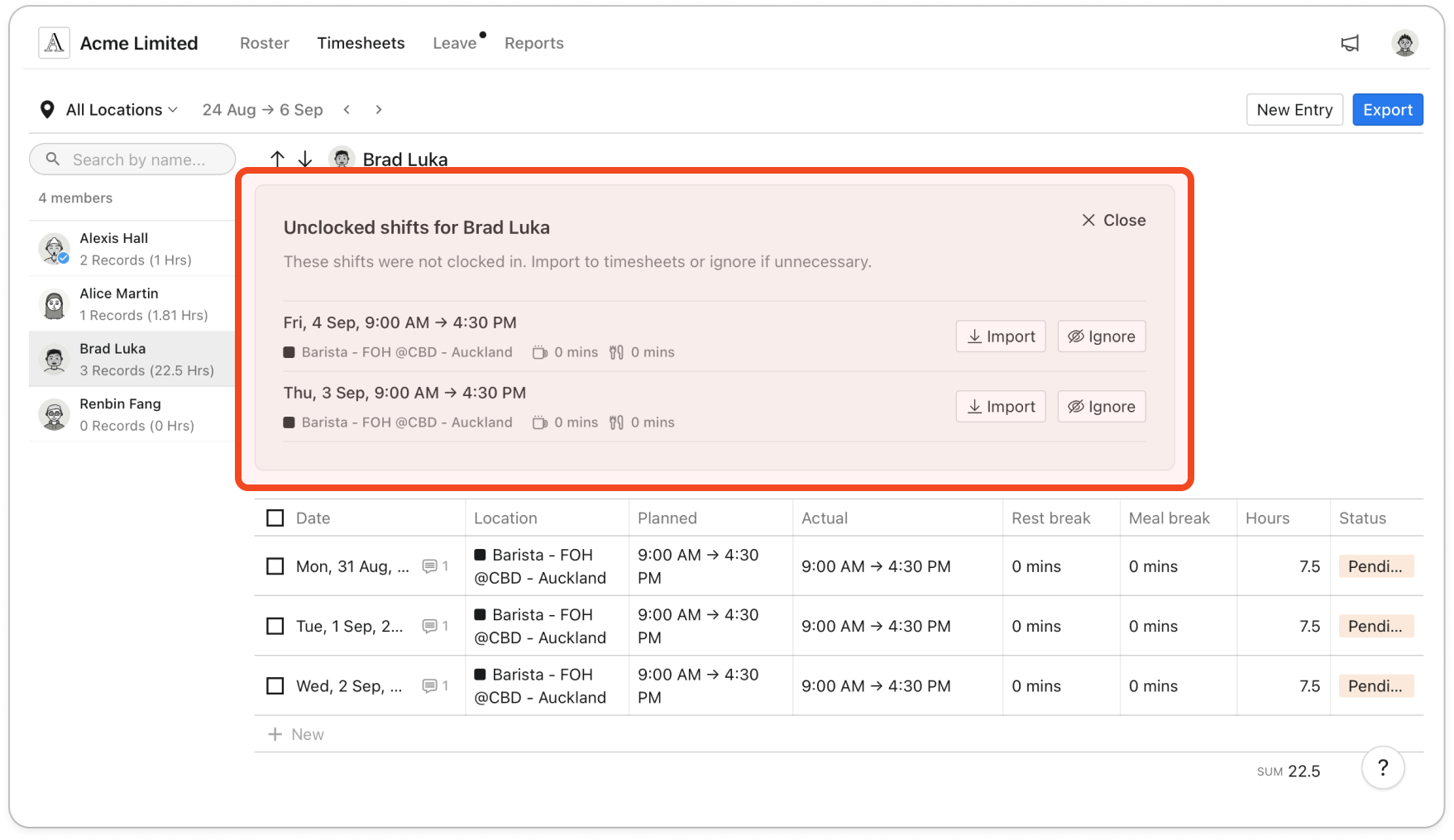
When a member forgets to clock in, their shift ends up with no hours on the timesheet. Turn on suggestions so your managers can see those shifts and add the rostered hours with one click, instead of entering them by hand.
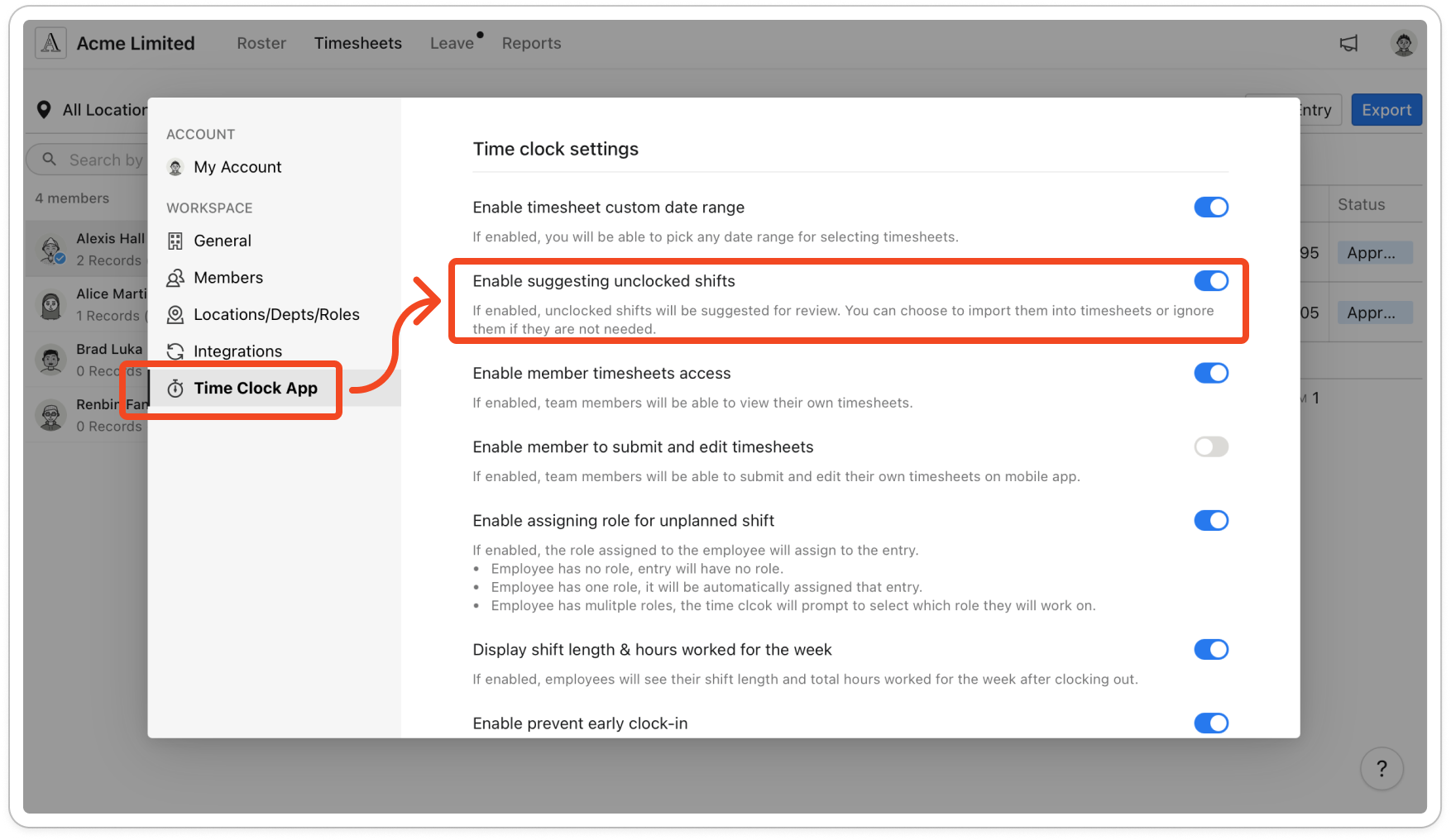
- Click your profile picture in the top right, then click Settings.
- Click Time Clock App.
- Under Time clock settings, turn on Enable suggesting unclocked shifts. The change saves straight away, so there's no button to click.
Note: Suggestions don't appear straight away. Early each morning, Timble looks at the day before and suggests any published shift that has no timesheet entry. Shifts from earlier days are never suggested. When a member has suggestions, a manager who clicks that member on the Timesheets page sees an Unclocked shifts for panel above the timesheet. Each suggested shift in the panel has an Import button and an Ignore button.