.svg)
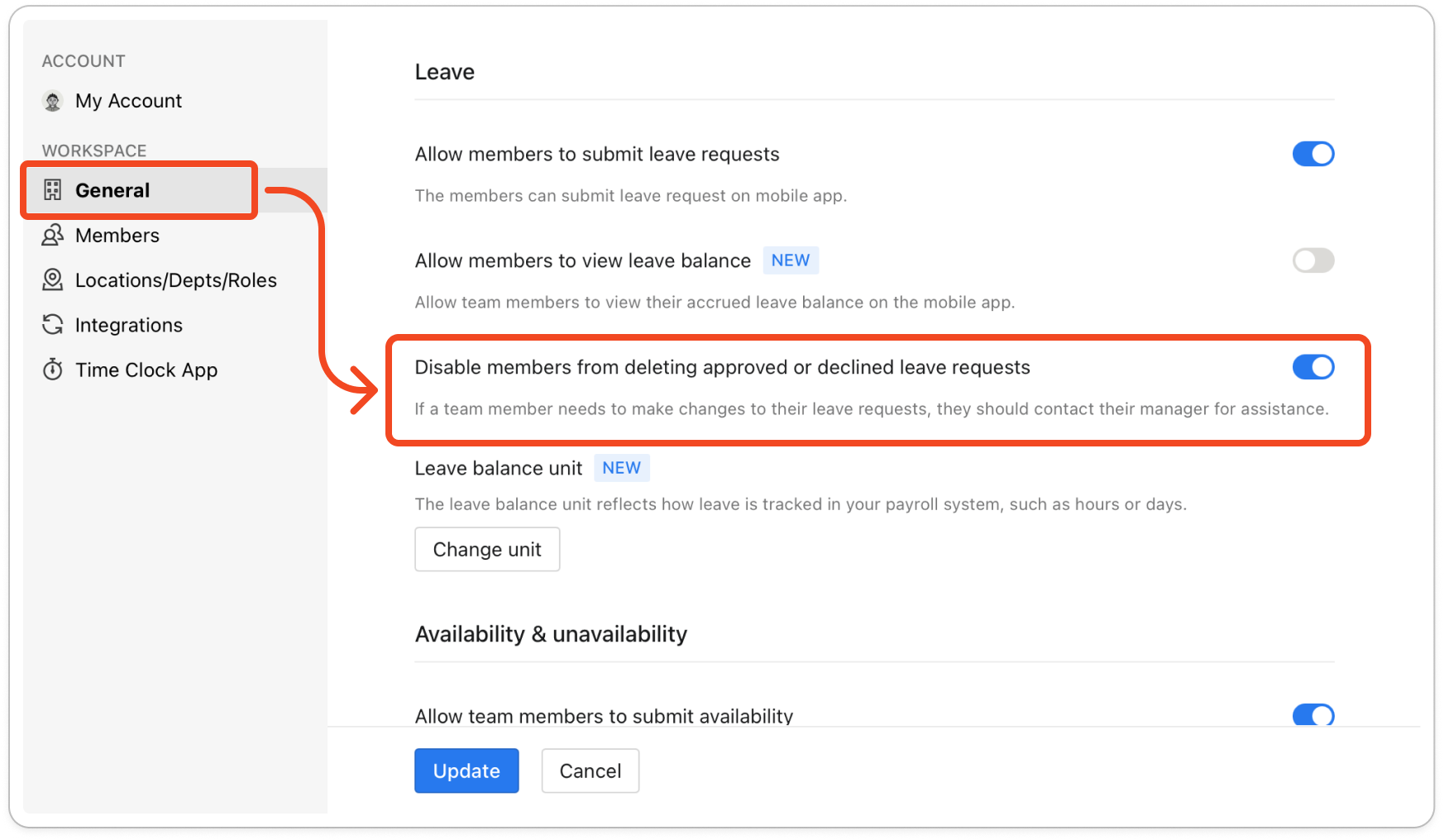
Turn on this setting so members can no longer delete a leave request from the mobile app once you have approved or declined it.
- Click your profile picture or initial in the top right, then click Settings.
- Click General.
- Scroll to Leave and check that Allow members to submit leave requests is turned on. The setting you need only appears once that switch is on.
- Turn on Disable members from deleting approved or declined leave requests.
Note: Members can still edit or delete a request while it is Pending. Once a request is approved or declined, tapping Delete on it in the mobile app shows the message "Leave request deletion is disabled, Please talk to your manager and then try again." The request stays as it is, and the member asks their manager to change it.
- Click Update at the bottom of the window.


