.svg)
Set how many hours you plan to roster on each day of the week, then check the roster against that budget.
- Open the Roster tab and go to the location and week you want to budget for.
- At the bottom of the roster, click the bar that starts with SUM. It shows the hours on the roster for the week and for each day. Clicking it opens the budget.
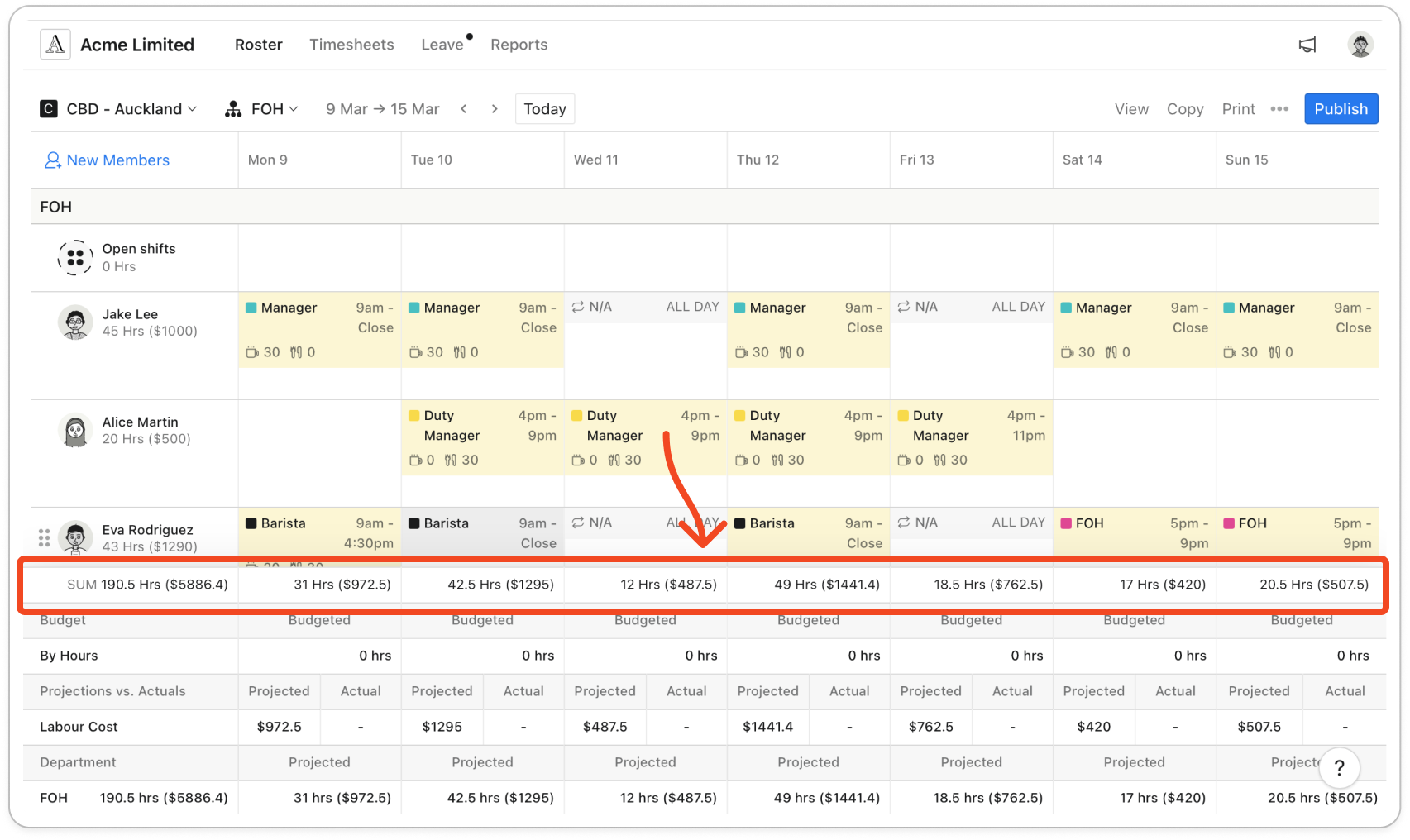
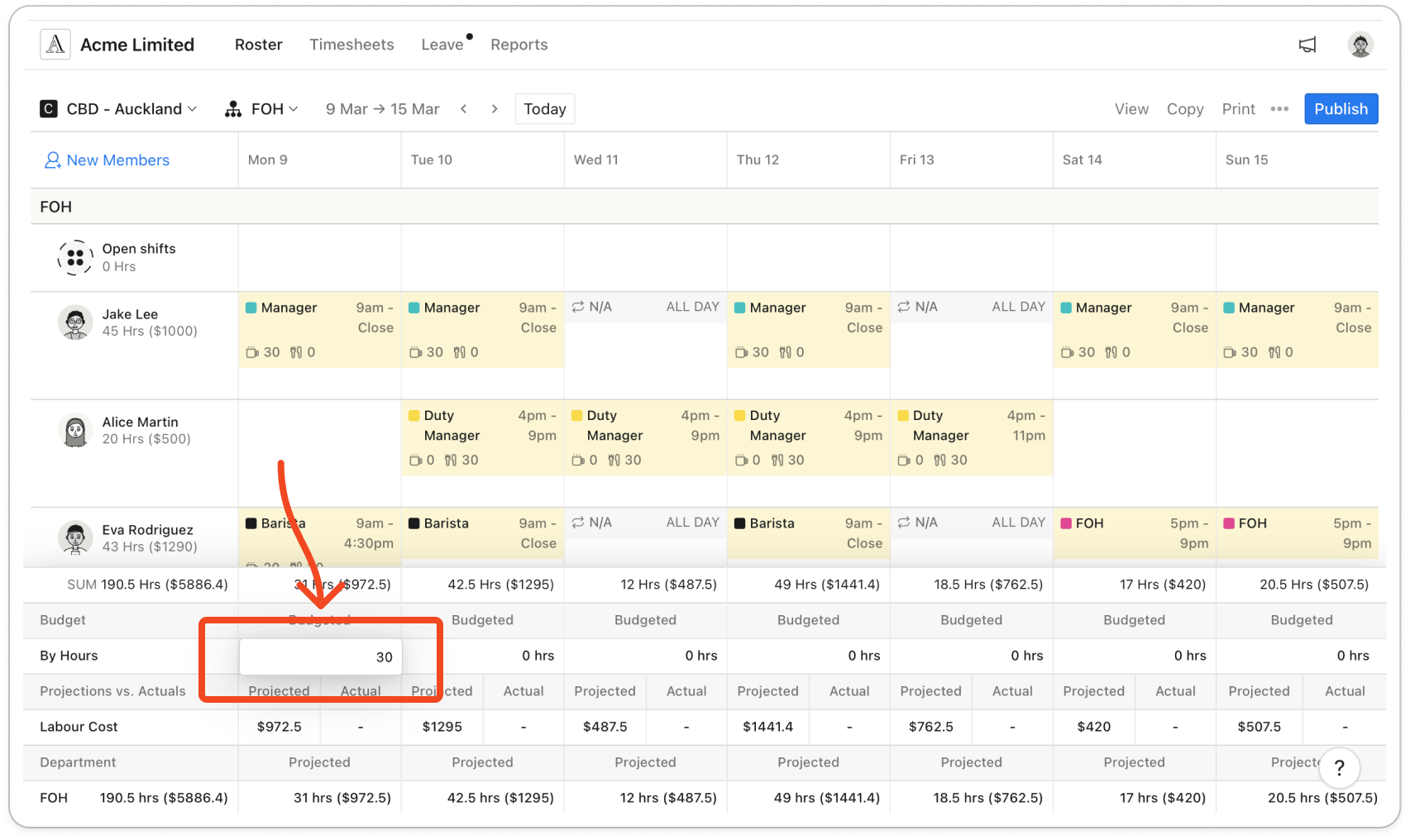
- In the By Hours row, click the Budgeted figure under a day. Every day starts at 0 hrs. In Fortnightly view each figure is labelled Bdg with its date.
- Type the hours for that day and press Enter, or click anywhere else to save. You can use up to two decimal places.
Note: The budget belongs to the location, so all of its departments share the same figure for each day.
- Repeat for each day of the week.
Tip: When you copy the week with Copy shift to next week or Copy shift to next 2 weeks under Copy, the budget is copied too, into any day that doesn't have one yet.
- Check the rows below the budget. Under Labour Cost, Projected is the cost of the shifts on the roster, including ones you haven't published yet, and Actual is the cost of approved timesheets up to yesterday. Each Department row shows the hours on the roster in that department each day.
Note: Projected costs only show when Show pay rates is turned on under View. If you don't have that switch, Labour Cost shows a dash.
- Click the SUM bar again to close the budget. When a day is rostered over its budget, the extra hours show in red beside that day's total.


