.svg)
Set an area around each of your locations, so the time clock app only lets members clock in and out on their own phones while they are inside that area.
- Click your profile picture in the top right, then click Settings.
- Click Time Clock App.
- Under Time clock(personal devices), turn on Enable geofencing. The change saves straight away, and a Set geofence button appears below the setting.
Note: If you don't see Enable geofencing, turn on Enable member time clock first. The other personal device settings stay hidden until Enable member time clock is on.
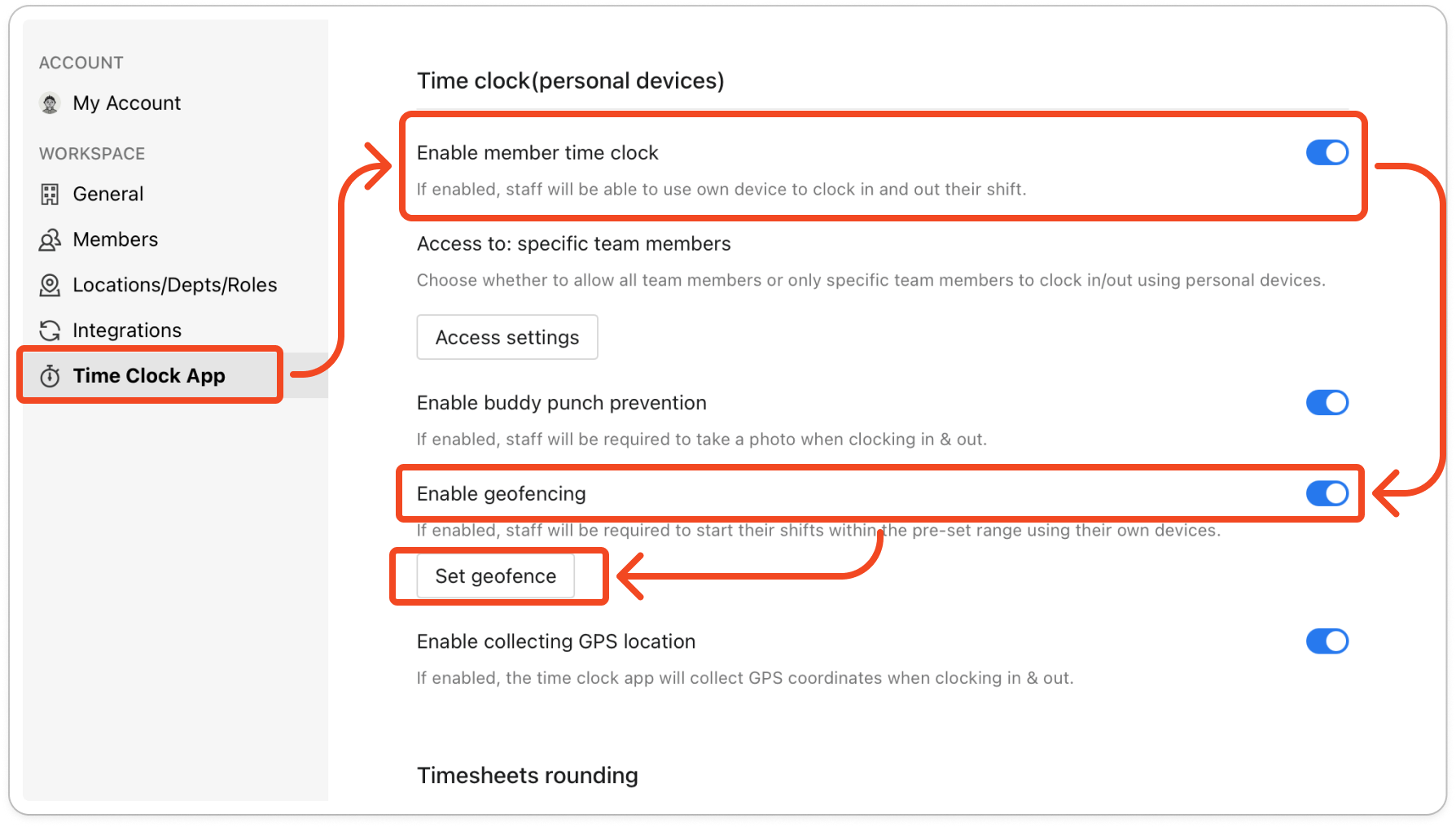
- Click Set geofence. The window lists every location in your business on the left, under Locations. Click the location you want to set up.
- In Address, start typing the location's address and choose the match from the list. A map appears, with a pin on the address and a circle around the pin.
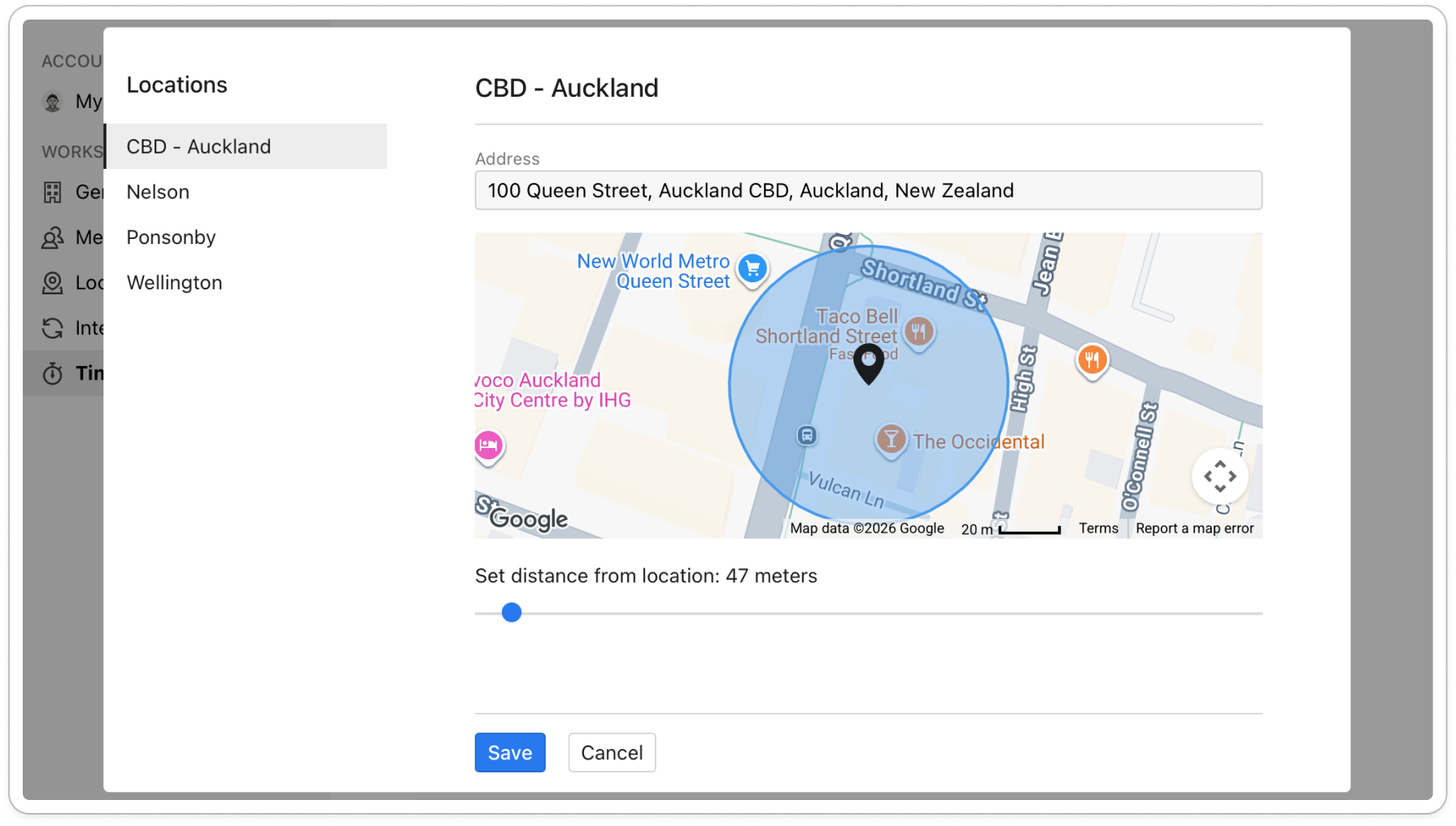
- If the pin isn't exactly on your workplace, drag it to the right spot.
- Drag the slider under the map to set how far from the pin members can clock in. Set distance from location shows the distance in metres, anywhere from 0 up to 1,000. The slider starts at 40 metres.
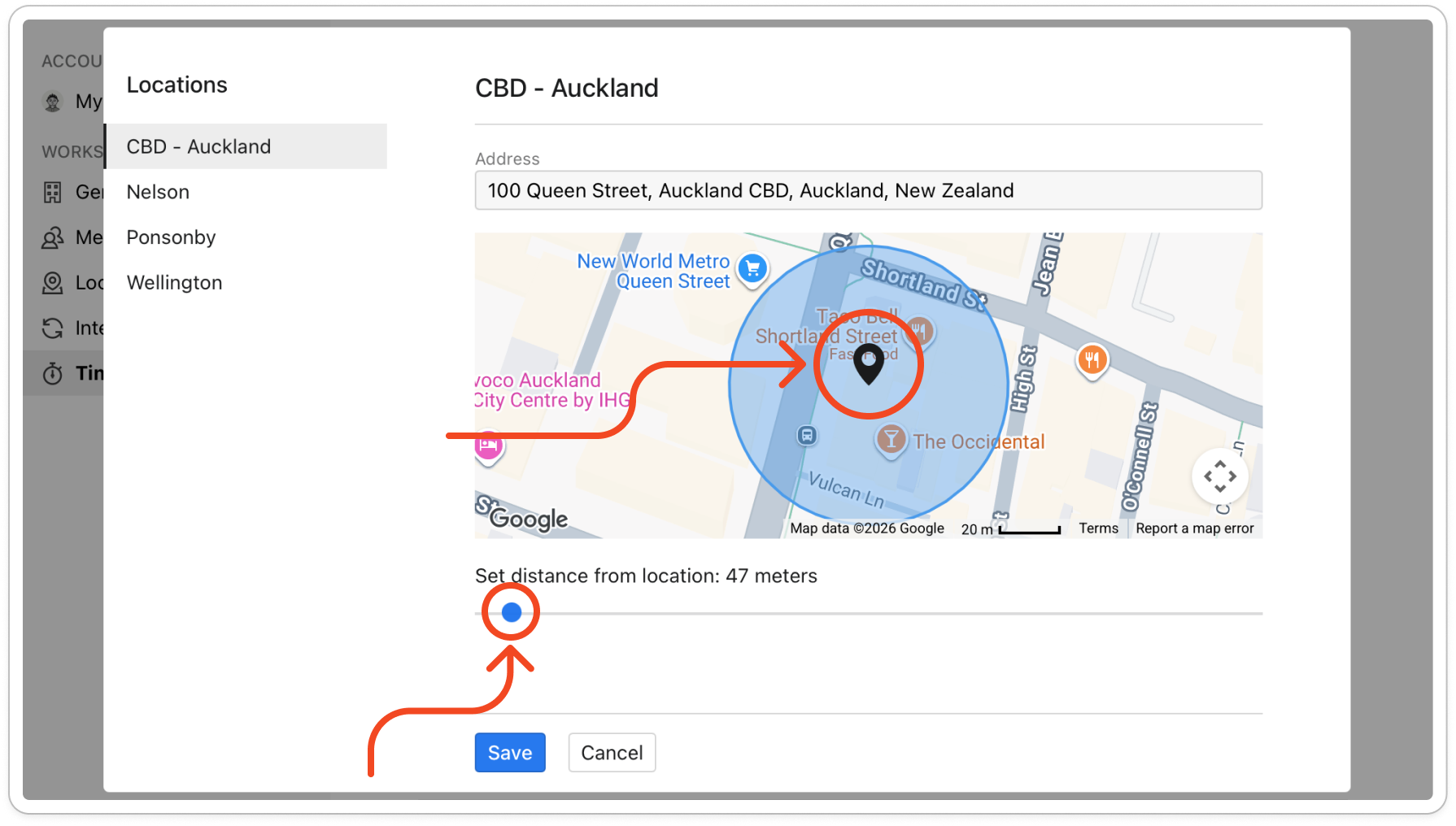
- Click Save. The window closes.
Repeat from step 4 for each location your members clock in at. A location with no address set has no geofence, so members can clock in there from anywhere.
Note: Geofencing only applies on members' own phones, not on the time clock tablet. If a member is outside the area, the time clock app shows Hmm, not at workplace yet. and greys out Punch. A member who hasn't given the app permission to use their location sees Enable location service to punch. instead, and can't clock in or out at all.


