.svg)
Choose whether each leave type's balance is shown in hours or days, so Timble matches the way your payroll system tracks leave.
- Click your profile picture or initial in the top right, then click Settings.
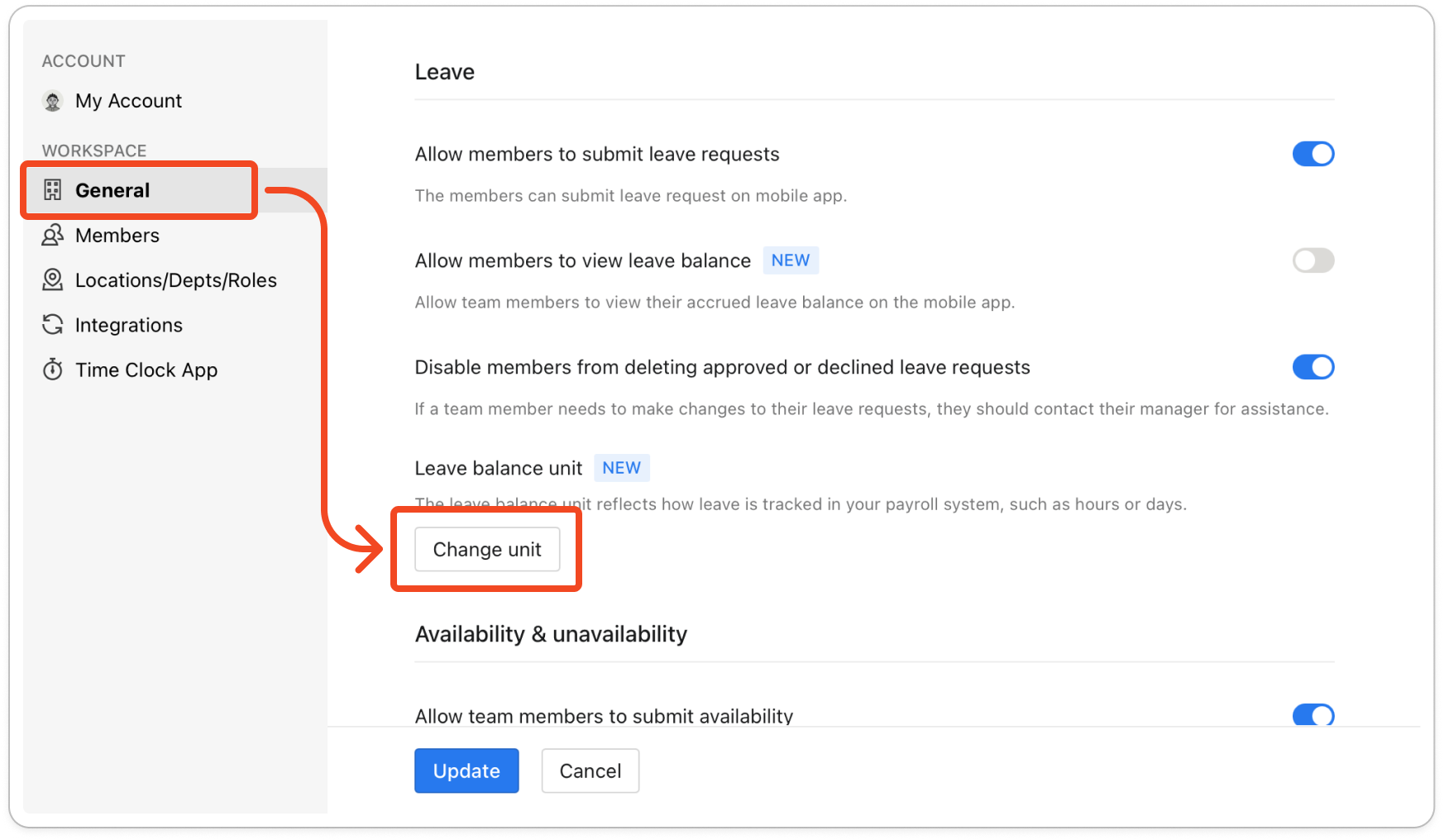
- Click General, then scroll down to the Leave section.
- Under Leave balance unit, click Change unit.
- The Update leave balance unit window lists each leave type Timble keeps a balance for, with a unit beside it. Click the unit beside a leave type and choose Hours or Days. Pick the unit your payroll system uses for that leave type.
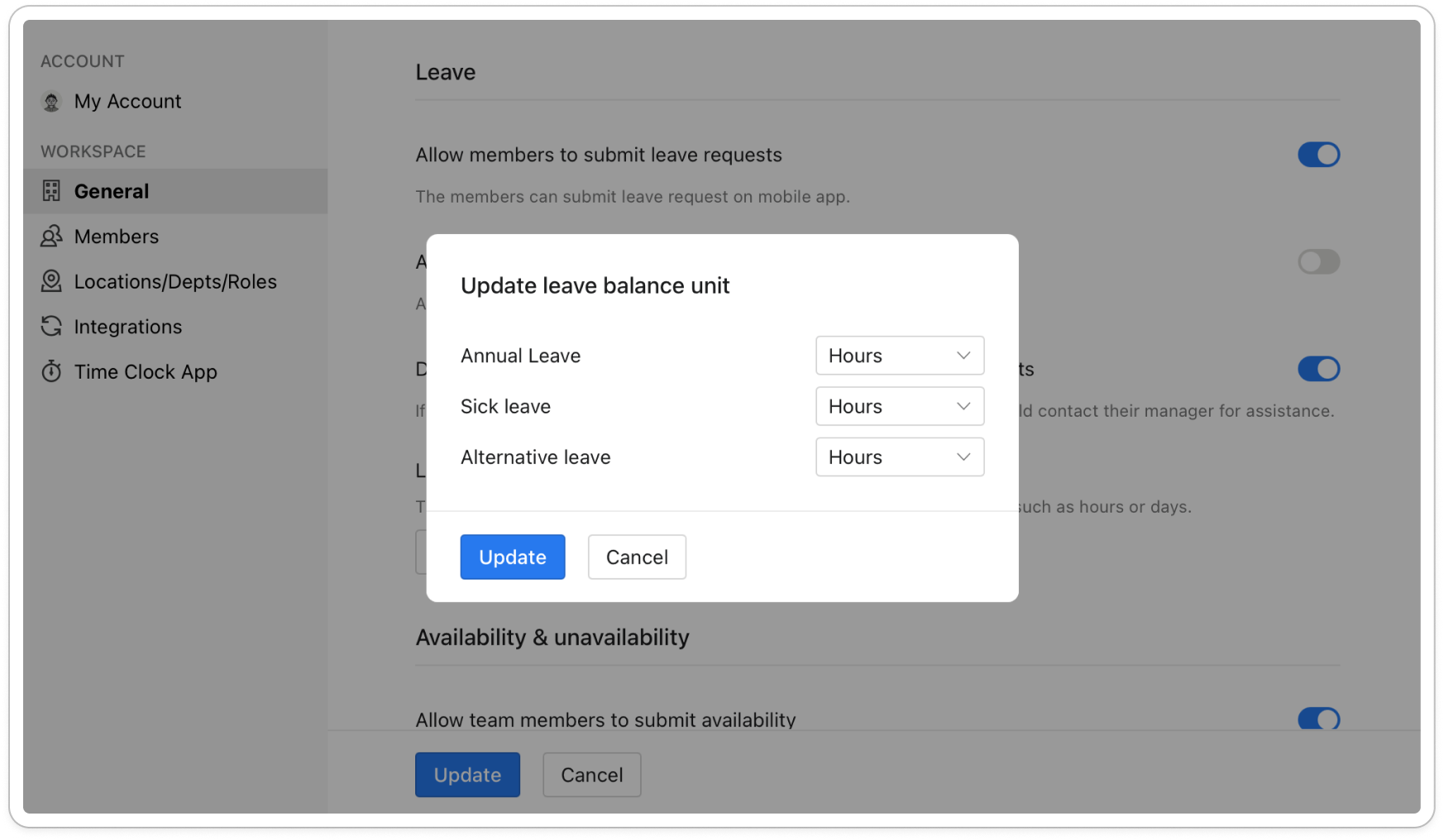
- Click Update. The window closes and the new units are saved straight away, so you don't need to click Update at the bottom of the General tab as well.
Note: The unit only changes how a balance is labelled. Timble doesn't convert the number, so a balance imported as 40 hours shows as 40 days if you change the unit to Days. Payroll systems don't all track leave in the same unit, so set each leave type to match the unit your payroll system uses.


