.svg)
Roster a shift to finish when the location closes, so it shows Close instead of a set finish time.
Turn it on for the location
- Click your profile picture in the top right, then click Locations/Depts/Roles.
- On the Locations tab, click the location.
- Click Operating Hours.
- Check each day's finish time. That is when a Close shift finishes on that day.
Note: Until the hours are saved, every day shows 6:00 AM to 11:00 PM. Those are starting values, not your hours.
- Turn on Enable shifts to finish at close of business.
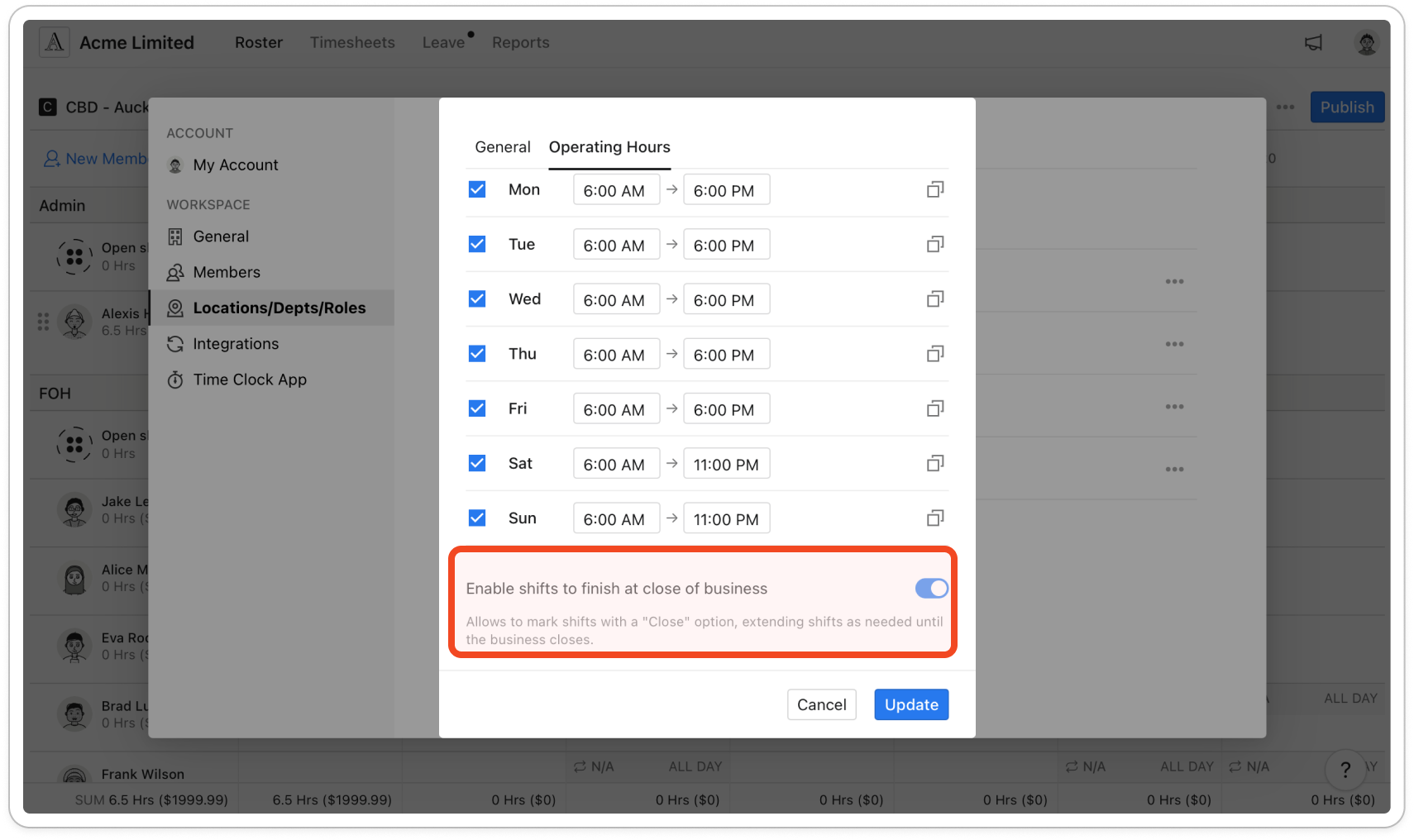
- Click Update.
Mark a shift to finish at close
- On the Roster, click a shift to open it, or hover over the day on a member's row and click the + that appears.
- Set the start time.
- Tick Close next to the finish time. Timble fills in that day's closing time as the finish time.
Note: If there's no Close box, the setting isn't turned on for this location.
Tip: To give the shift a set finish time again, untick Close and pick the time.
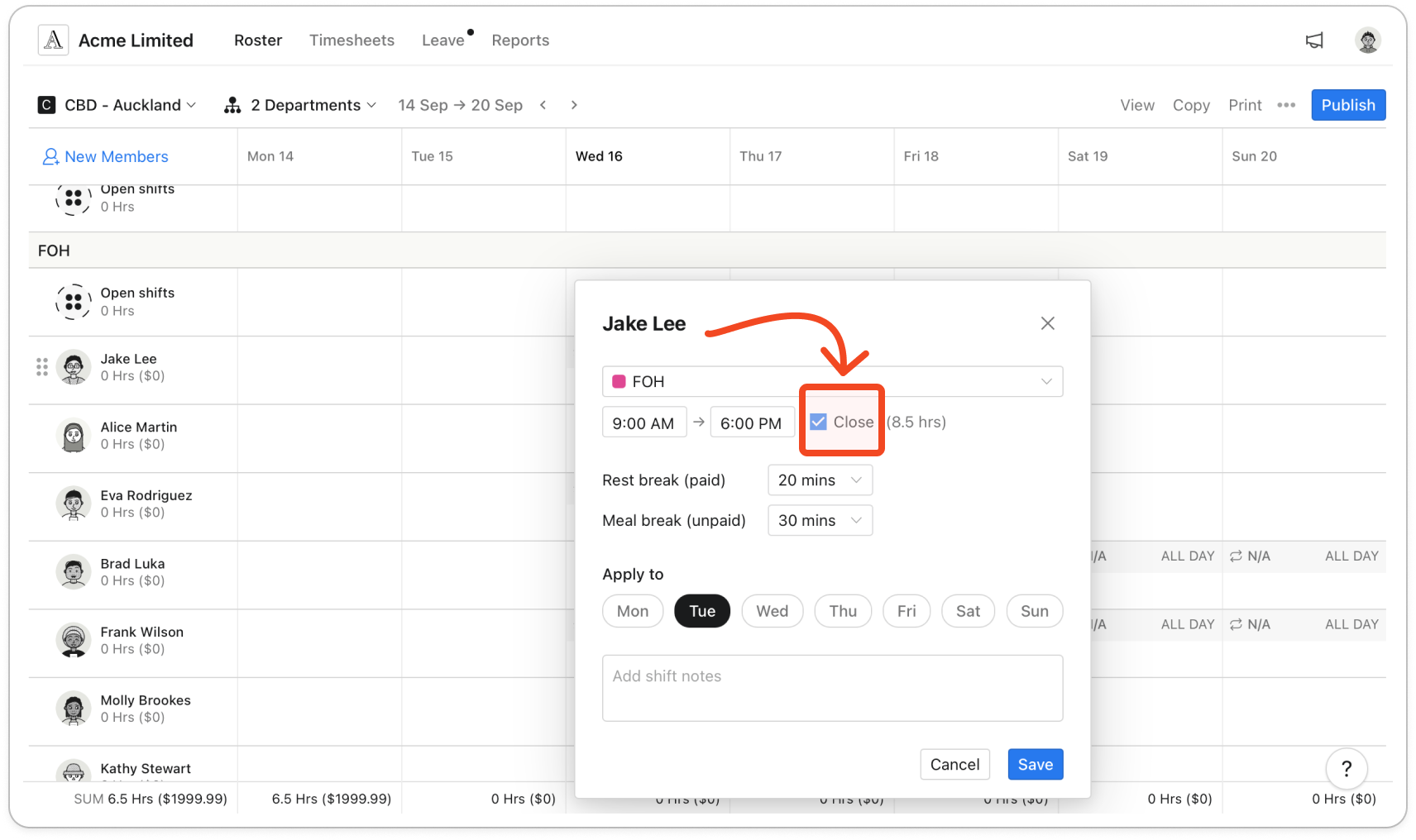
- To roster the same shift on other days, pick them under Apply to.
Important: Those days get the closing time of the day you're editing. If the location closes at a different time on those days, open each shift afterwards and check its finish time.
- Click Save. The shift shows Close as its finish time on the roster, and members see Close in the mobile app once you publish the roster.
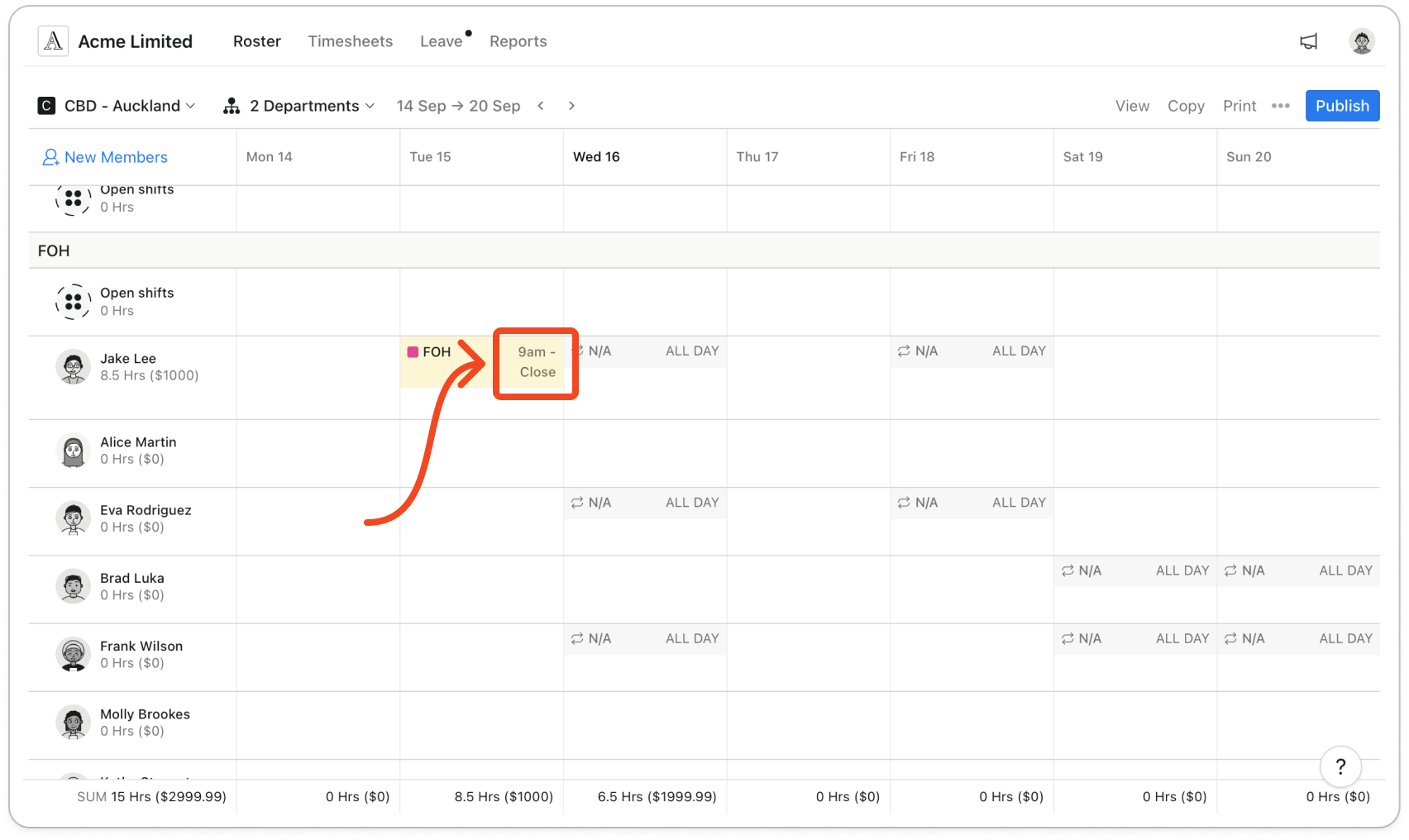
Note: Changing the location's operating hours later doesn't move shifts already marked Close. They keep the finish time they were saved with, so open each one, untick Close and tick it again.


