.svg)
Record what a member is paid, either an hourly rate or a weekly salary, and the date that pay starts from.
Add a wage or salary
- Click your profile picture in the top right, then click Members.
- Click the member's name to open their profile.
- Click Wage & Salary in the left-hand menu.
- Click New wage & salary.
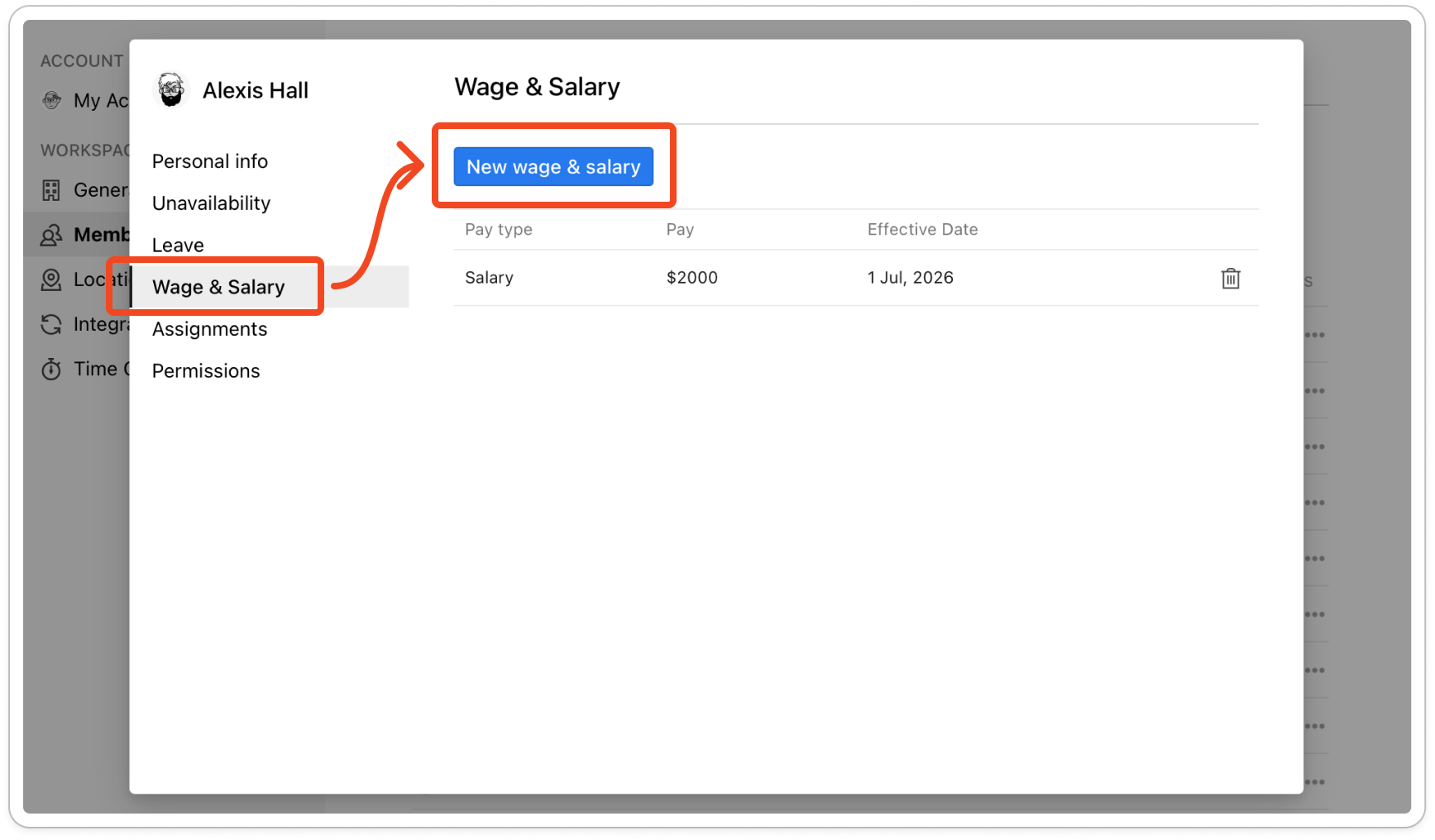
- Under Pay type, choose Wage for someone paid by the hour, or Weekly Salary for someone paid a fixed amount each week.
- For a wage, type the amount into Hourly Rate. For a salary, type the amount into Weekly Pay.
- For a salary only, choose a Salary allocation type. This decides how the weekly amount is spread across the member's shifts. Shift-based splits it evenly over the number of shifts they are rostered. Hour-based splits it by the number of hours they are rostered.
- Click Effective Date and pick the first day this pay applies from.
- Click Save.
Note: This is only used to work out labour cost. The roster's Labour Cost row uses it to show what the rostered shifts will cost from the effective date on. It does not pay anyone: what your team is actually paid comes from your payroll system.
Change a member's pay
When a member's pay changes, add a new record with the new amount and the date it starts. The earlier record stays in the list, so shifts before that date keep the old rate.
- On the Wage & Salary tab, click New wage & salary.
- Enter the new pay type, amount and Effective Date, then click Save.
Note: A new record can't share an effective date with the newest one in the list. If Timble says "Effective date is invalid.", pick a different date.
Tip: To fix a mistake in a record rather than record a pay change, click the row, change it, and click Save.
Delete a record
- On the Wage & Salary tab, click the bin icon on the record's row.
- Timble asks "Are you sure you want to delete?" Click Delete.


