.svg)
Tell Timble what time each location opens and closes, and choose whether managers can roster a shift to finish at close.
- Click your profile picture in the top right, then click Locations/Depts/Roles.
- On the Locations tab, click the location. You can also click ... on its row and choose Location Settings.
- Click Operating Hours.
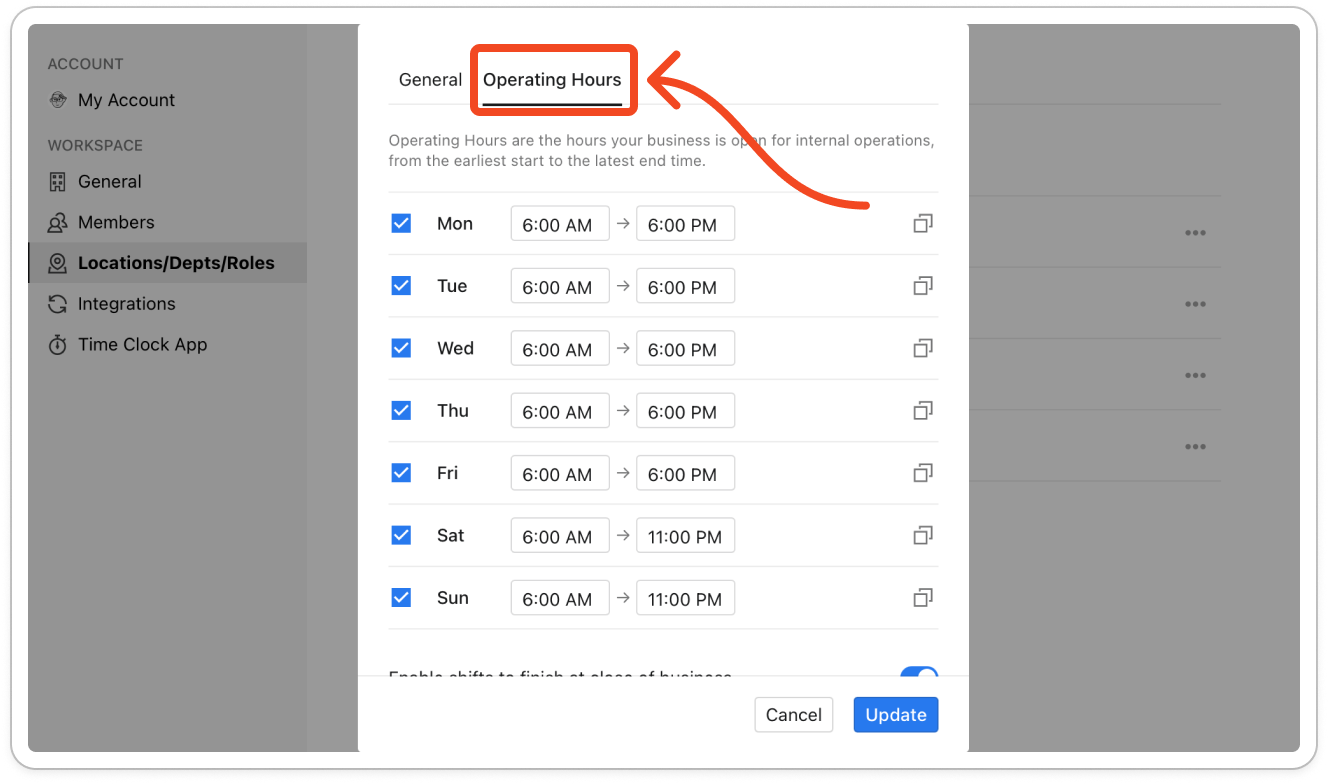
- For each day, click the start time and pick when the location opens, then click the finish time and pick when it closes.
Note: Until you save, every day shows 6:00 AM to 11:00 PM. Those are starting values, not your hours, so check every row.
- To mark a day closed, untick the box next to it. The row reads Closed. Tick it again to reopen the day.
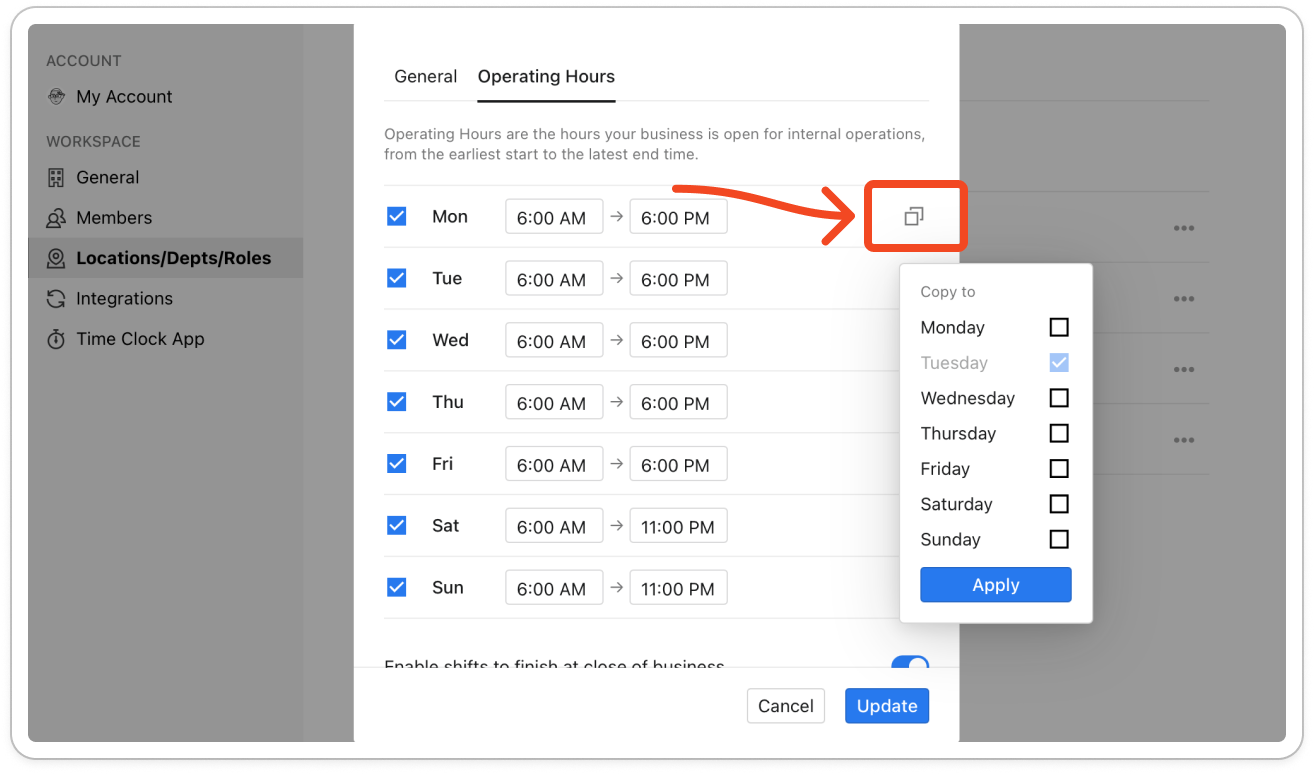
- To give other days the same hours, click the copy button at the right-hand end of the row, tick the days under Copy to, and click Apply. Whether the day is open or closed copies too.
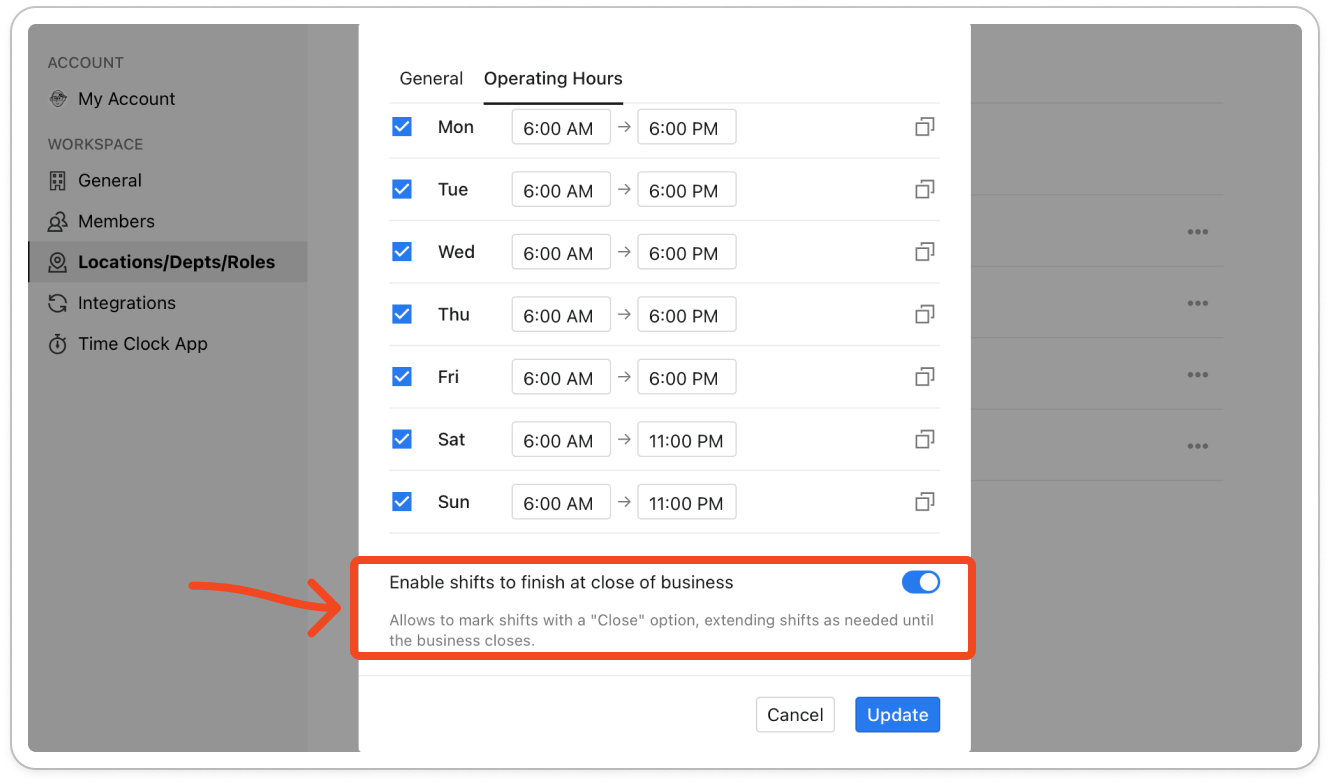
- Turn on Enable shifts to finish at close of business if you want managers to roster shifts that end when the location closes.
- Click Update.
Note: With the switch on, the shift editor shows a Close option next to the finish time, which fills in that day's closing time for the shift.


