.svg)
Once your time clock tablet is set up, email each member the four-digit PIN they need to clock in on it.
Send the PINs
- Click your profile picture in the top right, then click Members.
- Click Send Time Clock PIN. Timble emails a PIN to every member tagged (PIN not sent) in red, and the button shows Sending... while the emails go out.
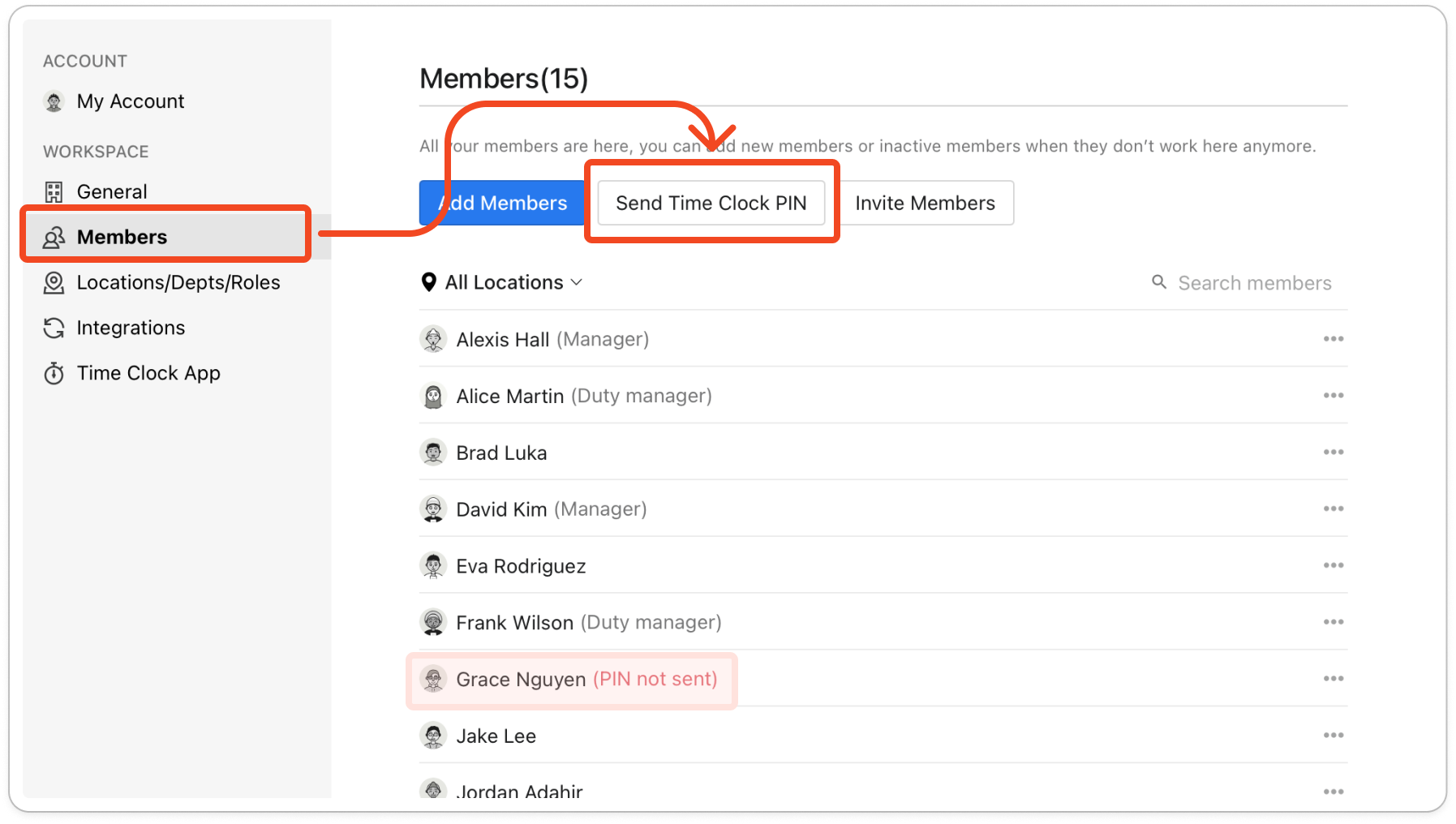
- Wait for the list to reload. The (PIN not sent) tag disappears from each member who was emailed, and those members can now clock in on the tablet.
Note: Timble creates a PIN for each member as soon as you add them, and members who have already been emailed their PIN aren't emailed again. When you add new members later, click Send Time Clock PIN again and only the new members receive an email.
If a member hasn't received their PIN
A member who is still tagged (PIN not sent) has no email address in Timble, so Timble had nowhere to send their PIN. For that member, or for anyone who can't find the email, look up the PIN yourself.
- On the Members screen, click the member's name.
- Open the Personal info tab and find the four digits under Time Clock PIN.
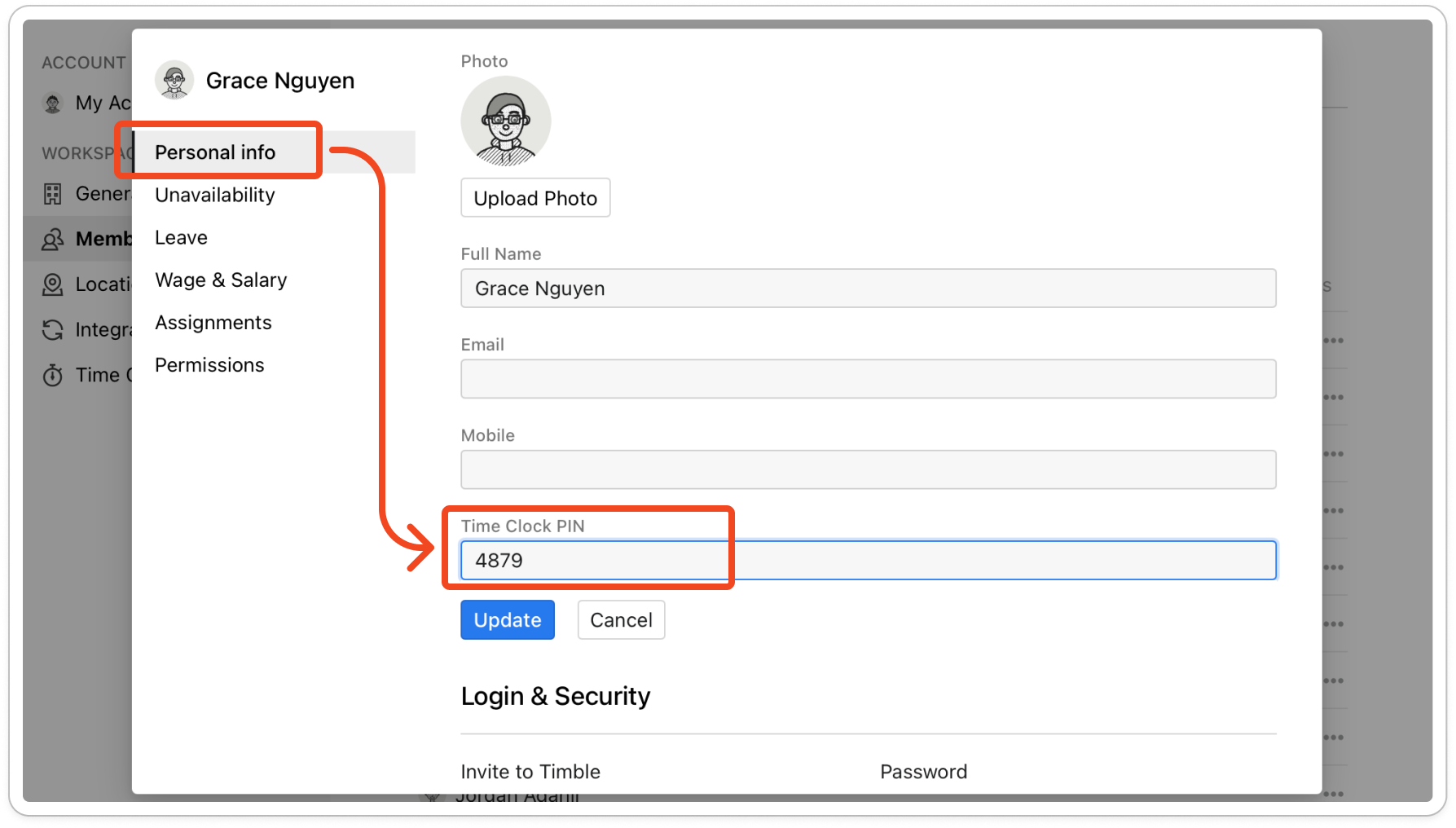
- Give the member their PIN in person.
Note: Members who use the mobile app can also look up their own PIN. They tap Account, then Time Clock PIN.


