.svg)
Run this report to see how many hours each member is rostered for, and what those shifts will cost in wages.
The report reads the shifts on your roster, so it is a forecast. It includes shifts in the future and shifts that nobody has worked yet. Shifts that have never been published are left out.
- Click Reports at the top of the page, then click Rostered hours & wages.
- Choose the dates. The report opens on the current week. Click Start and pick the first day, then click End and pick the last day.
Note: A report can cover up to 45 days. If you pick a longer range, Timble shows "Date range cannot exceed 45 days" and the Run report button stays greyed out until you shorten it.
- To report on part of your business, click All locations and pick a location. You can then click All departments to pick a department in that location, and then All roles to pick a role in that department. To report on everyone, leave all three as they are.
- Click Run report.
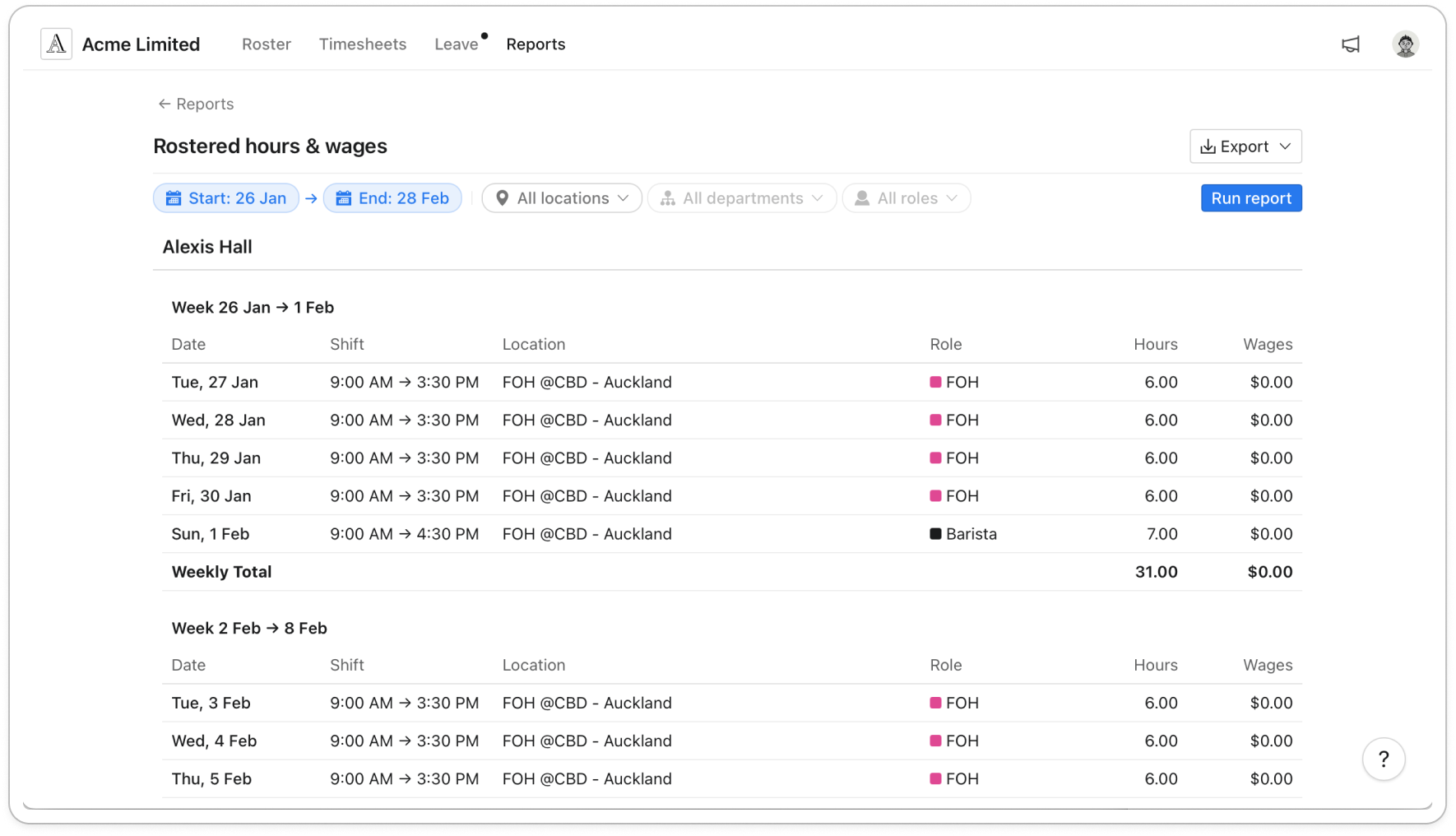
- Read the report. Each member has their own section, split into weeks, with one row per shift showing the Date, Shift, Location, Role, Hours and Wages. Each week ends with a Weekly Total, each member ends with a Total, and the Grand Total for everyone is at the bottom. A member with no shifts in those dates shows "No shifts."
- To save a copy, click Export, then click PDF or CSV. The file downloads to your computer, and its name includes the dates and any filters you picked.
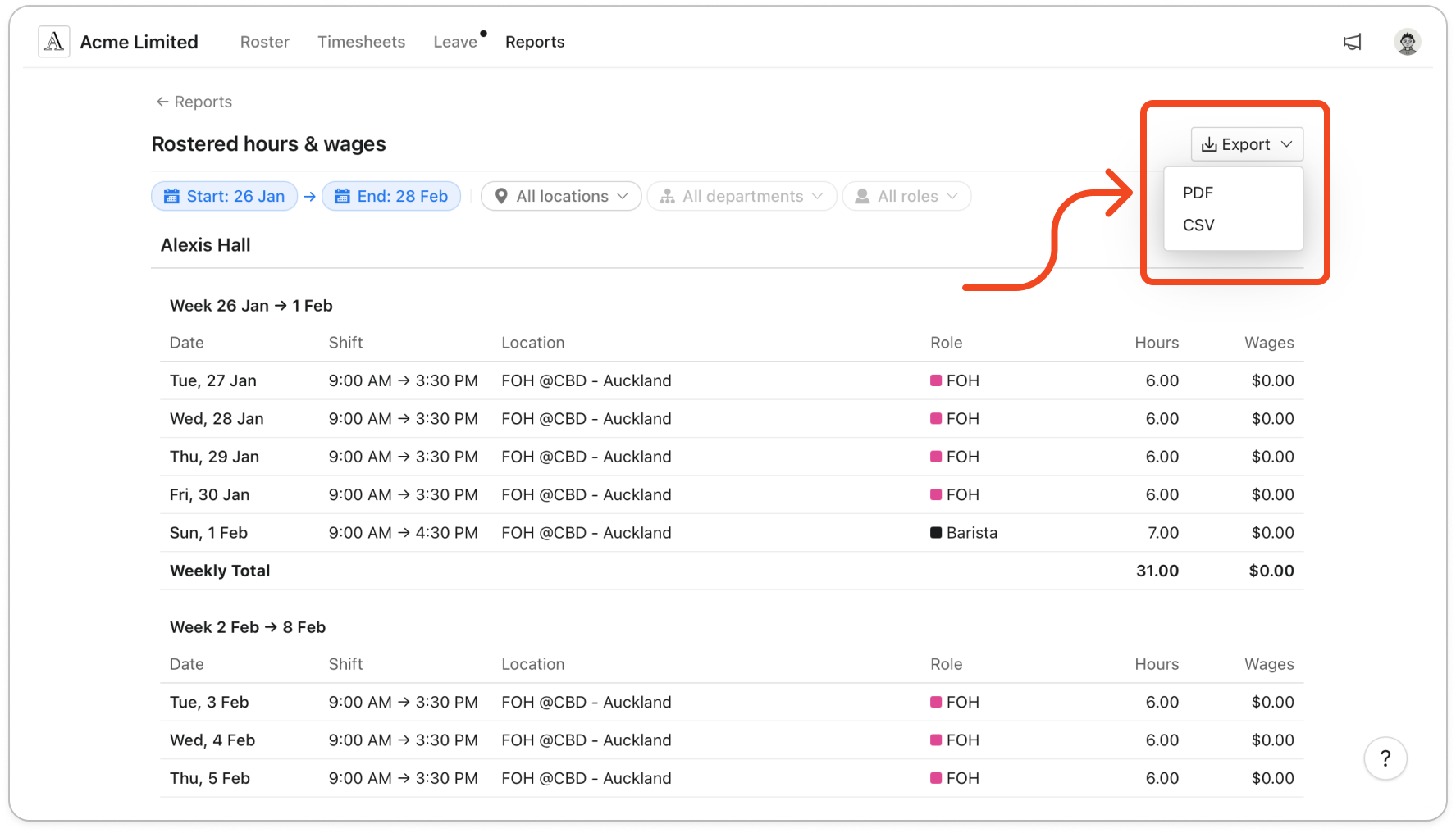
Tip: Export saves the report you last ran. If you change the dates or filters, click Run report again before you export.
Note: The Wages column, the wage totals and the wages in both exports only appear if your account can manage wage & salary. Without that, the report shows hours only. A manager or duty manager sees only the members in the departments they are assigned to, even when All locations is selected.


