.svg)
Turn on photos for the shared time clock tablet, so you can check that each member clocked themselves in and out.
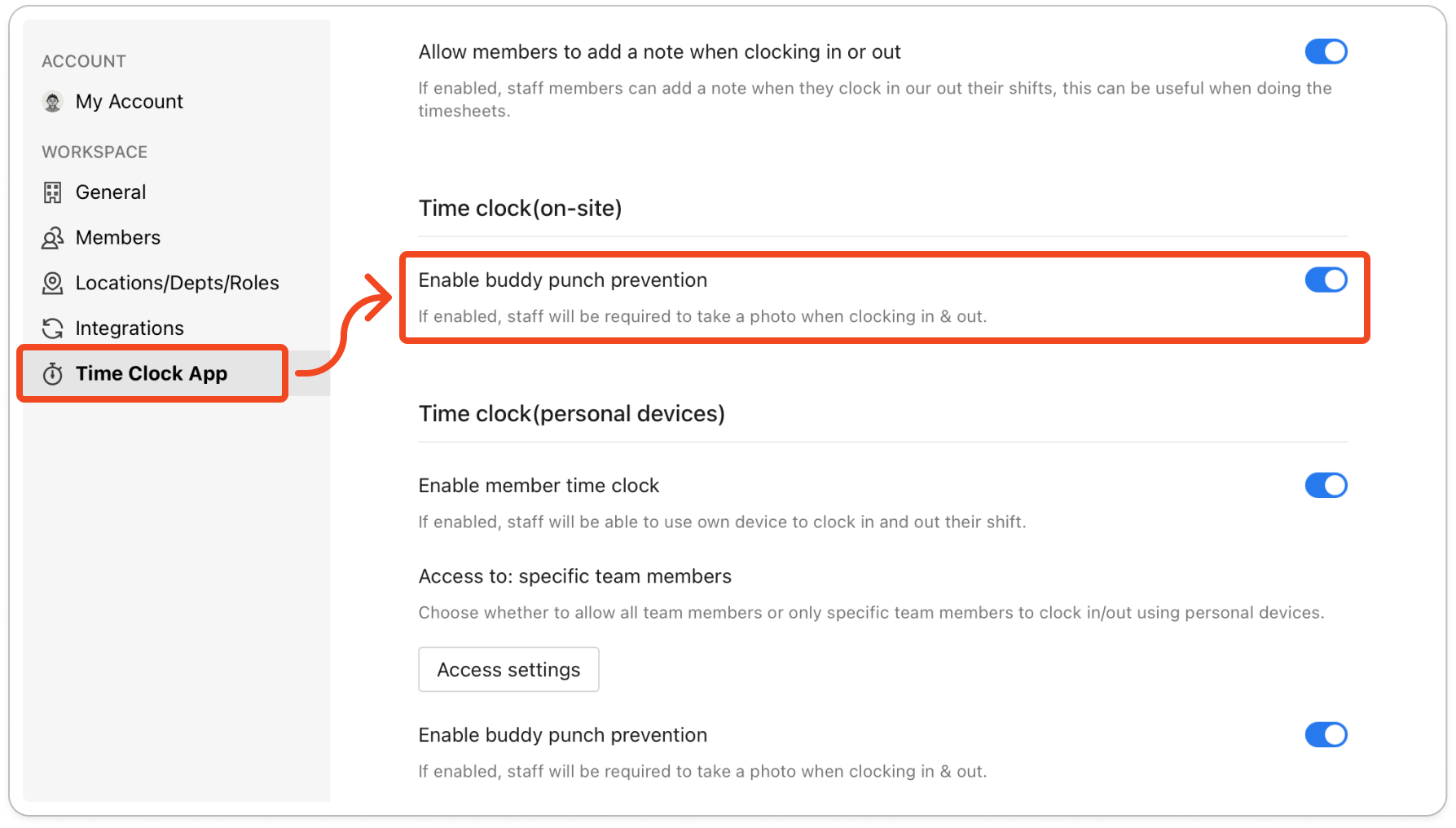
- Click your profile picture in the top right, then click Settings.
- Click Time Clock App.
- Under Time clock(on-site), turn on Enable buddy punch prevention. Timble saves the change straight away, so there is nothing else to click.
Note: This switch covers the tablet only. If members also clock in on their own phones, that is controlled by a separate Enable buddy punch prevention switch under Time clock(personal devices).
- On the time clock tablet, close the Timble Time Clock app fully and open it again.
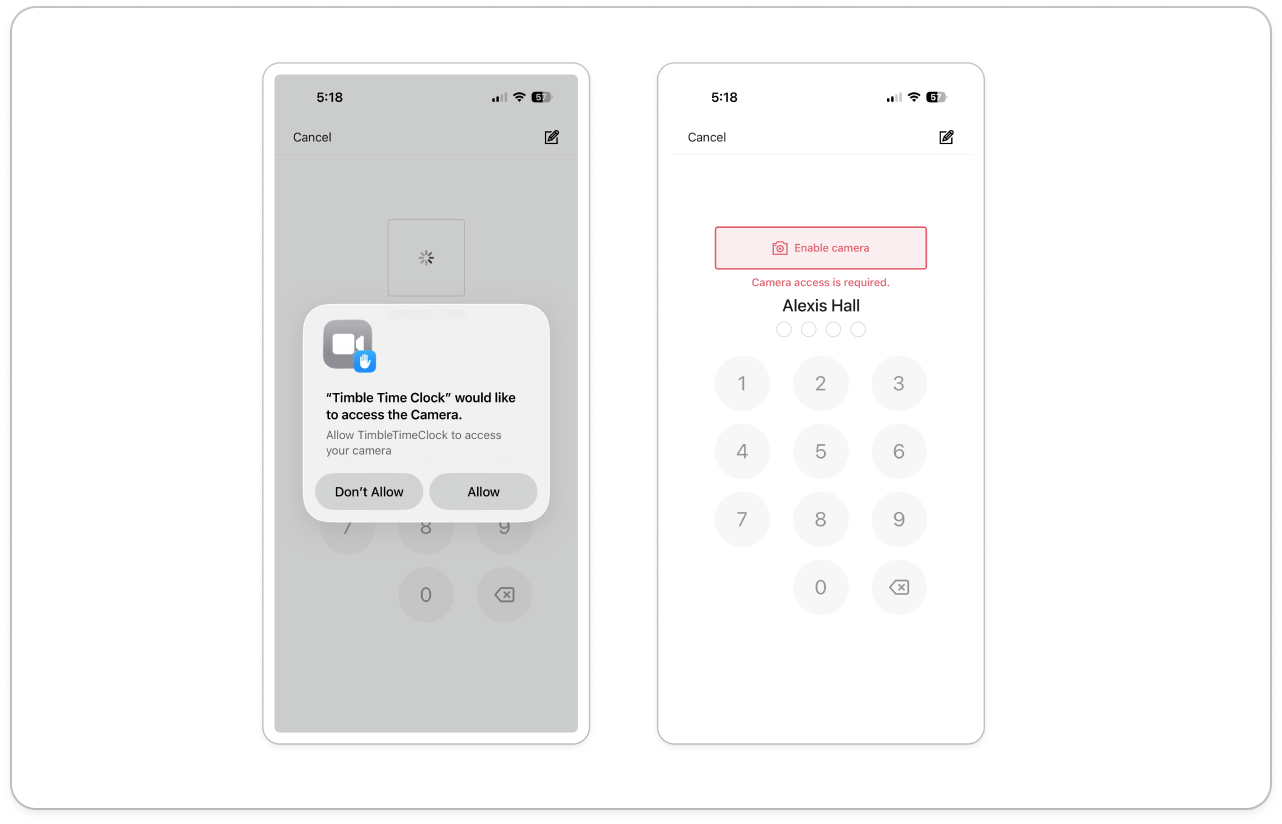
- If the tablet hasn't been given camera access before, it asks for camera access the first time a member taps their name. Allow the access.
Note: From now on, a small camera preview shows above the member's name, and the keypad stays greyed out until the camera is ready. Nobody has to tap anything extra. The tablet takes the photo with its front camera as soon as the member taps the fourth digit of their PIN. If camera access was refused, the tablet shows Enable camera and Camera access is required.
- To see the photos, click Timesheets at the top of the page and click a member in the list. Hover over an entry and click the camera icon at the right of the row. The Punch Photos window opens, and under each photo it shows Clocked in at or Clocked out at with the time.
Tip: Hover over the camera icon to see a quick preview with the In and Out photos. You can also click the entry and click Show punch photos.
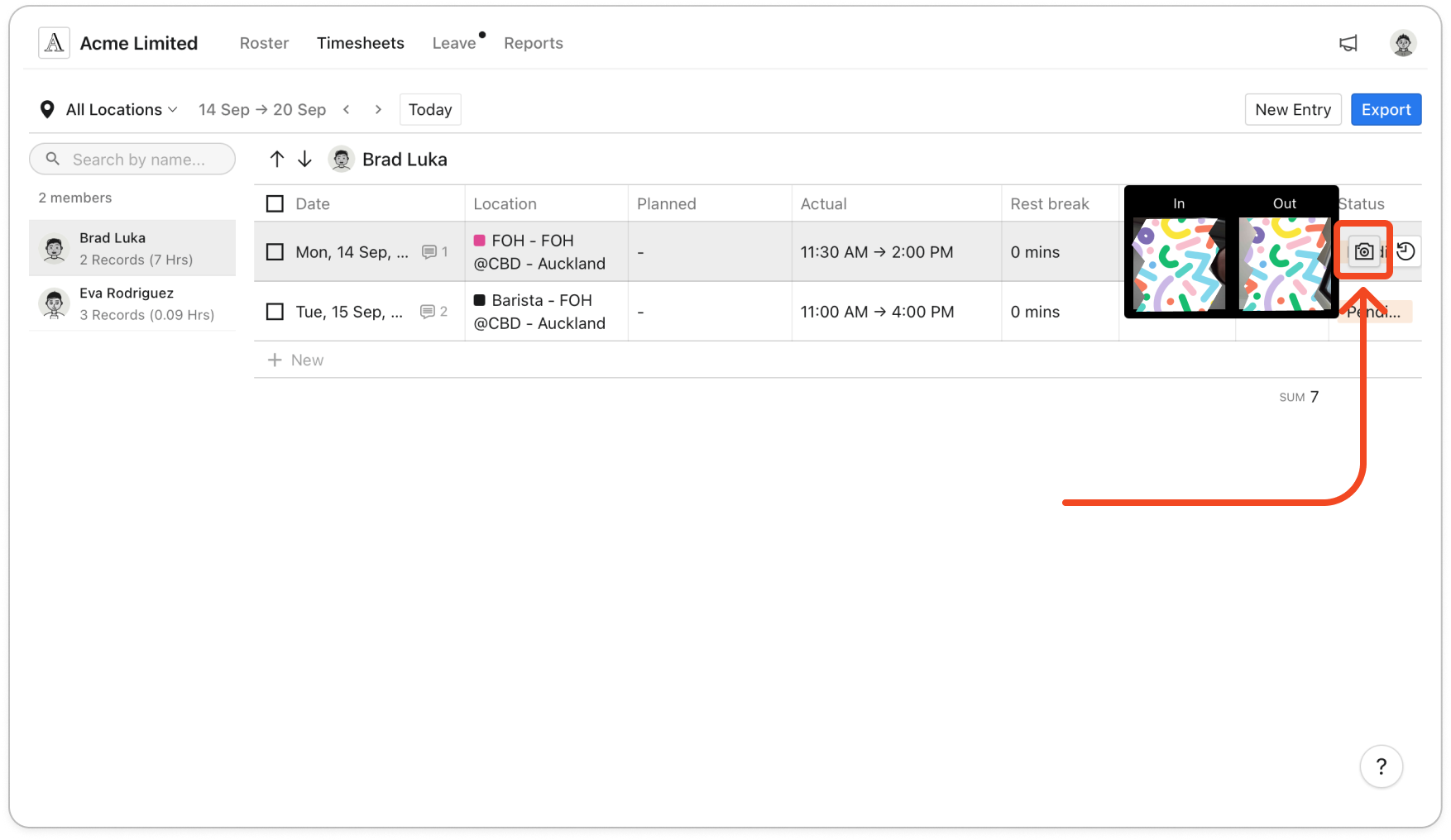
Note: A missing photo shows as a blank photo icon in the preview. Entries clocked before you turned buddy punch prevention on have no photos. If the tablet's camera can't take a photo, the clock in or out still saves without a photo.


