.svg)
Publish the shifts you have rostered so members can see them, and let them know.
Note: New and changed shifts are drafts until you publish. On the web a draft is pale yellow; on your phone it carries a yellow DRAFT tag.
On the web
- Click Roster in the top bar, then click Publish in the toolbar.
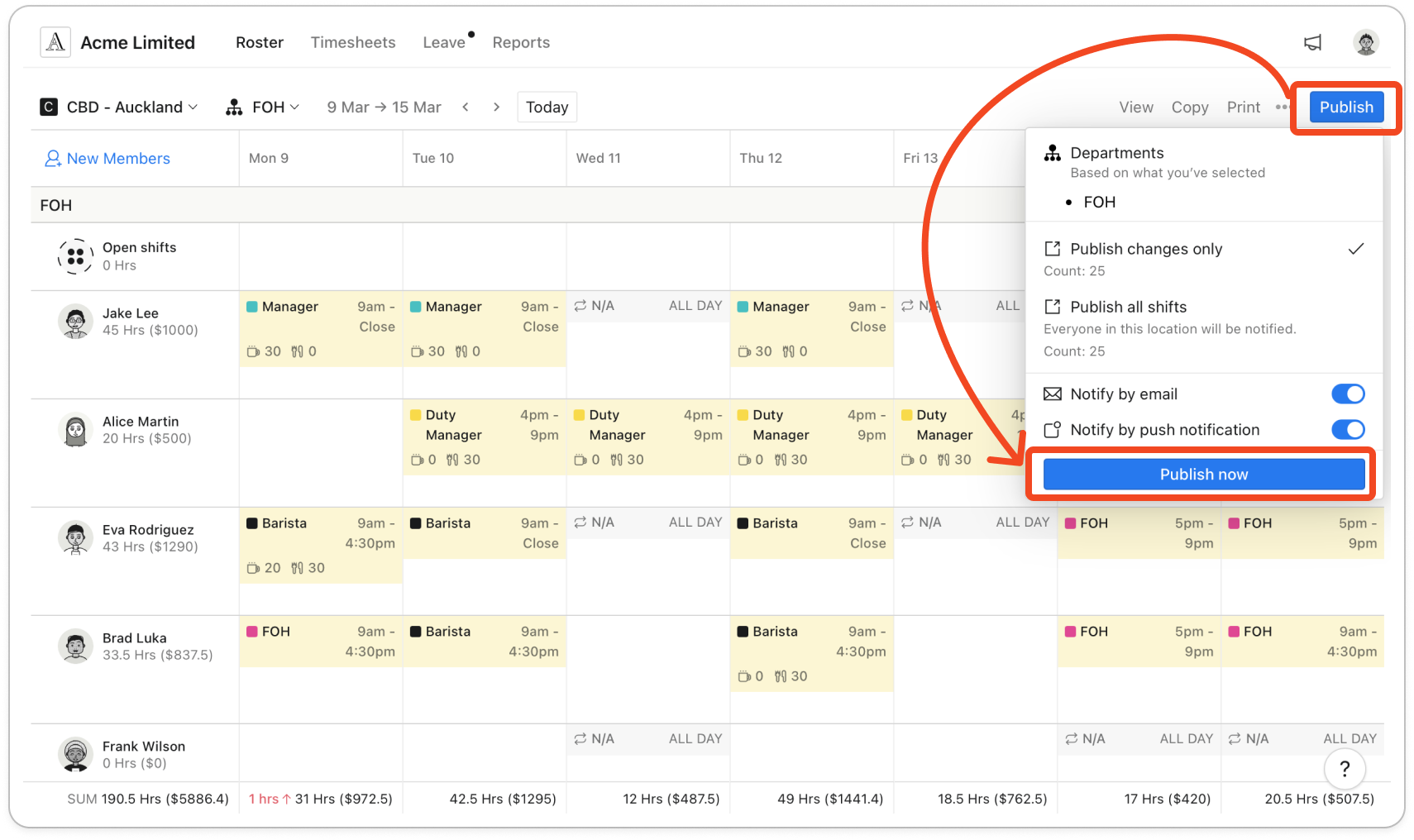
- Pick Publish changes only or Publish all shifts. Each shows how many shifts it covers, and the departments you have selected are listed above them.
- Notify by email and Notify by push notification both start on. Turn either off if you don't want it.
- Click Publish now.
Important: With Notify by email on, Email address missing for members below lists any member without one. Their shifts are published all the same, they just aren't told. Type an address for each and click Notify to save it to their profile and send them the roster, or click Close to leave it for now.
On your phone
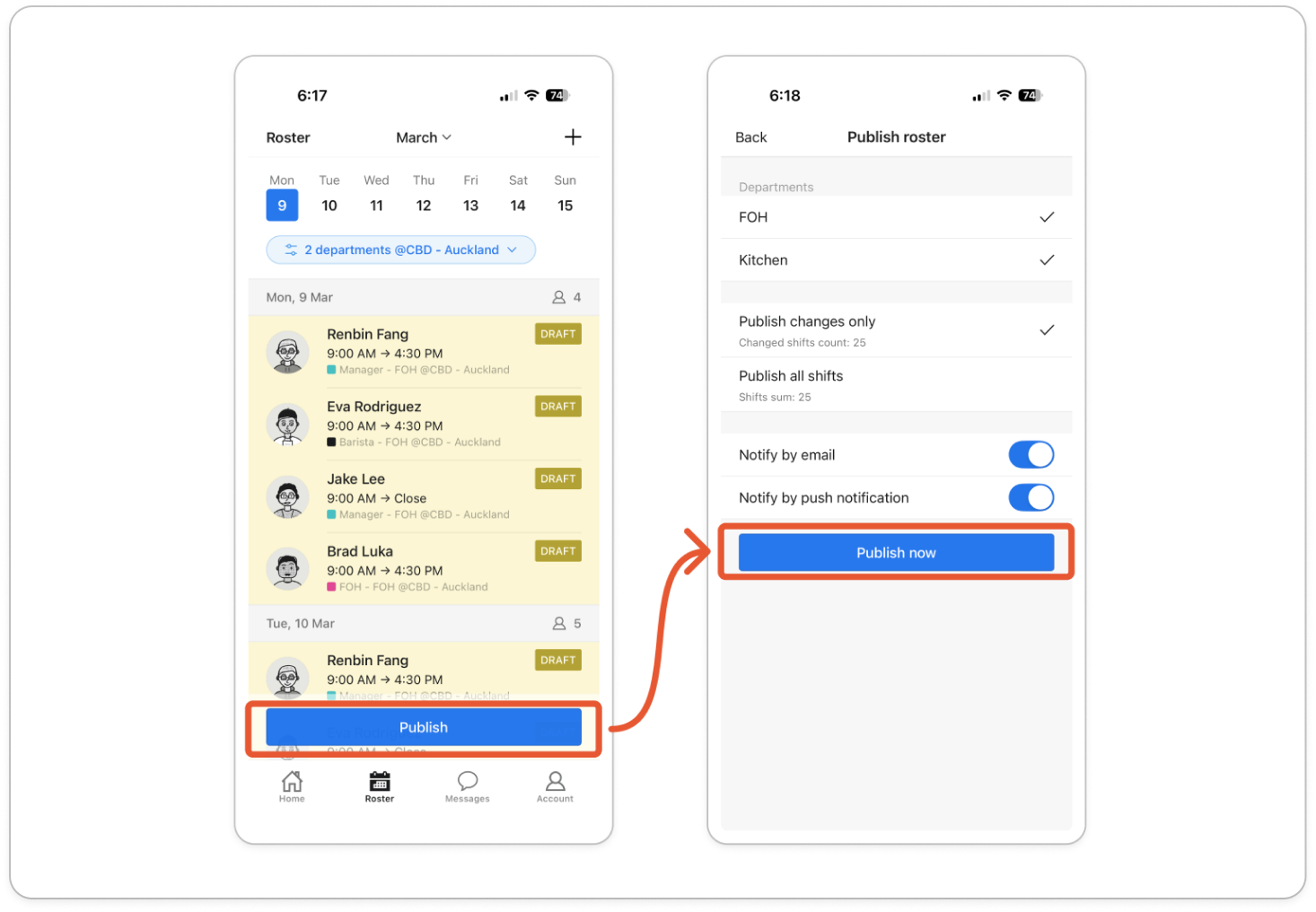
- Tap Roster, then tap Publish at the bottom. The button only appears when the week has draft shifts.
- Check the departments at the top, then pick Publish changes only, which shows the changed shifts count, or Publish all shifts, which shows the total.
- Notify by email and Notify by push notification both start on. Turn either off if you don't want it.
- Tap Publish now. Timble says it published successfully.
Important: If a member has no email address, an alert names them and the only button is Okay, which takes you back to the roster. Their shifts are published all the same, they just aren't told. Add an email address to their profile to tell them next time.
Note: The push notification is titled Roster Updates and names the dates and location. If your admin has turned on Shift Confirmation, members can confirm or decline the shifts you just published.


