.svg)
Turn on prevent early clock-in so a member can only clock in once their rostered shift is nearly due to start.
- Click your profile picture in the top right, then click Settings.
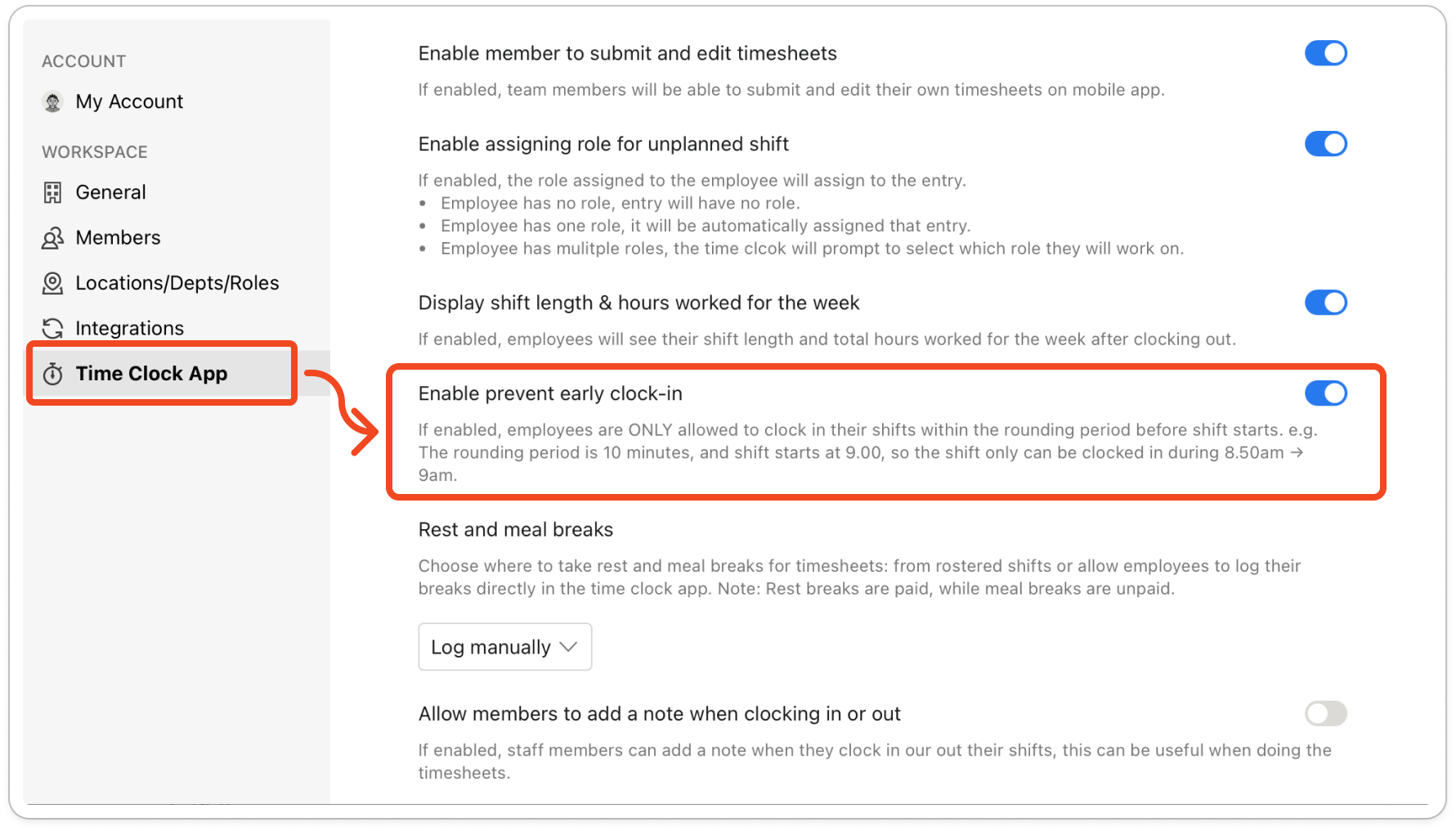
- Click Time Clock App.
- Under Time clock settings, turn on Enable prevent early clock-in. The change saves straight away.
- Under Timesheets rounding, choose a Rounding period. The period you choose sets how early a member can clock in. If you choose 10 minutes and a shift starts at 9am, the member can clock in from 8.50am. If you choose None, no one can clock in before the shift start time.
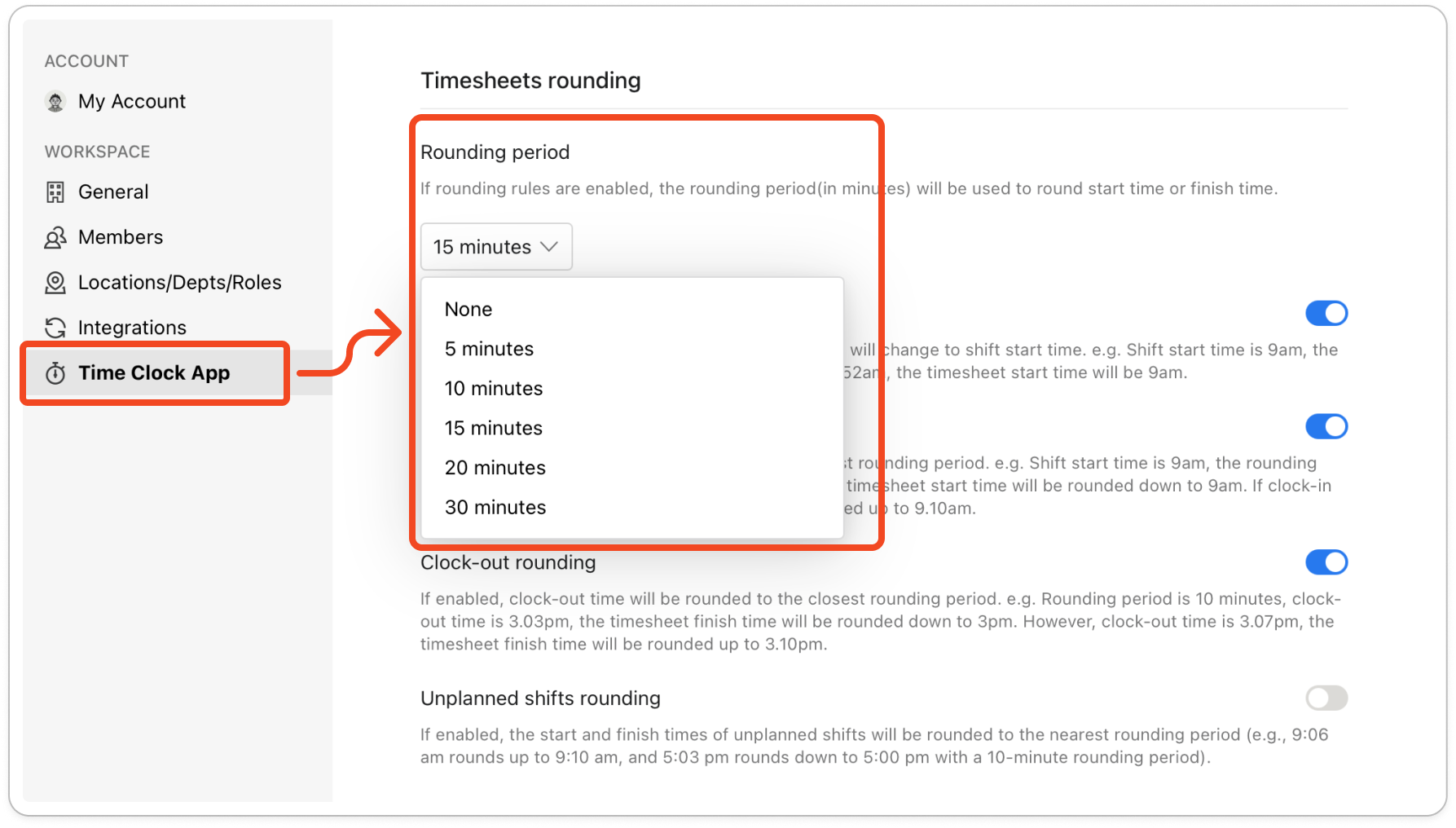
Note: This setting only blocks the clock-in itself. Further down the same tab, Early clock-in rounding is a separate switch that changes the recorded start time to the shift start time. All of the rounding switches share this one rounding period, so changing the period affects those settings too.
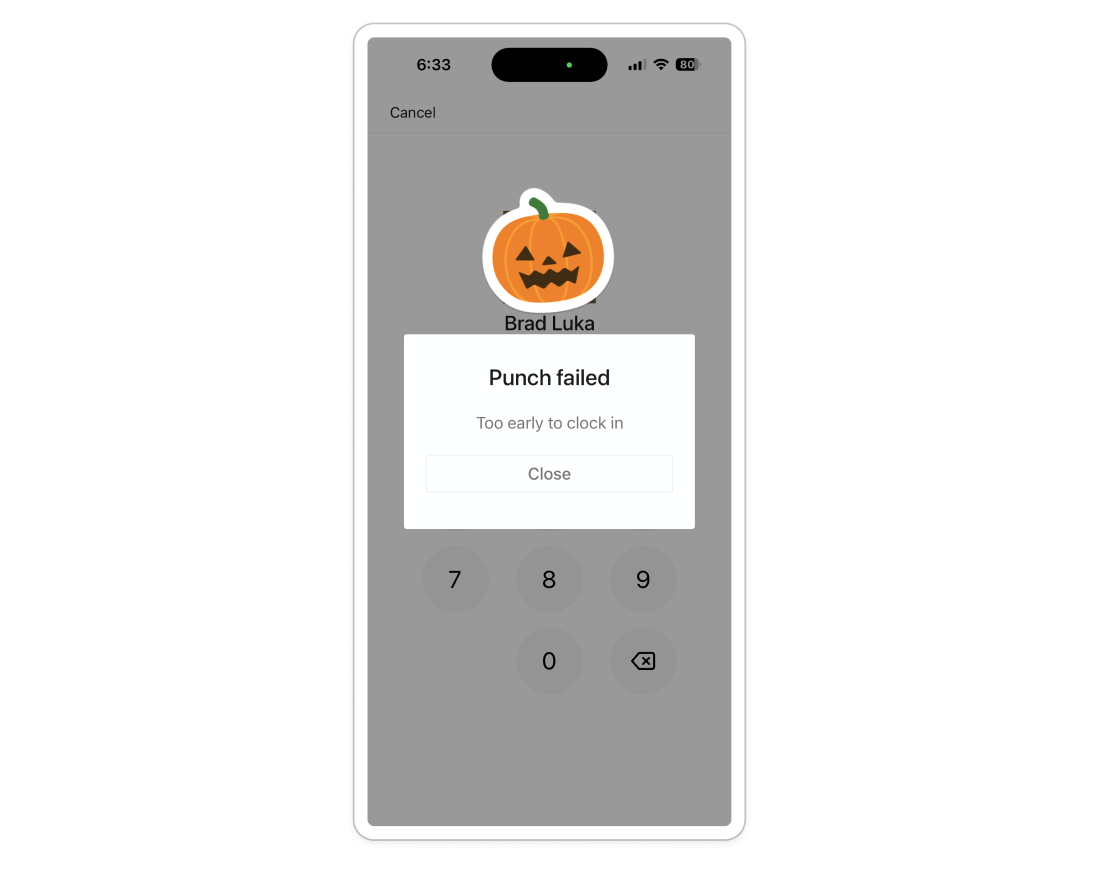
Note: A member who tries too early sees Punch failed with the message "Too early to clock in", on the time clock tablet or on their own phone. The setting only applies to shifts on the published roster for that day and location. A member who has no published shift at that location that day is not stopped from clocking in.