.svg)
Send a written message to your team, then check who has read it.
Send an announcement
- Click the megaphone icon in the top right, beside your profile picture. The Announcement panel opens.
Note: If there's no megaphone icon, announcements aren't turned on for your business yet. An admin turns them on once, by clicking the megaphone icon and then Enable Communication.
- Click New. If you haven't sent an announcement before, you can click Make an announcement in the middle of the panel instead.
- Click Send to and choose who gets the announcement. An admin can choose the whole business, whole locations, or single departments. A manager can choose only the departments they're assigned to.
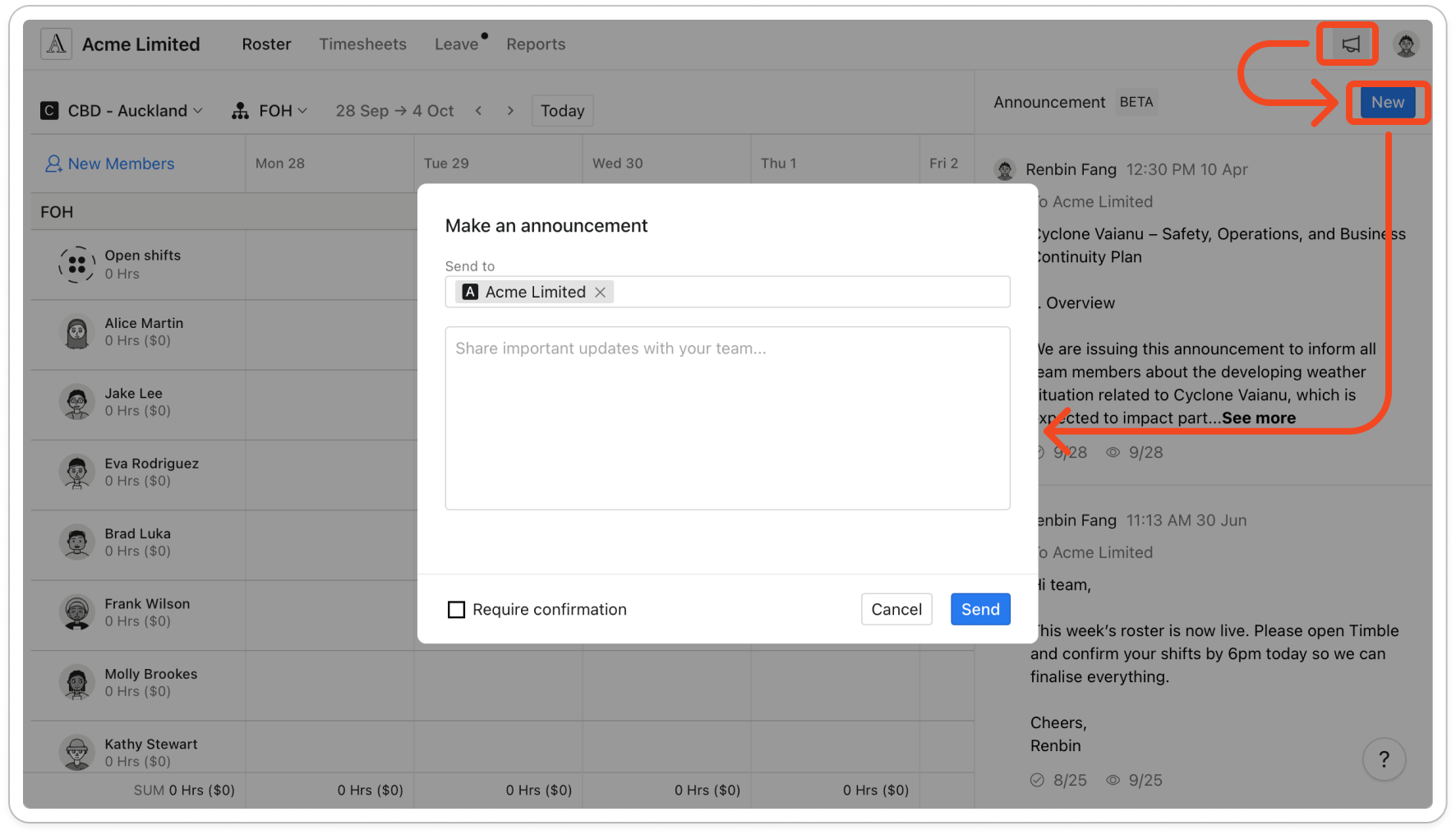
- Type your message in the box below Send to. An announcement is text only, up to 4,000 characters, with no attachments or pictures.
- To ask everyone to confirm they've read it, tick Require confirmation.
Note: If Require confirmation is greyed out with an upgrade badge beside it, your subscription doesn't include confirmations. You can still send the announcement without one.
- Click Send.
Note: Everyone in the business, locations or departments you chose gets a push notification titled "New announcement". They can read it in the Messages tab of the mobile app. You can't edit an announcement once it's sent.
See who has read it
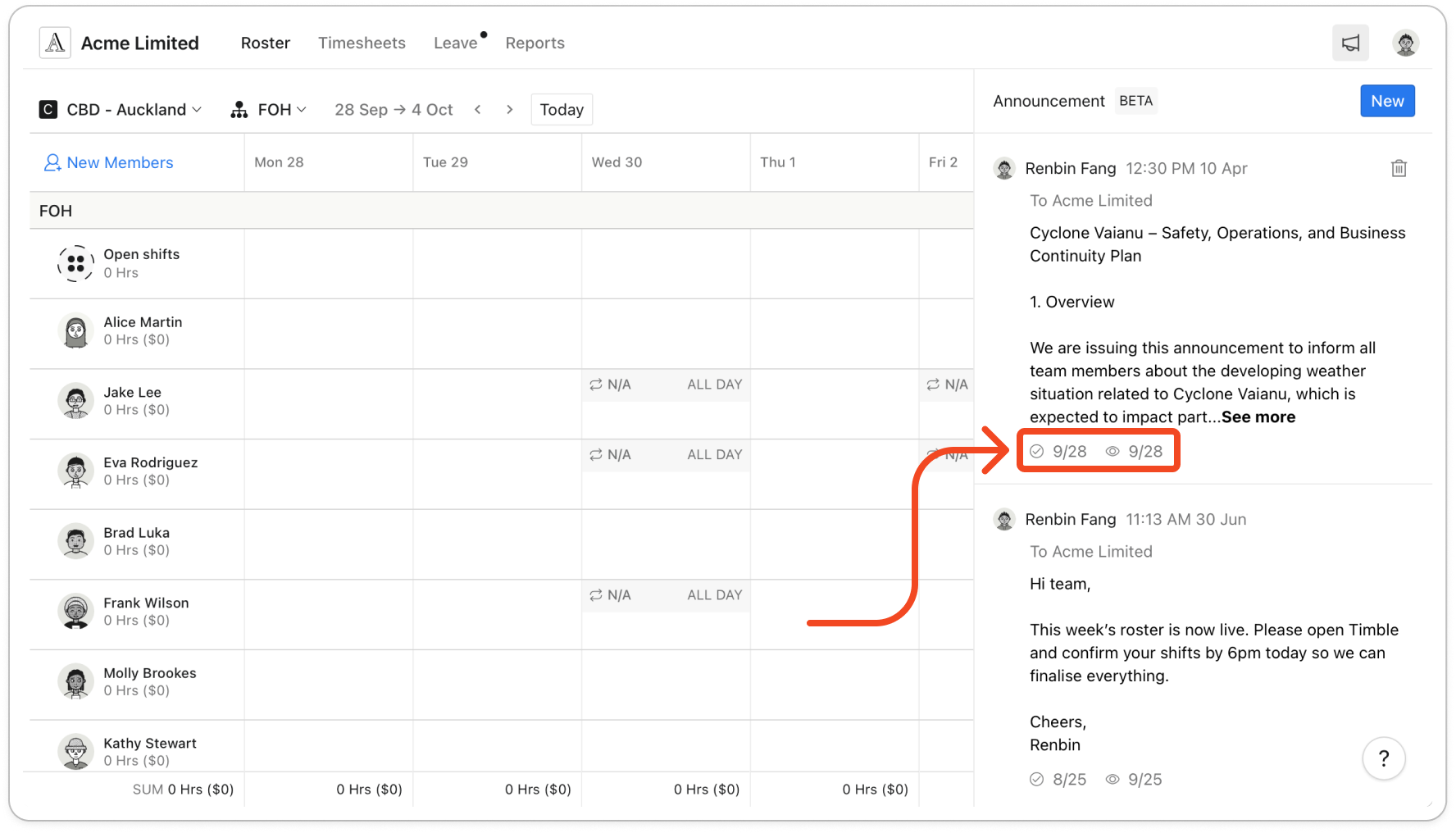
- In the Announcement panel, look under each announcement. An eye icon shows how many people have read it, such as 3/10. If you asked for confirmation, a tick icon beside it shows how many have confirmed.
- Click the counts to see everyone the announcement went to. A blue eye beside a name means that person has read it, and a blue tick means they've confirmed it.
Note: A manager sees only the announcements they sent. An admin sees every announcement sent in the business.
Delete an announcement
- Point at the announcement in the Announcement panel, then click the bin icon in its top right corner.
- Click Delete to confirm. The announcement disappears from the panel and from the Messages tab in the mobile app.


