.svg)
Turn on member timesheets access so members can check their own hours and see whether each entry has been approved.
- Click your profile picture in the top right, then click Settings.
- Click Time Clock App on the left.
Note: If the tab shows only an Enable Time Clock App button, the time clock isn't on for your business yet. Turn it on first, as the Turn on the time clock for your business guide describes. The rest of the settings appear once it is on.
- Under Time clock settings, turn on Enable member timesheets access. The setting saves as soon as you click the switch.
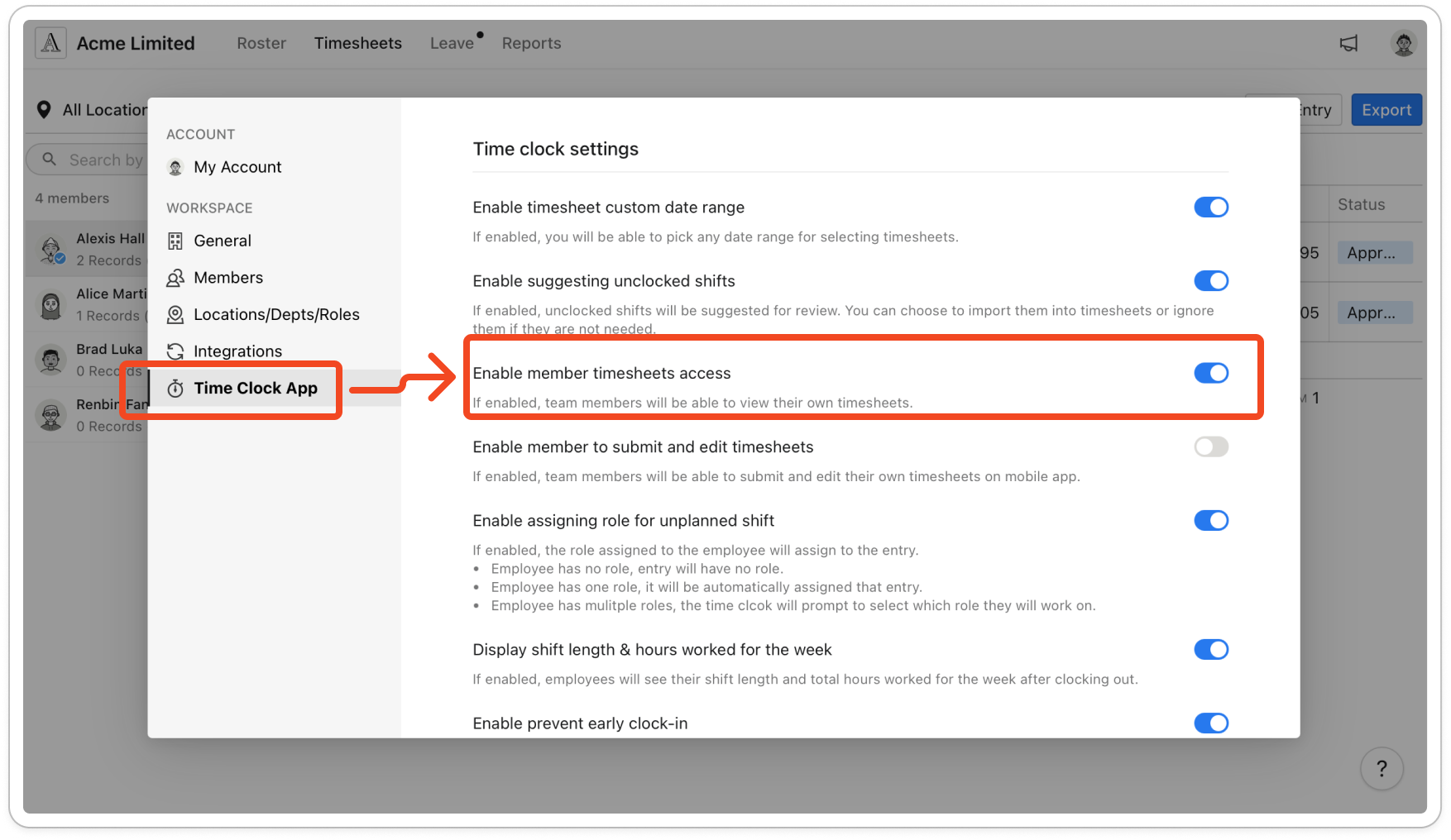
Note: In the mobile app, members now see My timesheets under Account. On the web app, they see My Timesheets when they click their profile picture. The page lists their hours week by week, and shows whether each entry is Pending or Approved. This switch only lets members view their timesheets. Enable member to submit and edit timesheets, which appears below it, is a separate setting. Members may need to fully close and reopen the mobile app before My timesheets appears.


