.svg)
Turn on availability so members can tell you which days and times they can work, and you can see that on the roster before you add shifts.
- Click your profile picture or initial in the top right, then click Settings.
- Click General.
- Scroll down to Availability & unavailability and turn on Allow team members to submit availability. The switch is off by default.
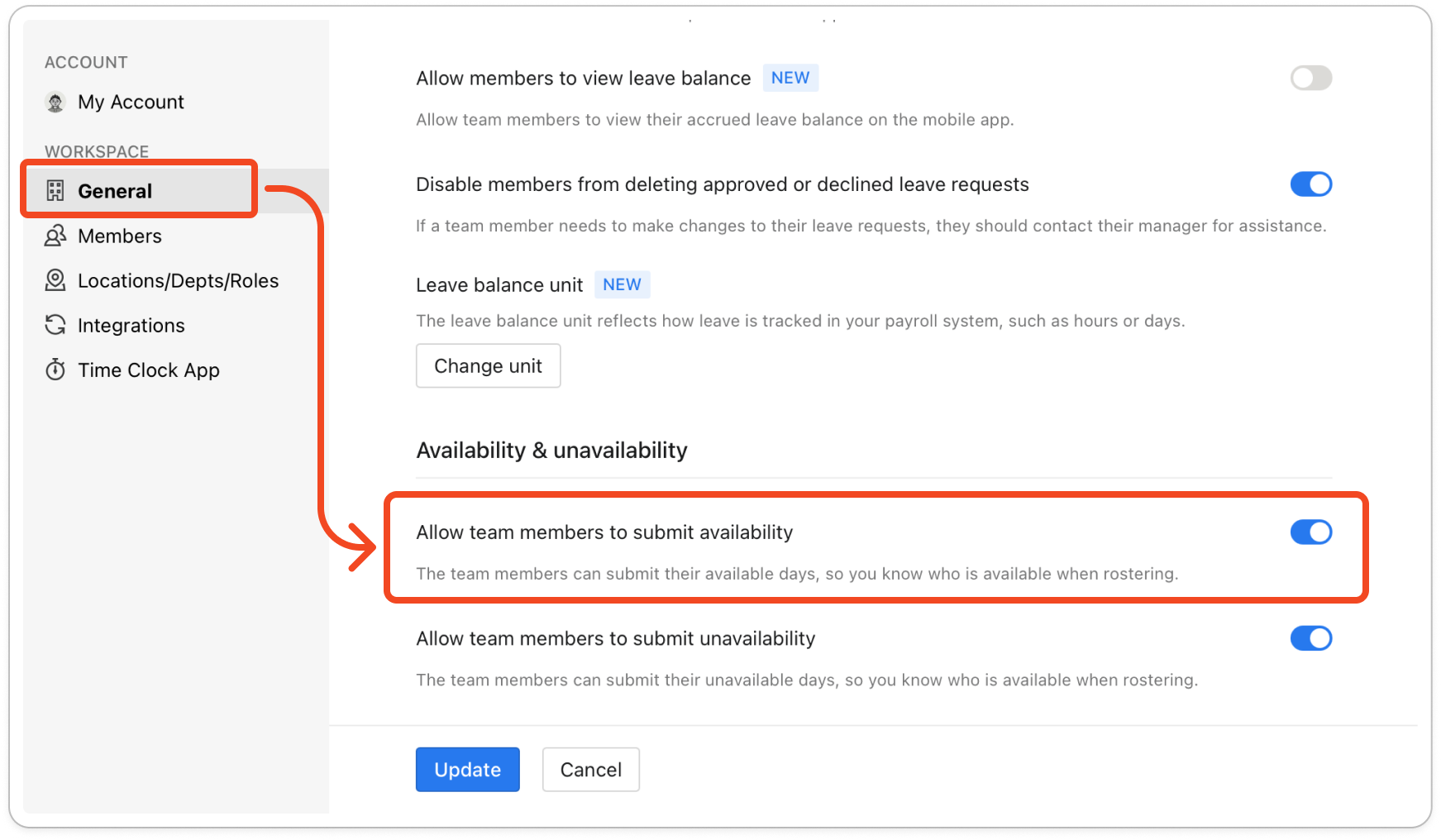
- Click Update at the bottom of the window to save the change.
Note: Members now see Availability on the Account screen of the mobile app the next time they open the app. From there they add one or more days, mark each as All day or give a Time range, and tap Submit.
- Open the roster. Each day a member has said they can work now carries a green AVAIL tag in their row, showing ALL DAY or the hours they gave.


