.svg)
Turn this on so your members can see who else is working in their departments, not just their own shifts.
- Click your profile picture in the top right, then click Settings.
- Click General.
- Under Roster, turn on Allow team members to see others' shifts.
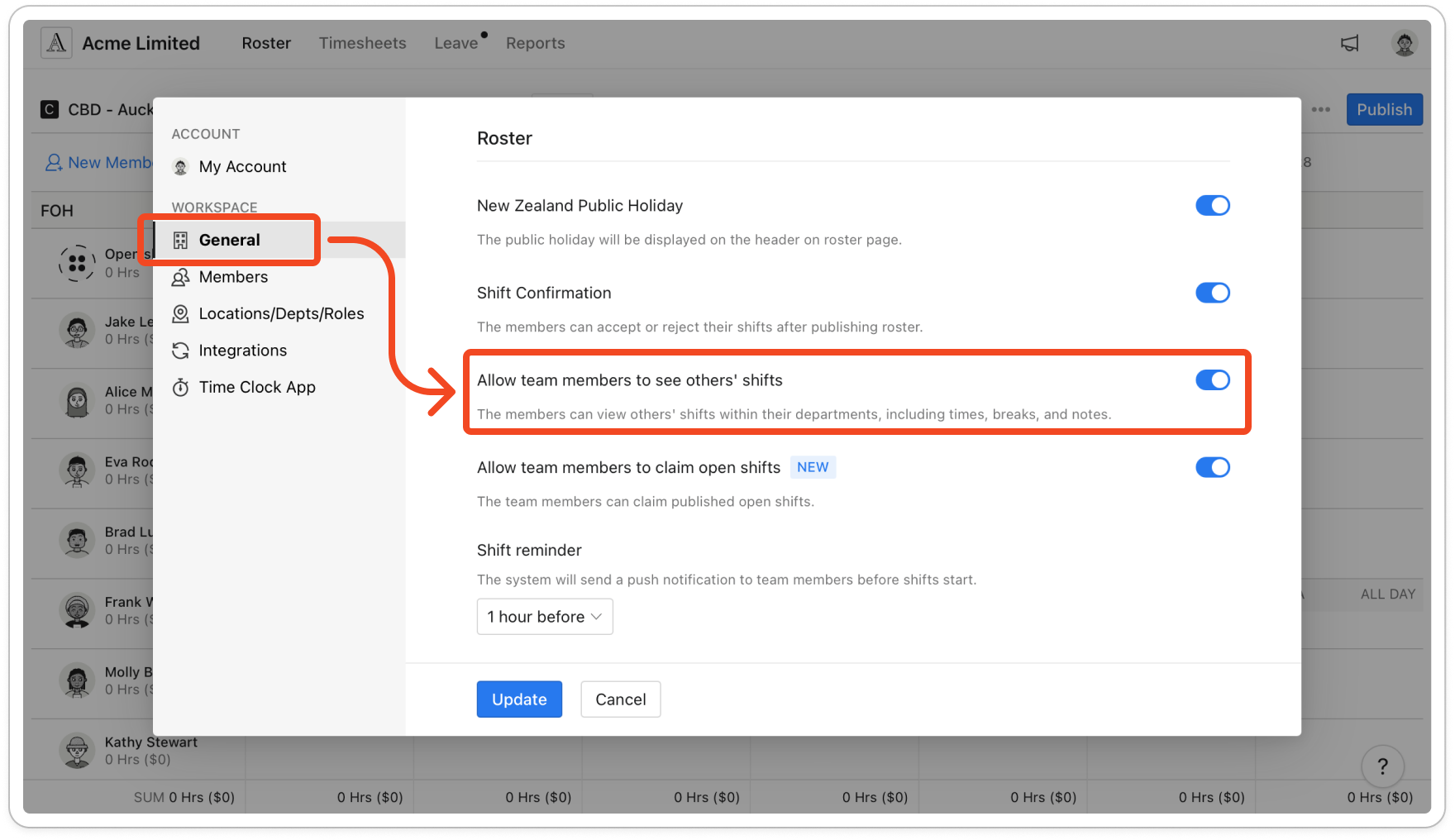
- Click Update. In the mobile app, members now get a My shifts and Roster switch at the top of the Roster tab. Tapping Roster shows everyone's published shifts in their departments, and tapping a shift shows its times, breaks and notes.
Note: Members must fully close the mobile app and open it again before the switch appears. Pulling down to refresh isn't enough. The same applies when you turn the setting off.


