.svg)
Turn on the member time clock so members can clock in and out from the time clock app on their own phones.
- Click your profile picture or initial in the top right, then click Settings.
- Click Time Clock App.
- Under Time clock(personal devices), turn on Enable member time clock. The change saves straight away.
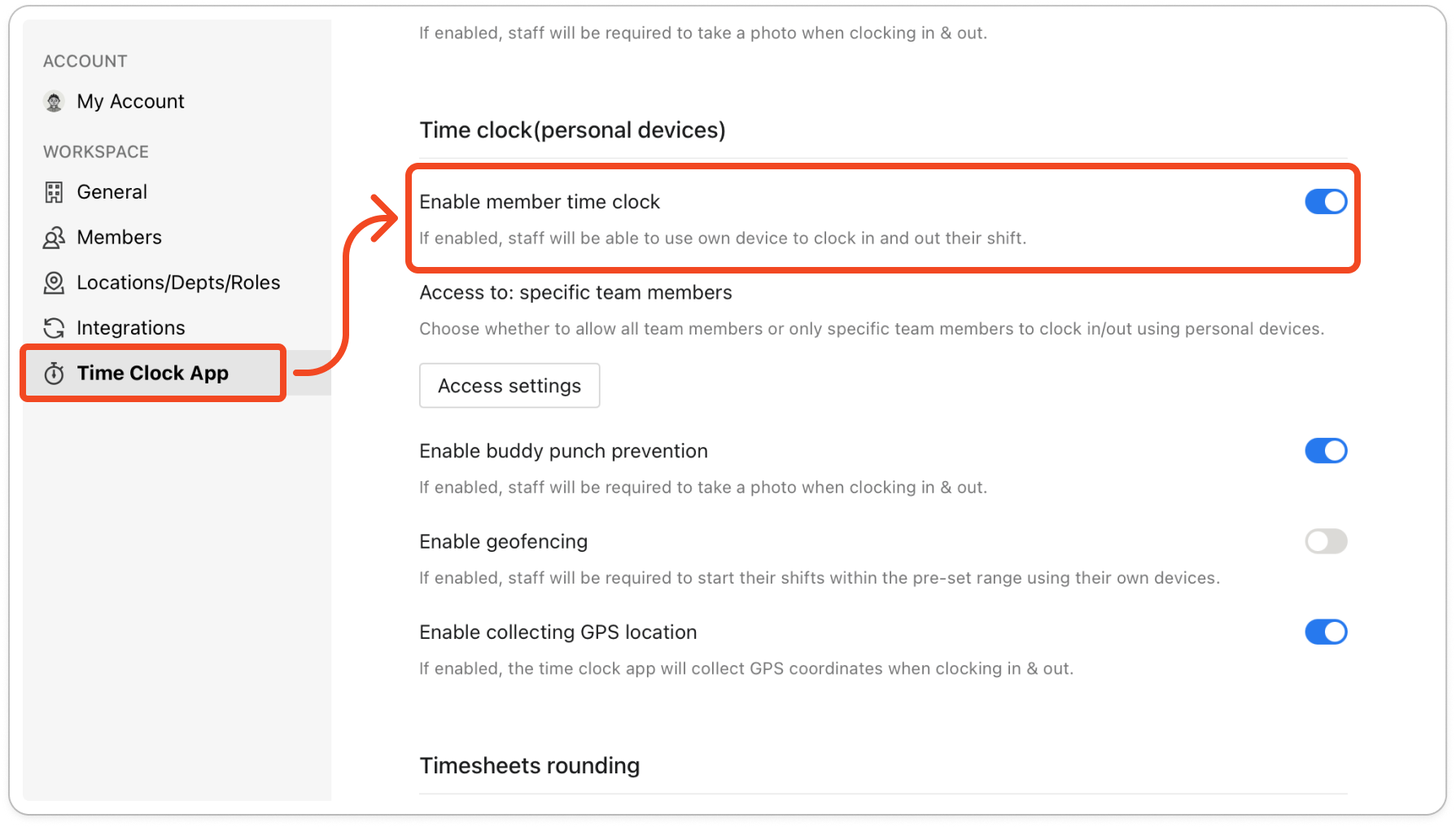
- Check the Access to line under the switch. It is set to all team members by default, which means every member can now clock in on their own phone.
Note: To allow only some members, click Access settings. The Choose which members can clock in on their own phones guide covers that window.
- Ask your members to install Timble Time Clock from the App Store or Google Play, and log in with the email and password they use for Timble.


