.svg)
Turn on open shift claiming so members can pick up the open shifts you publish, straight from their phone.
- Click your profile picture in the top right, then click Settings. Settings opens on General.
- Under Roster, turn on Allow team members to claim open shifts.
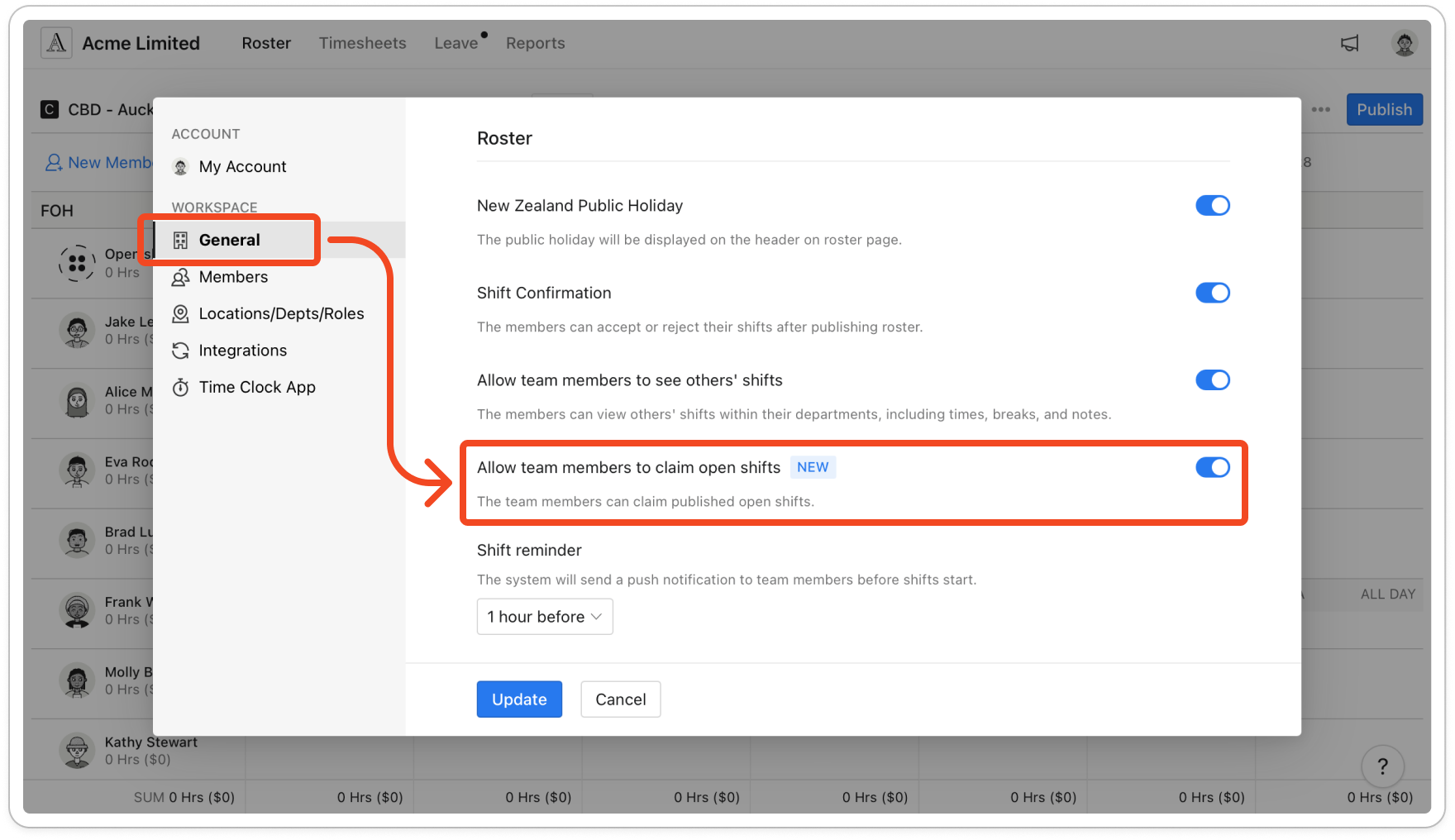
- Click Update.
Note: Members see Open shifts under Account in the mobile app, listing published open shifts in their departments for a role they hold or with no role set. They may need to fully close and reopen the app first. When you publish open shifts, members who can claim them get a push notification, and the first to claim a shift gets it as a draft on the roster until you publish again.


