.svg)
Turn on the note setting so members can explain a late start or a longer shift at the moment they clock in or out.
- Click your profile picture in the top right, then click Settings.
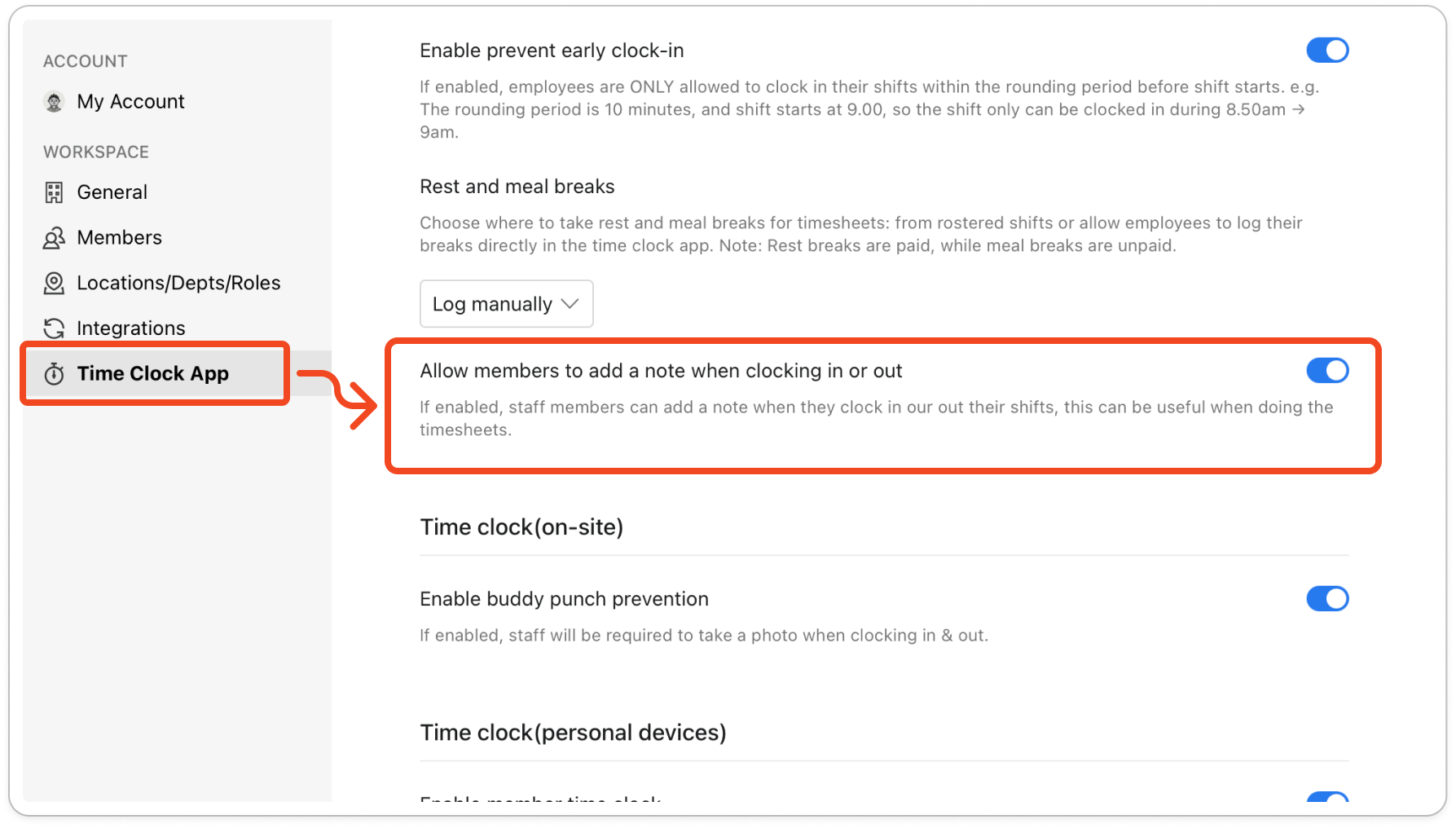
- Click Time Clock App.
- Under Time clock settings, turn on Allow members to add a note when clocking in or out. The change saves straight away, so there is nothing else to click.
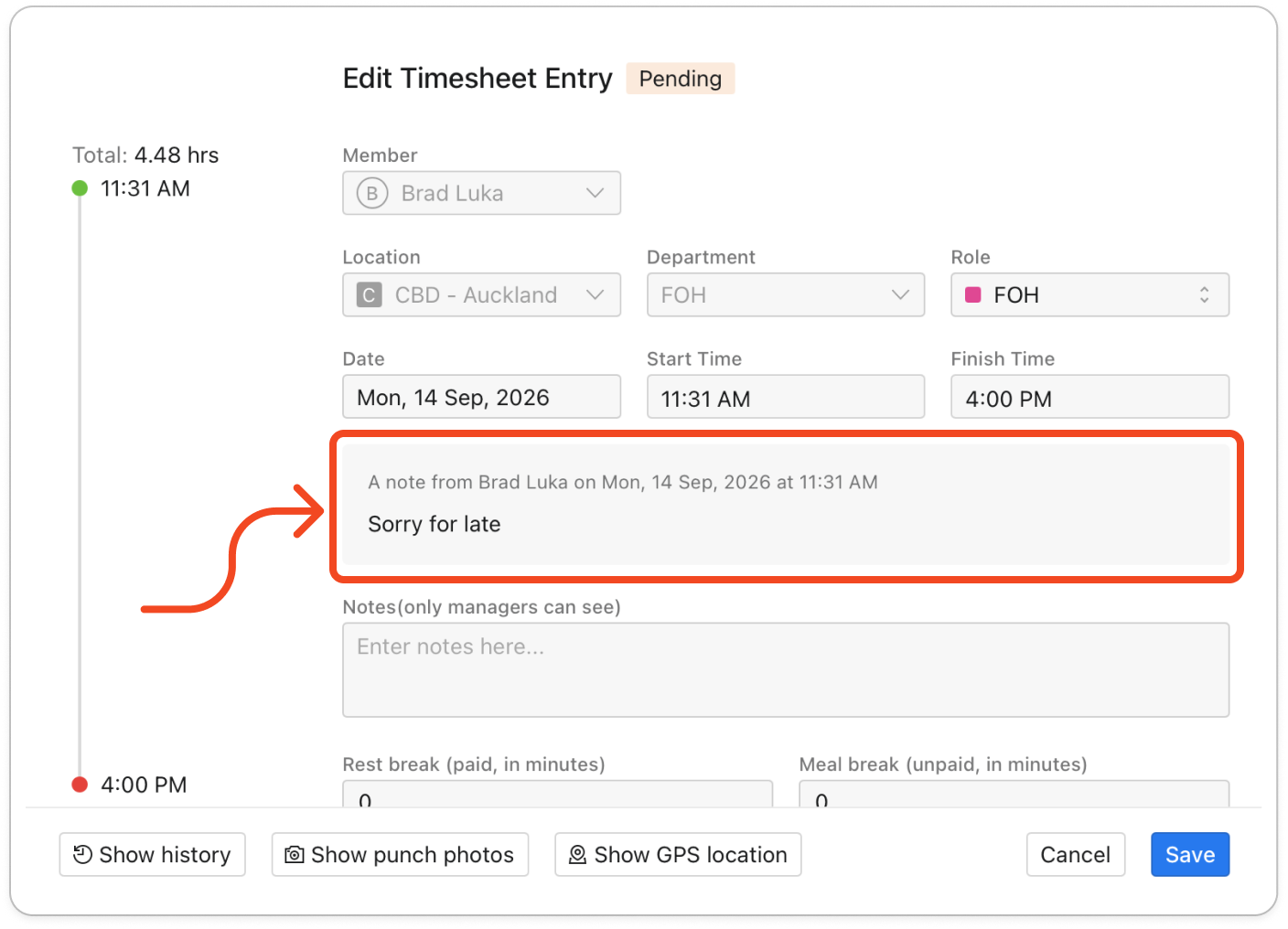
Note: Members add the note by tapping the pencil before they clock in or out. On a tablet, the pencil is at the top right of the PIN screen, after they tap their name. On their own phone, the pencil is at the top of the clock screen. If the pencil doesn't show, close the time clock app fully and open it again, because the app only checks this setting when it starts. You see the note when you open that member's entry in the Edit Timesheet Entry window. The note appears as "A note from", followed by the member's name and the date and time they clocked in or out. On the Timesheets page, any row that has notes shows a note icon with the number of notes beside it.