.svg)
If a member works a shift but doesn't clock in, Timble suggests it so you can add it to their timesheet at its rostered times instead of typing it in yourself.
- Click Timesheets at the top of the page.
- Pick the dates and the location to check. Suggestions only appear for shifts inside the dates and location you pick.
Note: Suggestions only appear if your admin has turned on Enable suggesting unclocked shifts. Once a day, early in the morning, Timble checks the published shifts from the day before. Any shift with no timesheet entry against it becomes a suggestion, so a shift worked today is only suggested the next morning.
- Click a member in the list on the left. Members with suggested shifts appear in the list even if they have no timesheet entries yet.
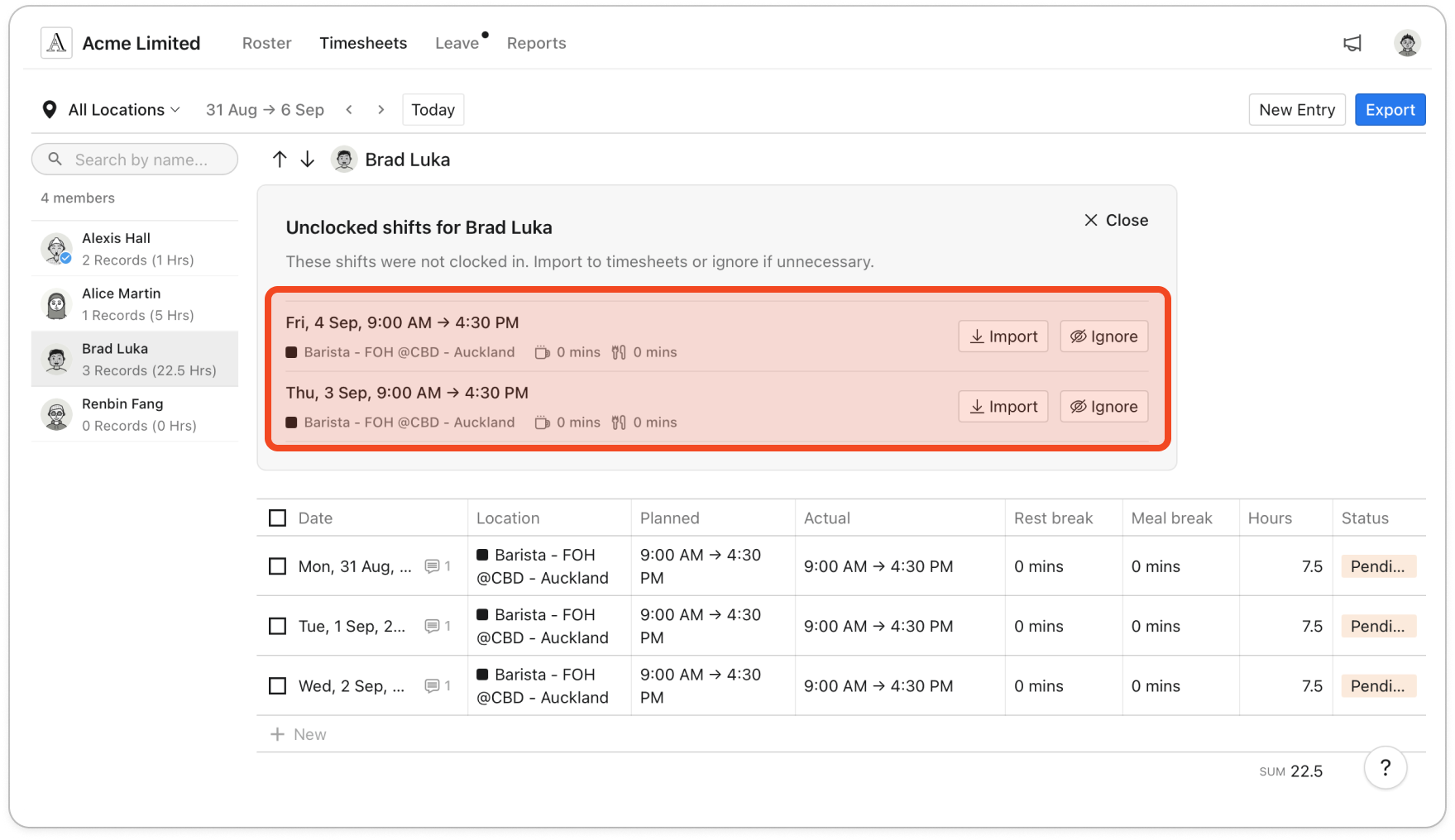
- Look through the shifts in the Unclocked shifts for panel. Each row shows the day, the rostered start and finish, the role, department and location, and the rest and meal breaks in minutes.
Tip: Click Close to hide the panel for now. The panel comes back when you change the dates, location or department, or when you reload the page.
- Click Import to add the shift to the member's timesheet, or Ignore if the member didn't work that shift.
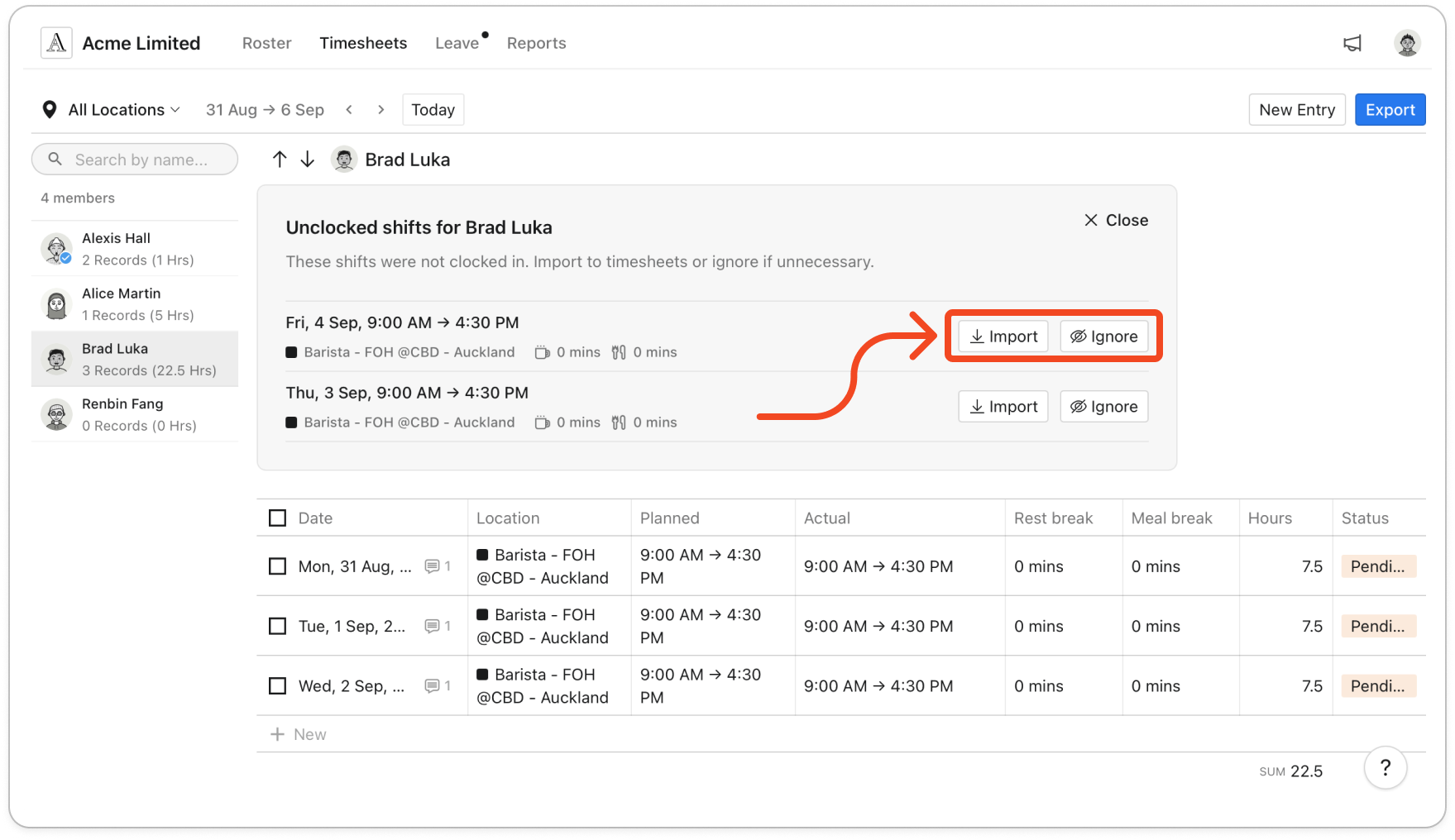
Note: An imported entry uses the rostered start, finish and breaks. It shows as Pending with the note "Imported unclocked shift". If the member worked different hours, edit the entry, then approve it as usual. A shift you ignore isn't suggested again.


