How do I let members see their department's roster?

FAQ

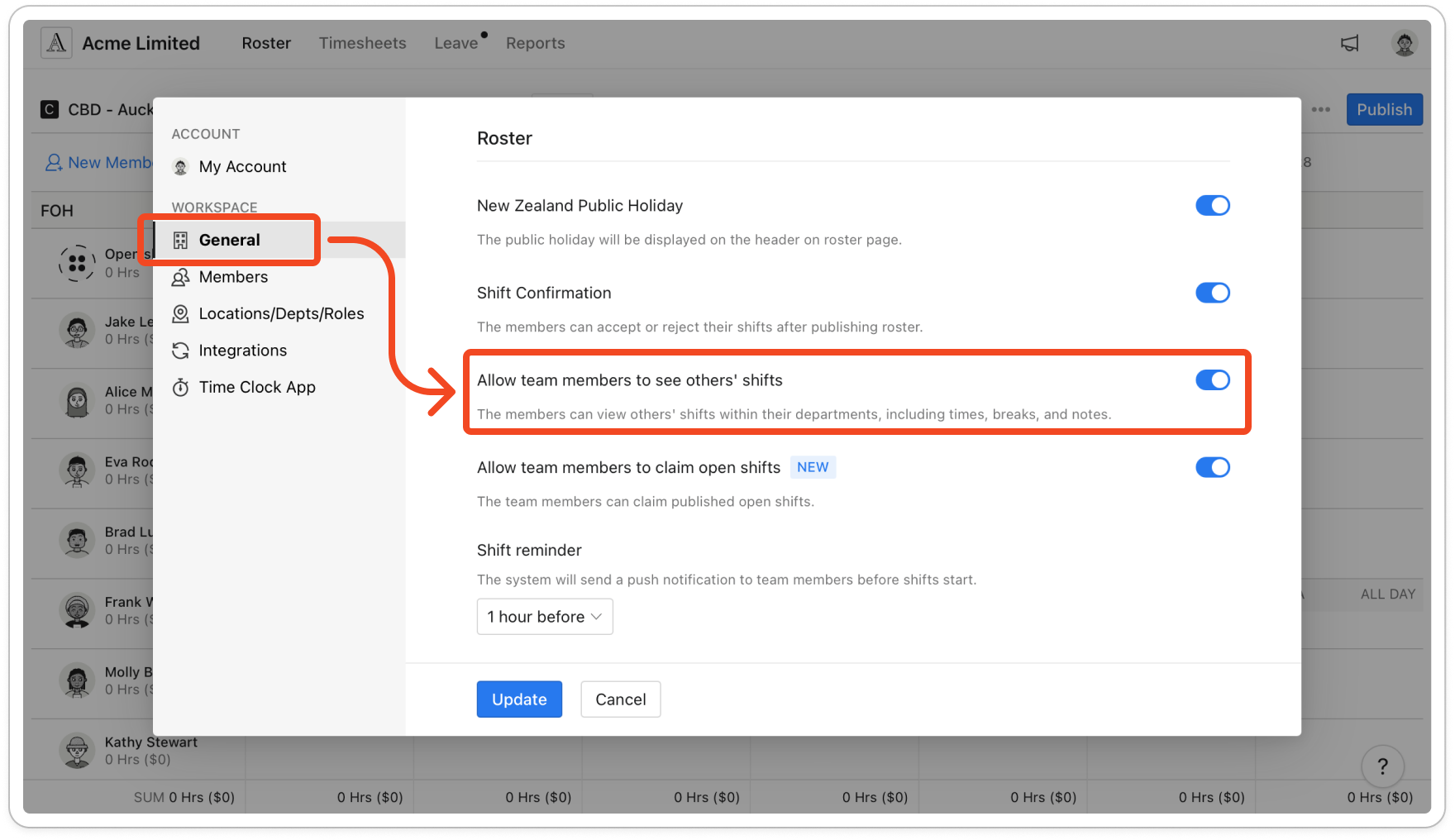
Turn on Allow team members to see others' shifts in Settings, under General. Members then see the published shifts in their departments on the Roster screen of the mobile app, once they close and reopen the app.

Turn on Allow team members to see others' shifts in Settings. Members then see the published shifts of everyone in their departments, with each shift's times, role and note.

  1. Click your profile picture in the top right, then click Settings.
  2. Click General. Under Roster, turn on Allow team members to see others' shifts.
  3. Click Update.
Settings open on General, with the Allow team members to see others' shifts switch turned on in the Roster section and the Update button below. The rescued assets/imported/51000488736-1.png shows this screen with older settings, so recapture

In the mobile app, members tap Roster at the bottom, then the Roster tab at the top, next to My shifts.
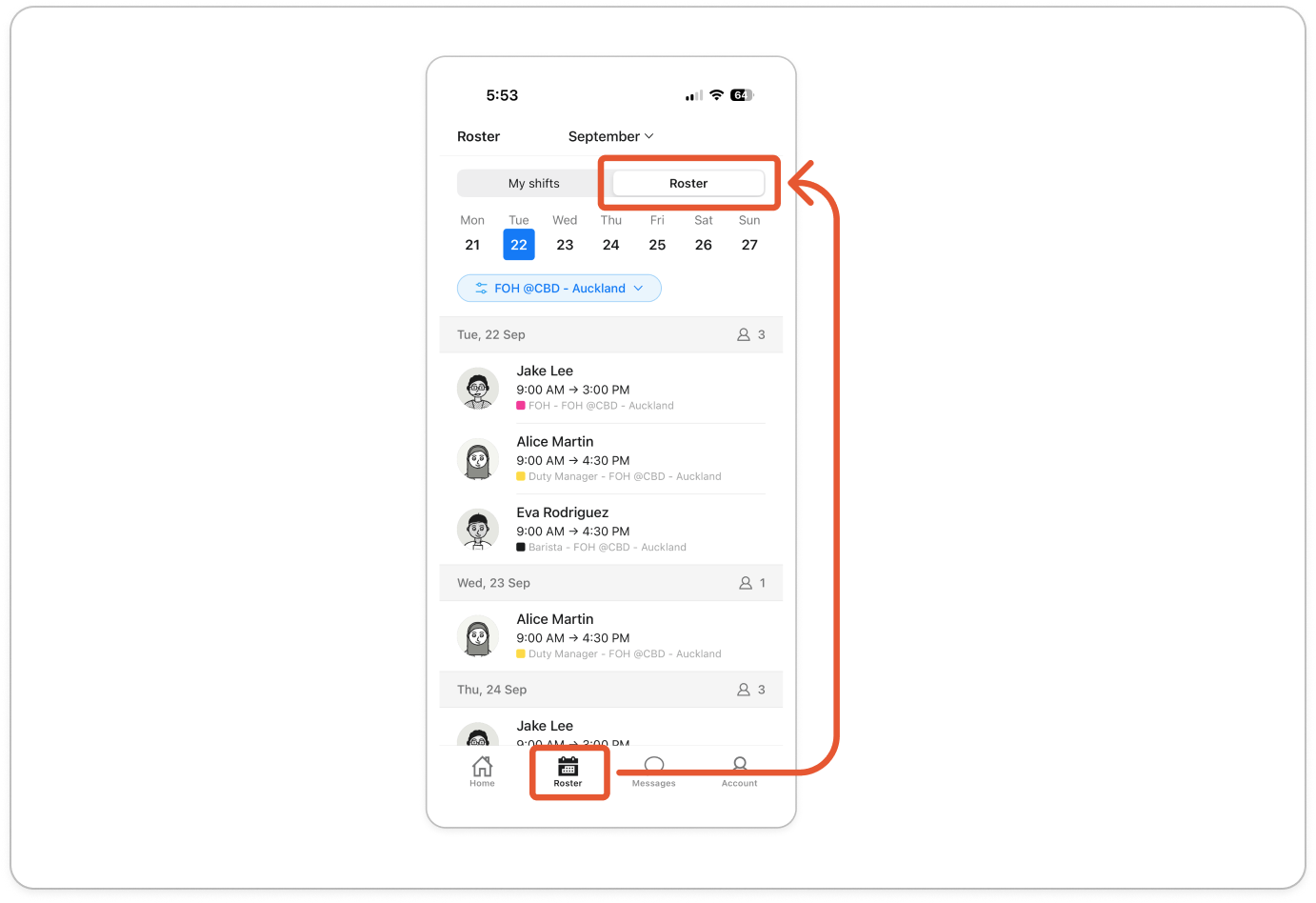
Mobile app Roster screen with the Roster tab selected next to My shifts, listing the day's shifts for other members of the department, using industry-neutral role names. The rescued assets/imported/51000488736-3.png shows this screen with trade role names, so recapture
Note: The mobile app only picks up the change when it opens. Members need to close the app fully and open it again, or log out and back in, before the Roster tab appears.