.svg)
Update a member's name, email, mobile number, photo or time clock PIN from their profile.
- Click your profile picture in the top right, then click Members.
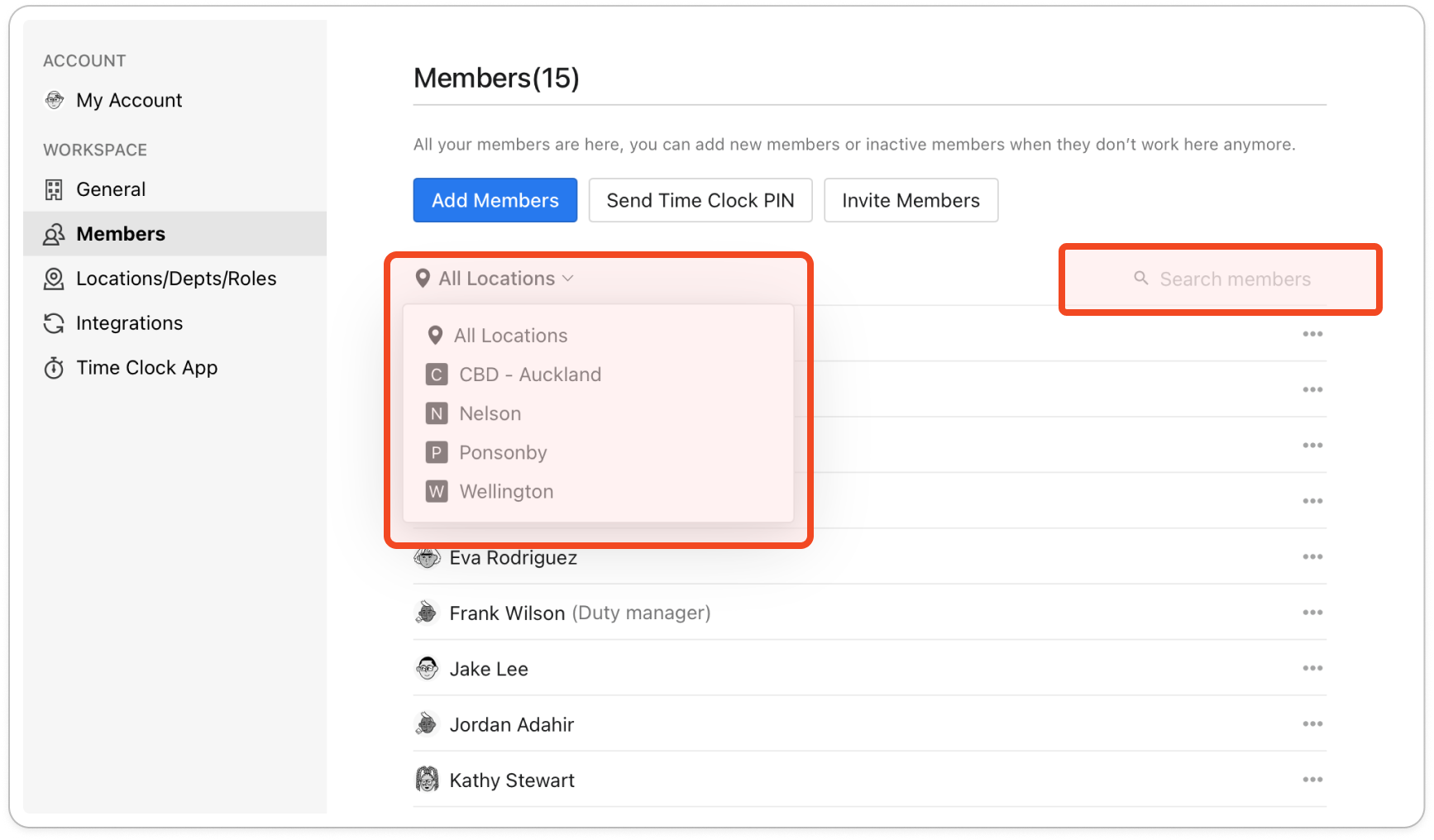
- Find the member. Use All Locations, All Departments and All Roles above the list to narrow it, or type into Search members.
- Click the member's name or photo. Their profile opens on the Personal info tab.
Note: The other tabs down the left have their own guides in this category. Wage & Salary holds pay rates, Assignments puts the member at locations, departments and roles, and Permissions sets their account type. Login & Security, below the fields on this tab, resends an invite or sends a password reset.
- To change the photo, click Upload Photo and pick a JPEG, PNG or GIF under 10MB.
- Change Full Name, Email and Mobile as needed. A name is required, and Timble checks that the email looks valid.
Note: If Email is greyed out, this person uses the same Timble login at more than one business. Their email address belongs to their login, not to your business, so it can't be changed from here. It is also greyed out on your own profile.
- To give the member a new Time Clock PIN, type four digits. Timble won't save the profile while the PIN is empty or shorter than that.
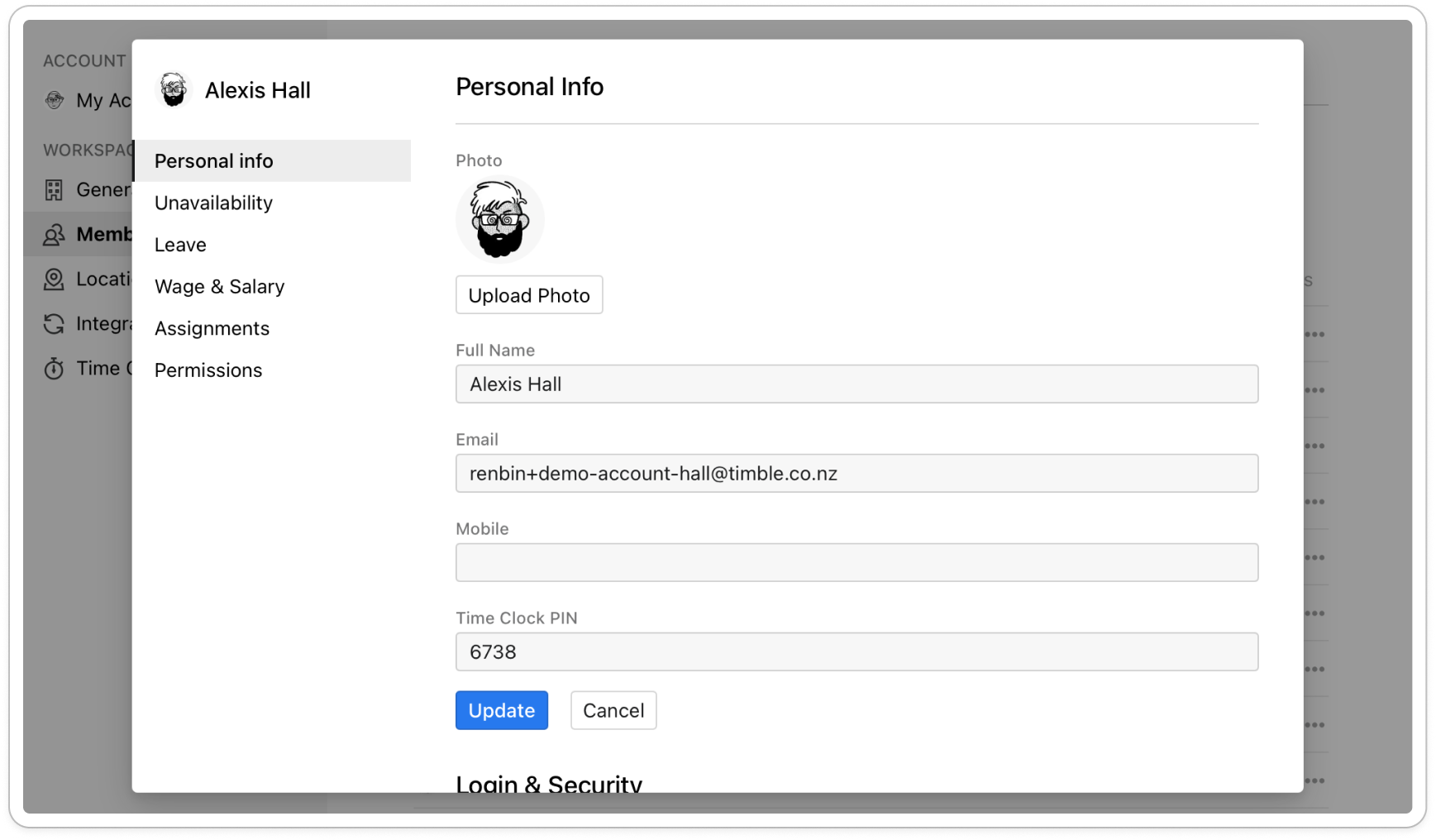
- Click Update.
Note: If another member at your business already uses that email, Timble says "Email address existed already, please use another one." Enter a different address.
Tip: If you click another tab with unsaved changes, Timble asks "Do you want to update your changes?" Click Update to keep them or Discard to drop them.


