.svg)
Turn off a member's access to your business when they stop working for you, and turn it back on if they come back.
Deactivate a member
- Click your profile picture in the top right, then click Members.
- Find the member. Use the location, department and role buttons above the list to narrow it down, or type their name into Search members.
- Click the three dots on the right of their row.
Note: An administrator's row has no three dots. An administrator can't be deactivated.
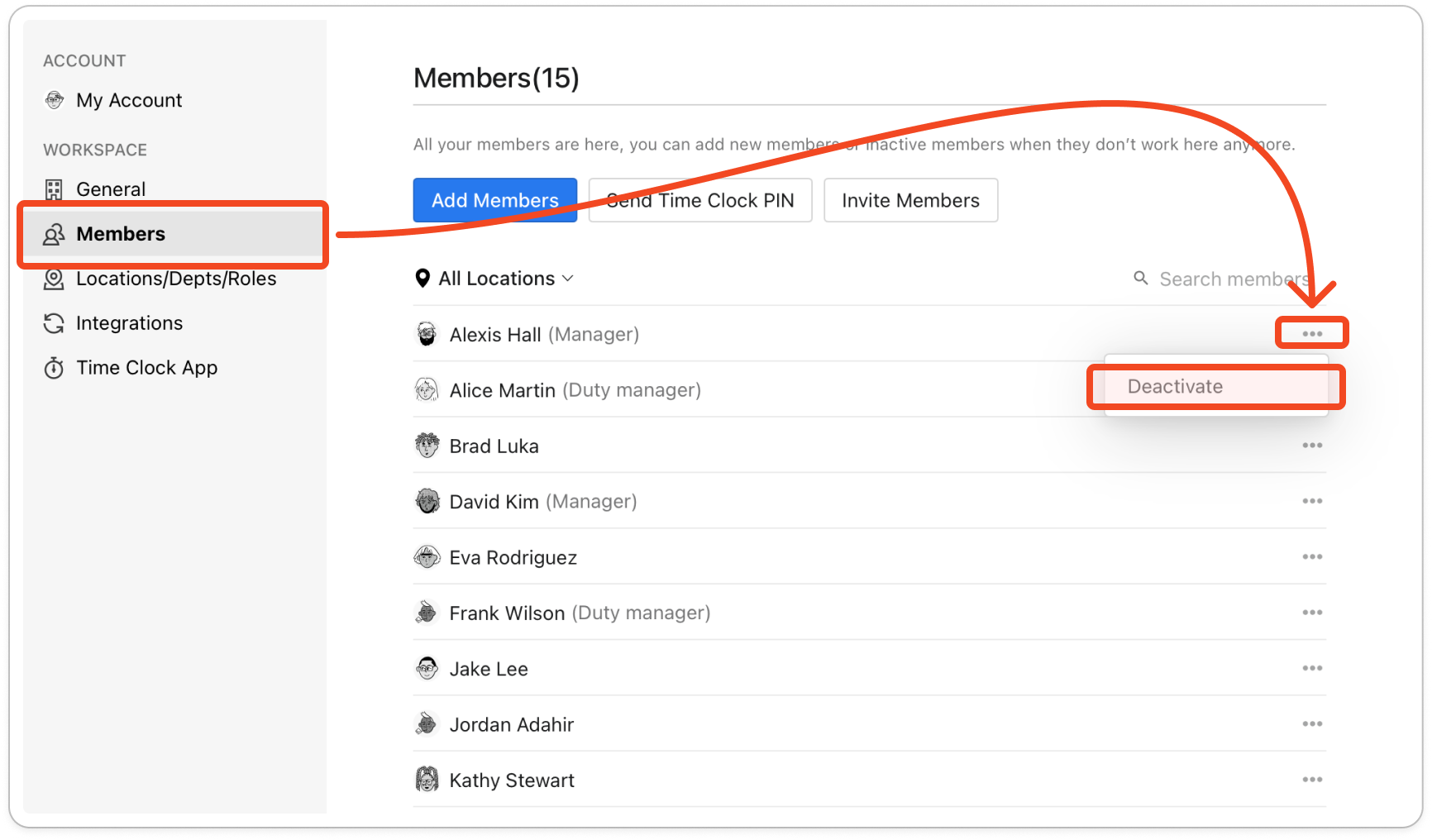
- Click Deactivate. There is no confirmation step: the member drops to the bottom of the list straight away, greyed out, with "(Deactivated)" after their name.
Note: A deactivated member can't use Timble for your business. On the web app they see "Your account with [your business] is deactivated. Please talk to your manager if you need access." The mobile app shows an "Access removed" alert that says "Your access to Timble has been removed. If you think this is a mistake, please contact your manager." and logs them out. Unless they also work for another business on Timble, the same message appears if they try to log in again. On the time clock app they no longer appear in the member list, so they can't enter their PIN, and a personal login shows the same message. Only you can give their access back, by reactivating them.
Reactivate a member
- On the Members page, scroll to the bottom of the list, where deactivated members sit greyed out with "(Deactivated)" after their name. Search members finds them too.
- Click the three dots on the right of their row.
- Click Activate. Their name moves back up into the active list.


