.svg)
Add shifts to the roster, then change or delete them as the week firms up.
On the web
Add a shift
- Click Roster in the top bar.
- Hover over the day on the member's row and click the + that appears.
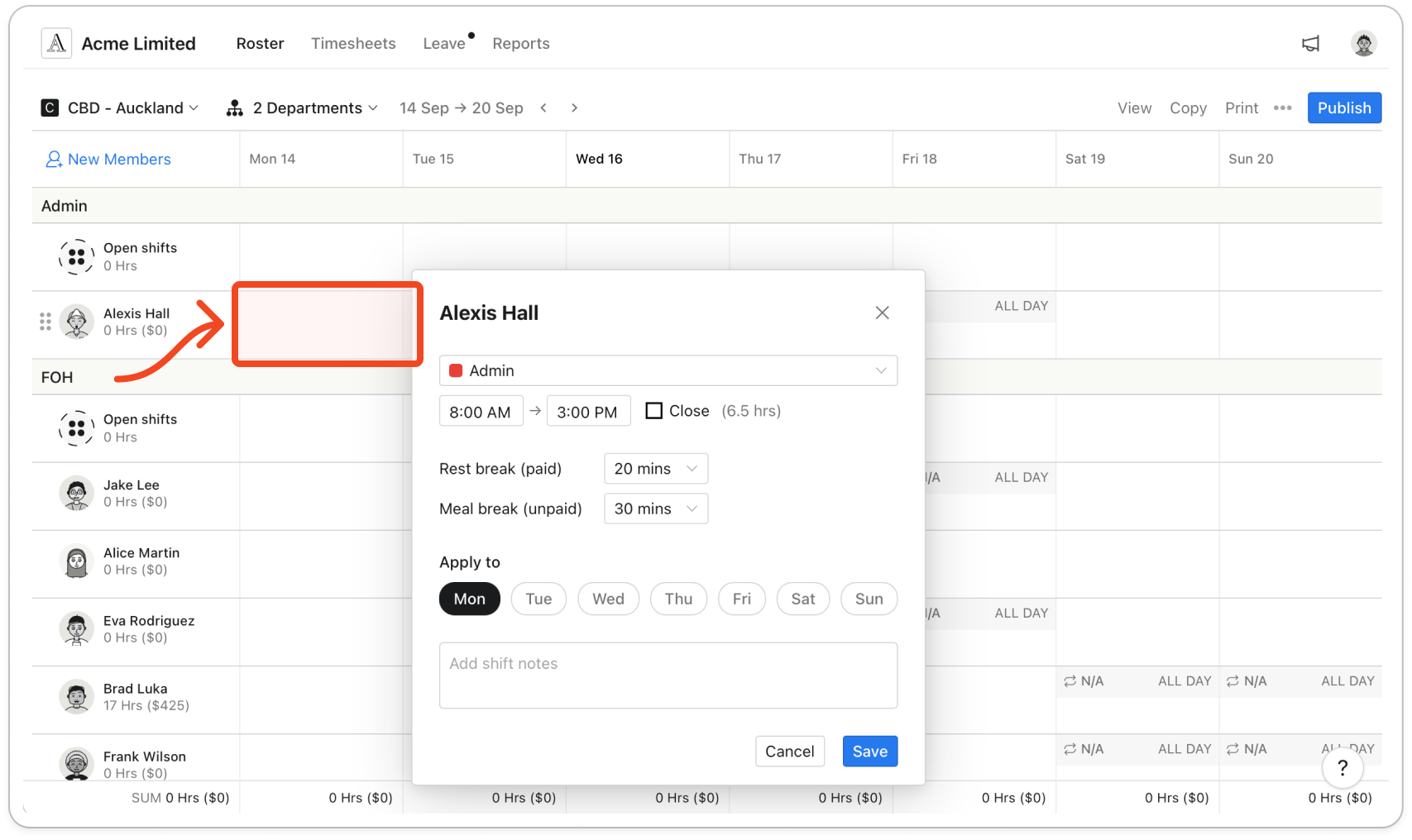
- If the member has a role here, pick it from the dropdown at the top. A role with default hours or breaks fills them in.
- Set the start and finish times. The shift's hours, less the meal break, show beside them.
- Choose a length for Rest break (paid) and Meal break (unpaid), or pick Custom to type up to 240 minutes.
- Under Apply to, click any other days that week that need the same shift.
- Type a note into Add shift notes if the member needs one.
- Click Save.
Note: A new shift is a draft, shown in pale yellow, until you publish the roster. Members don't see it in their shifts until then.
Edit or delete a shift
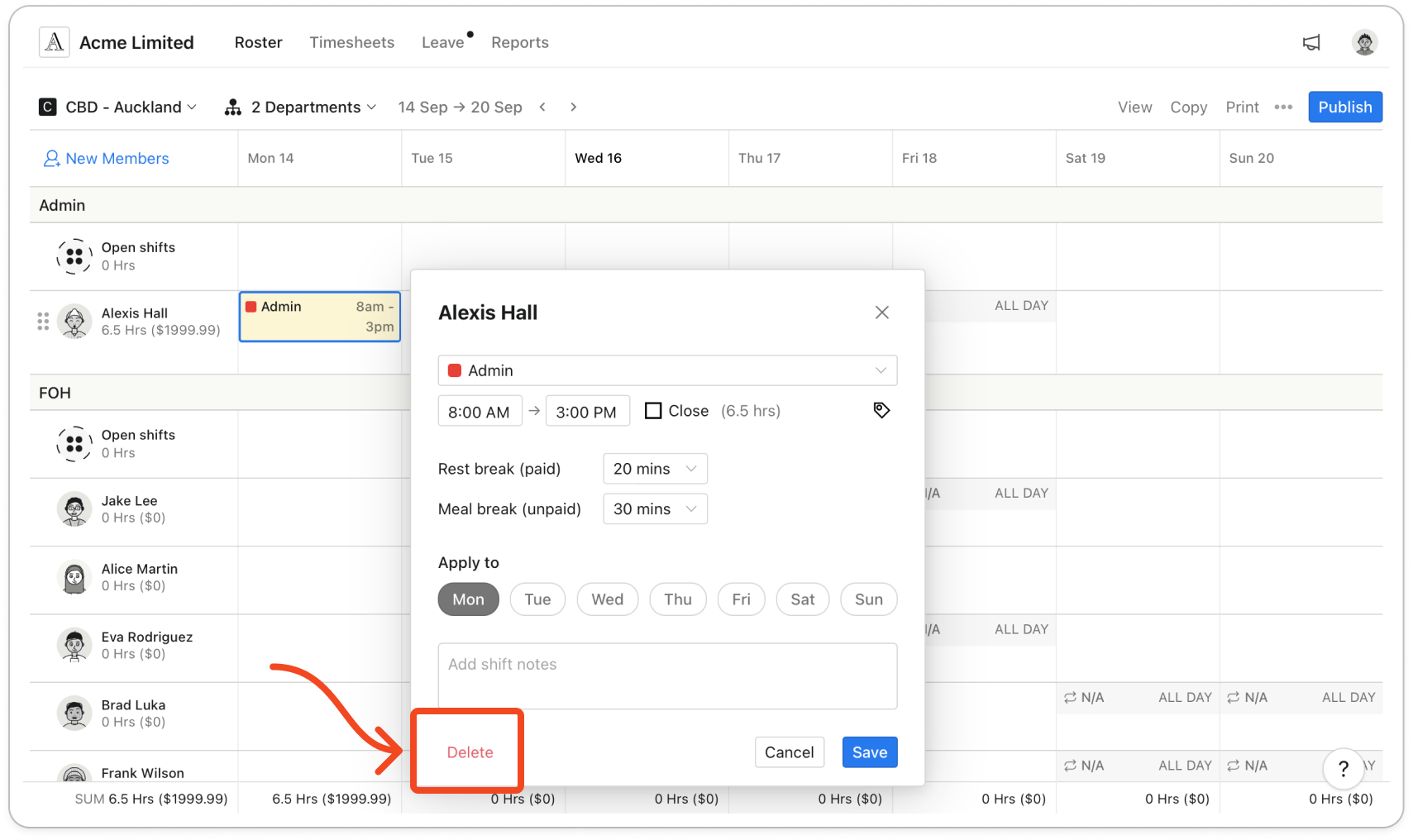
- Click the shift on the roster.
Note: If Timble says the shift can only be edited from another department view or role section, switch to that view first.
- Change what you need and click Save. Any extra days you pick under Apply to get a copy.
- To remove the shift, click Delete instead. The web doesn't ask you to confirm.
Note: Changing a published shift makes it a draft again, so publish the roster when you're done.
On your phone
Add a shift
- Tap Roster, then tap + at the top right.
- Set When, Where and Who. If the member has a role, Role shows too.
- Set Start at and Finish at.
- Type minutes into Paid break and Unpaid break, up to 240 each, and add a note if needed.
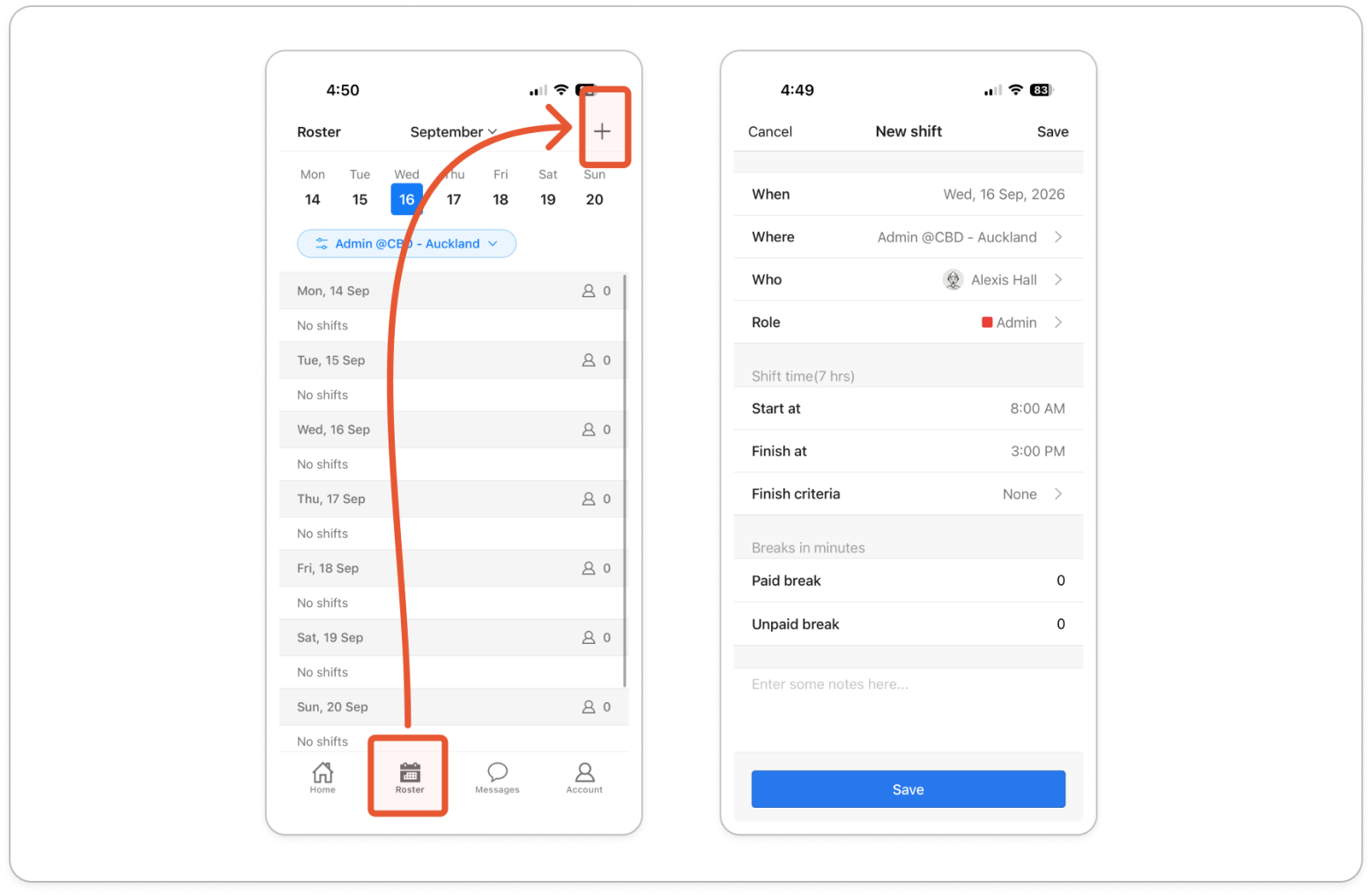
- Tap Save.
Edit or delete a shift
- On Roster, tap the shift to open Actions.
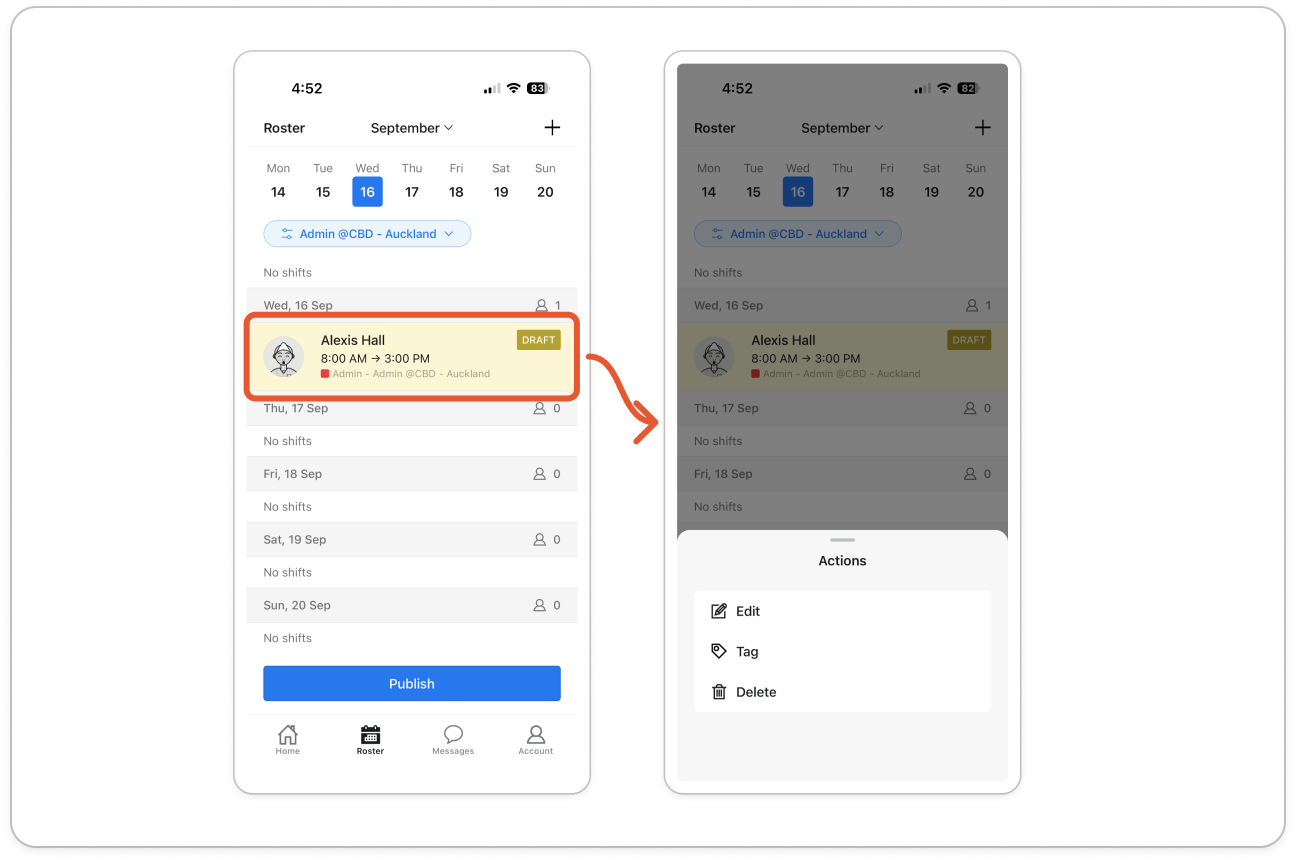
- Tap Edit, change the role, times, breaks or note, and tap Save. The day, location and member can't be changed.
- To remove the shift, tap Delete, then Delete again to confirm.
Note: Saving an edit on your phone makes the shift a draft again, shown in yellow, even if nothing changed. Tap Publish when you're done.


