.svg)
Put a shift on the roster before you know who will work it, then give it to a member or let your team claim it.
Add an open shift
- Click Roster in the top bar.
- Find the Open shifts row at the top of the roster, under the department name.
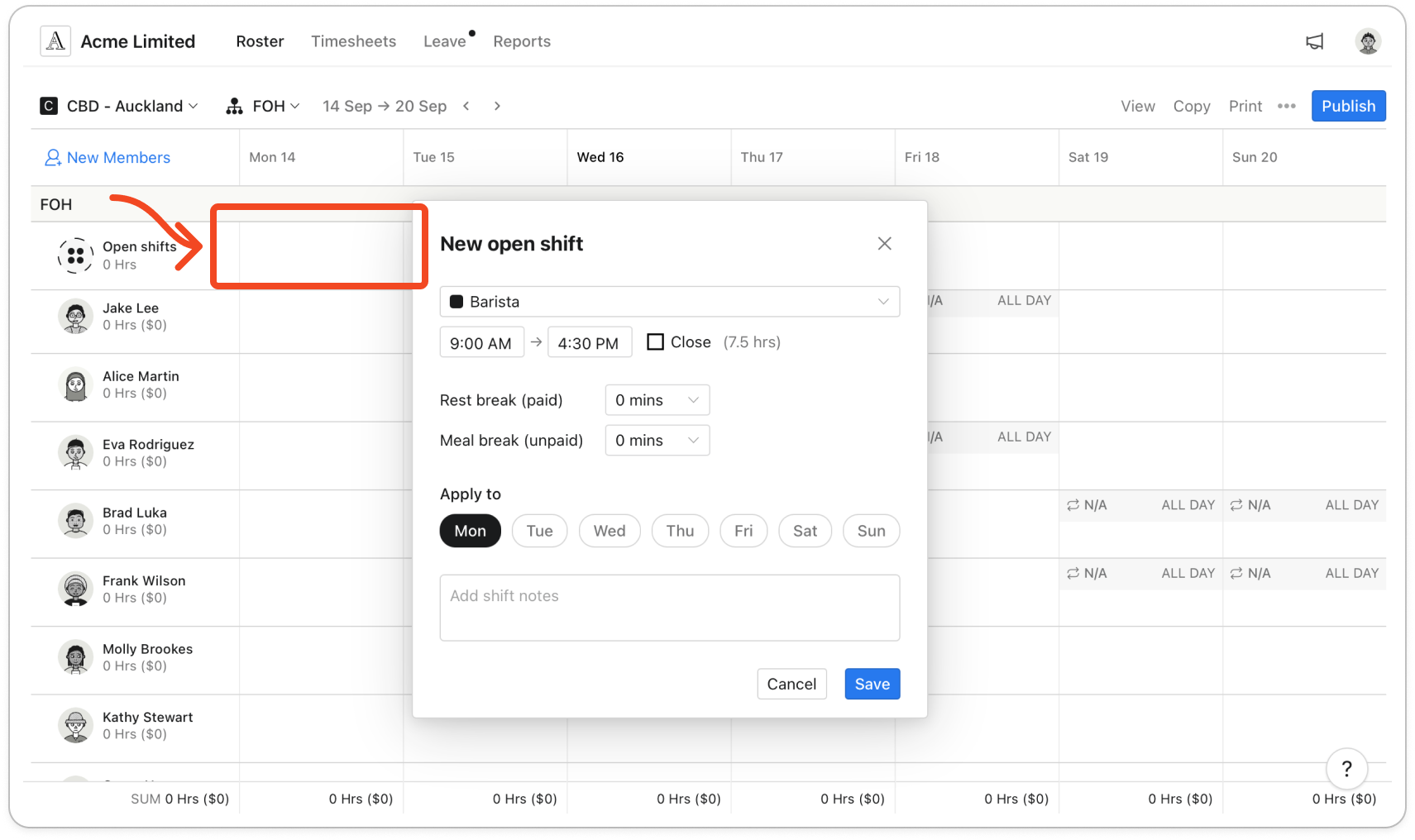
- Hover over a day in the Open shifts row and click the + that appears below that day's shifts. The New open shift panel opens.
- Click the role box and pick a role. Choose No Role if anyone in the department can work it.
- Set the start and finish times.
- Set Rest break (paid) and Meal break (unpaid) if the shift has them.
- Under Apply to, click any other days that need the same shift.
- Add anything the team should know in the Add shift notes box.
- Click Save.
Note: A new open shift is a draft, shown in pale yellow, until you publish the roster. Members can't see or claim it before then. Editing an open shift turns it back into a draft.
To change or remove an open shift, click it. The Edit open shift panel has the same fields, with Delete at the bottom.
Give an open shift to a member
- Drag the open shift from the Open shifts row onto the member's row, on the day they will work it.
Tip: Hold Shift while you drag to copy the shift instead. The open shift stays where it is.
Note: If the open shift has a role the member doesn't hold, it goes back to the Open shifts row when you let go.
- Publish the roster so the member sees the shift.
You can also drag a member's shift into the Open shifts row to take them off it.
Note: When you load a roster template, a shift for a member who has left the department, been deactivated or doesn't hold that role lands in an Unassigned shifts row above Open shifts. Drag it onto a member, or into Open shifts.
Let members claim it
Members can claim in the mobile app when your admin turns on Allow team members to claim open shifts.
- Publish the roster. Members who hold the shift's role get an Open shifts push notification saying "New shifts are available", if they have notifications turned on. A shift with No Role goes to everyone in the department.
- A member opens the shift on their phone and taps Claim. They see "You got it!".
Note: The claimed shift moves to the member's row as a draft, in pale yellow. Only one member can claim each open shift. Publish the roster to confirm it: until you do, the member can't see the shift they claimed.


