.svg)
Copy a week you've already rostered into the weeks ahead, so you only change what's different.
Copy a week
- Click Roster at the top of the web app.
- Choose the location, then use the departments button beside it to pick the departments you want to copy. Only shifts in the departments you've picked are copied.
- Move to the week you want to copy.
- Click Copy in the toolbar.
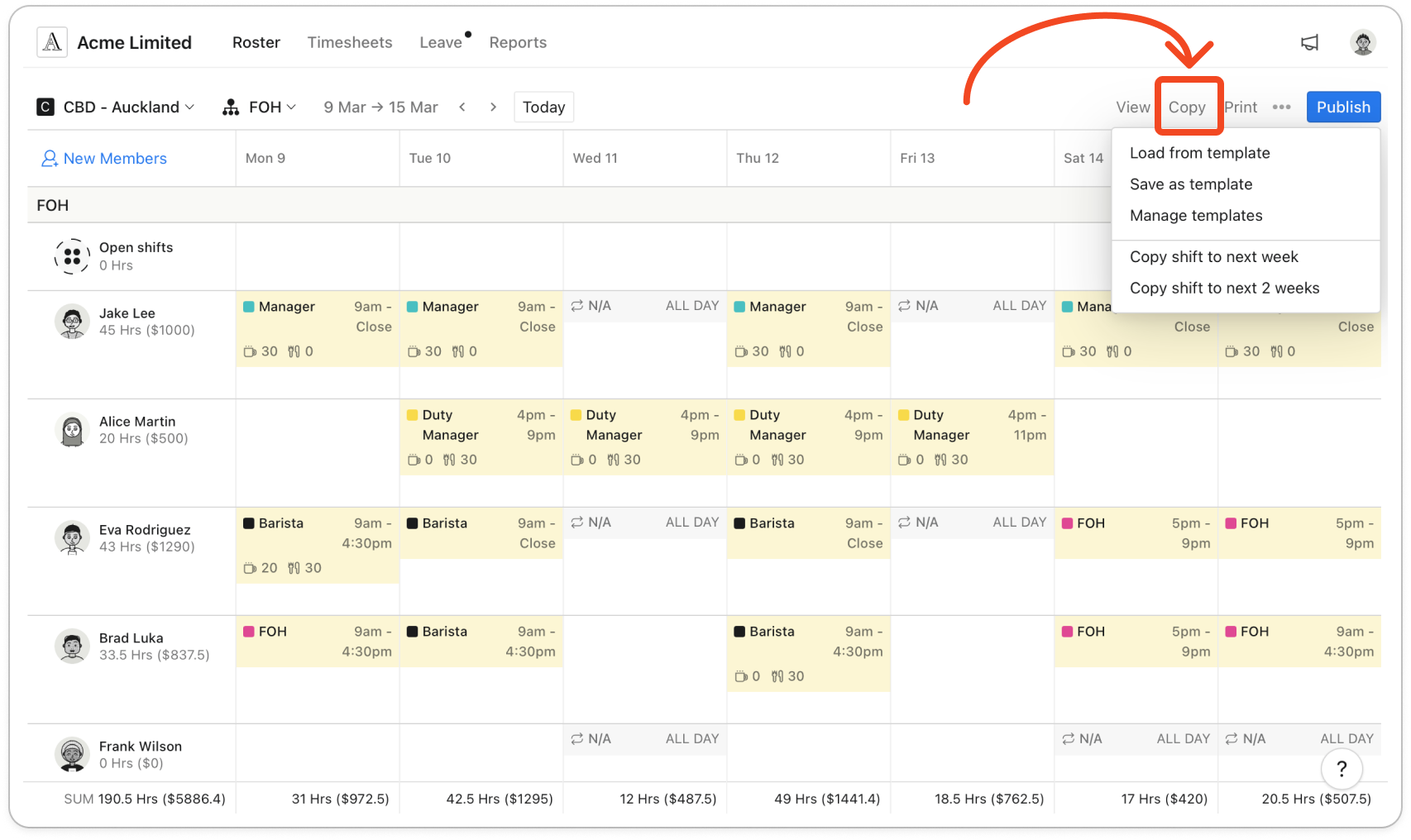
- Click Copy shift to next week, or Copy shift to next 2 weeks to copy the same week into each of the two weeks after it.
Note: In the fortnightly view there is only Copy shift to next 2 weeks, which copies the whole fortnight into the fortnight after it.
Tip: If you can manage roster templates, the Copy menu in the weekly view also shows template options above these. The Use roster templates guide covers them.
Timble shows "Copied successfully" and moves the roster to the last week it copied into.
Note: Copied shifts come across as drafts, so members can't see them until you publish the roster. Open shifts come across too, and so does the hour budget for any day in the later week that doesn't already have one. Unassigned shifts, shift notes and shift tags are not copied.
Important: Timble skips a member's shift on any day they have approved leave, or already have a shift in those departments, in the week you're copying into. It still shows "Copied successfully" and doesn't list what it skipped, so check those days before you publish.


