.svg)
Record where each member is when they clock in or out on their own phone, so you can see the location on a map when you review their timesheets.
- Click your profile picture in the top right, then click Settings.
- Click Time Clock App.
- Under Time clock(personal devices), check that Enable member time clock is on. The GPS switch only appears once that setting is turned on.
- Turn on Enable collecting GPS location. The change saves straight away.
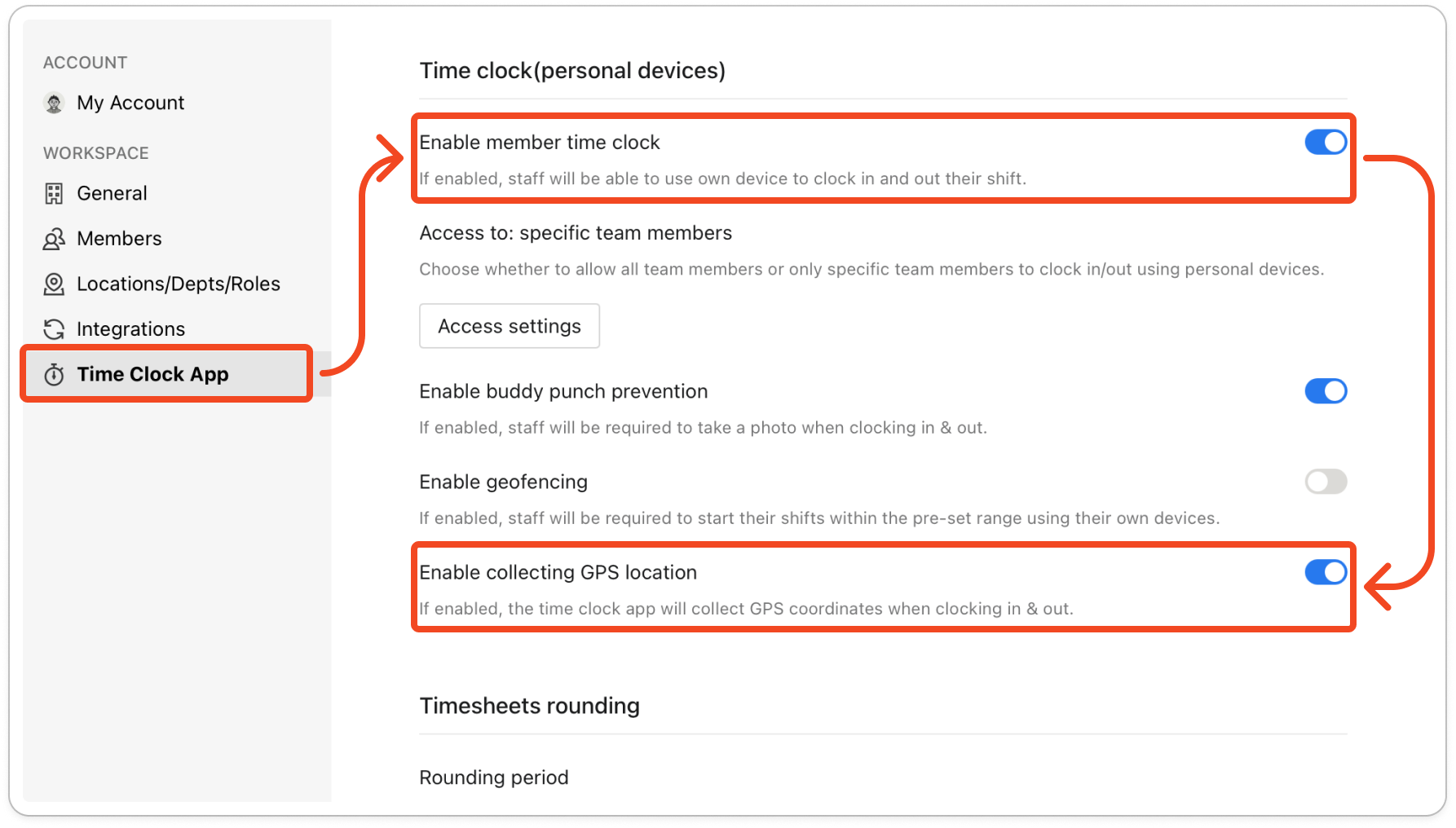
Note: This setting only applies to members who clock in on their own phones. The time clock tablet doesn't record a location. The time clock app checks this setting when it opens, so a member who already has the app open needs to close it fully and open it again. The app then shows a map of where the member is, and under the map it shows Enable location service to punch. The Punch button below that message stays greyed out until the member lets the app use their location. Tapping the message opens the phone's settings. Once the member has allowed location there, they close the app fully and open it again.
- Click Timesheets at the top of the page.
- Click a member in the list on the left.
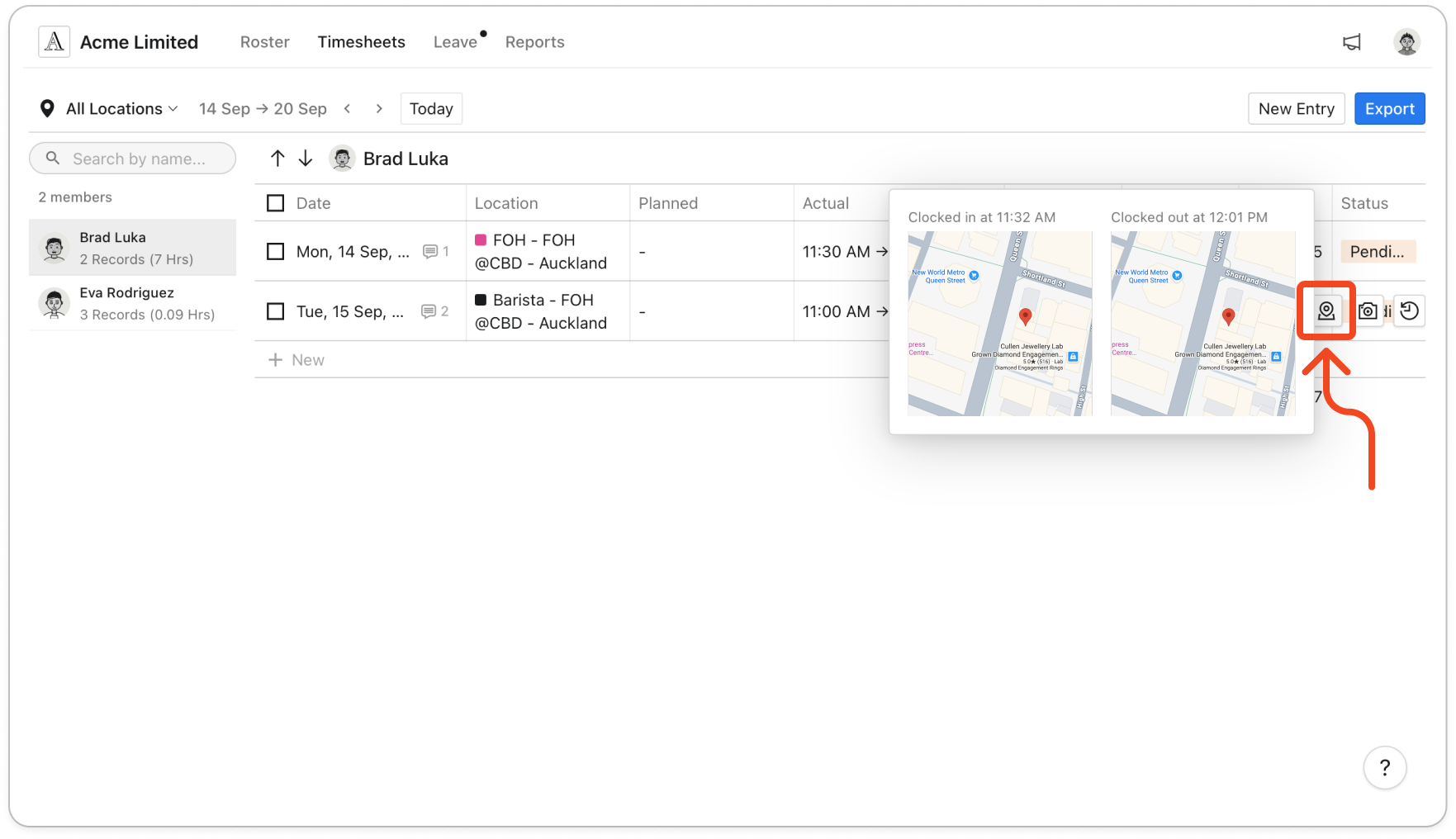
- Hover over one of their entries and click the location icon on the right of the row. A small window shows Clocked in at and Clocked out at, each with the time and a map.
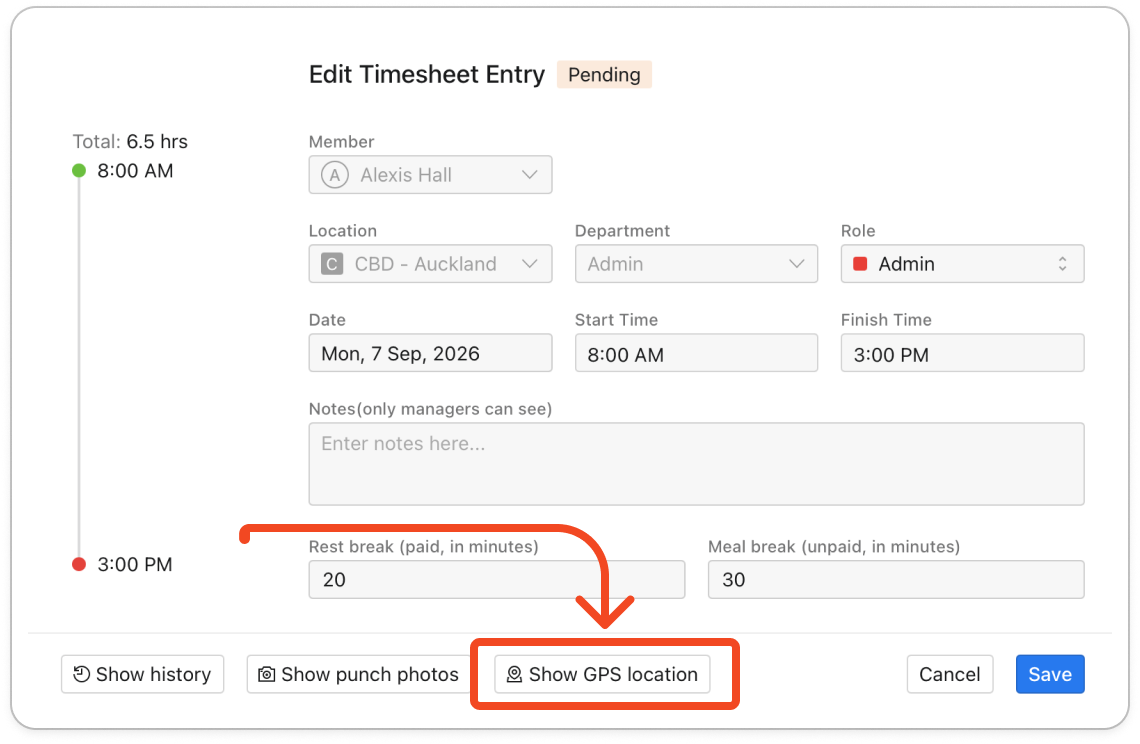
Tip: You can also click the entry to open Edit Timesheet Entry, then click Show GPS location at the bottom. A larger window opens, titled Punch GPS location followed by the member's name.
Note: A map shows N/A where no location was recorded, such as a punch on the time clock tablet, an entry added by hand, or a punch made before you turned the setting on. If you later turn off Enable collecting GPS location or Enable member time clock, the location icon and Show GPS location disappear from every entry, older ones included.


