.svg)
Empty a week and start it again. Clearing follows the departments you have selected, and leaves every other department alone.
- Click Roster at the top of the web app.
- Choose the location, then use the departments button beside it to select only the departments you want cleared.
- Move to the week you want to clear.
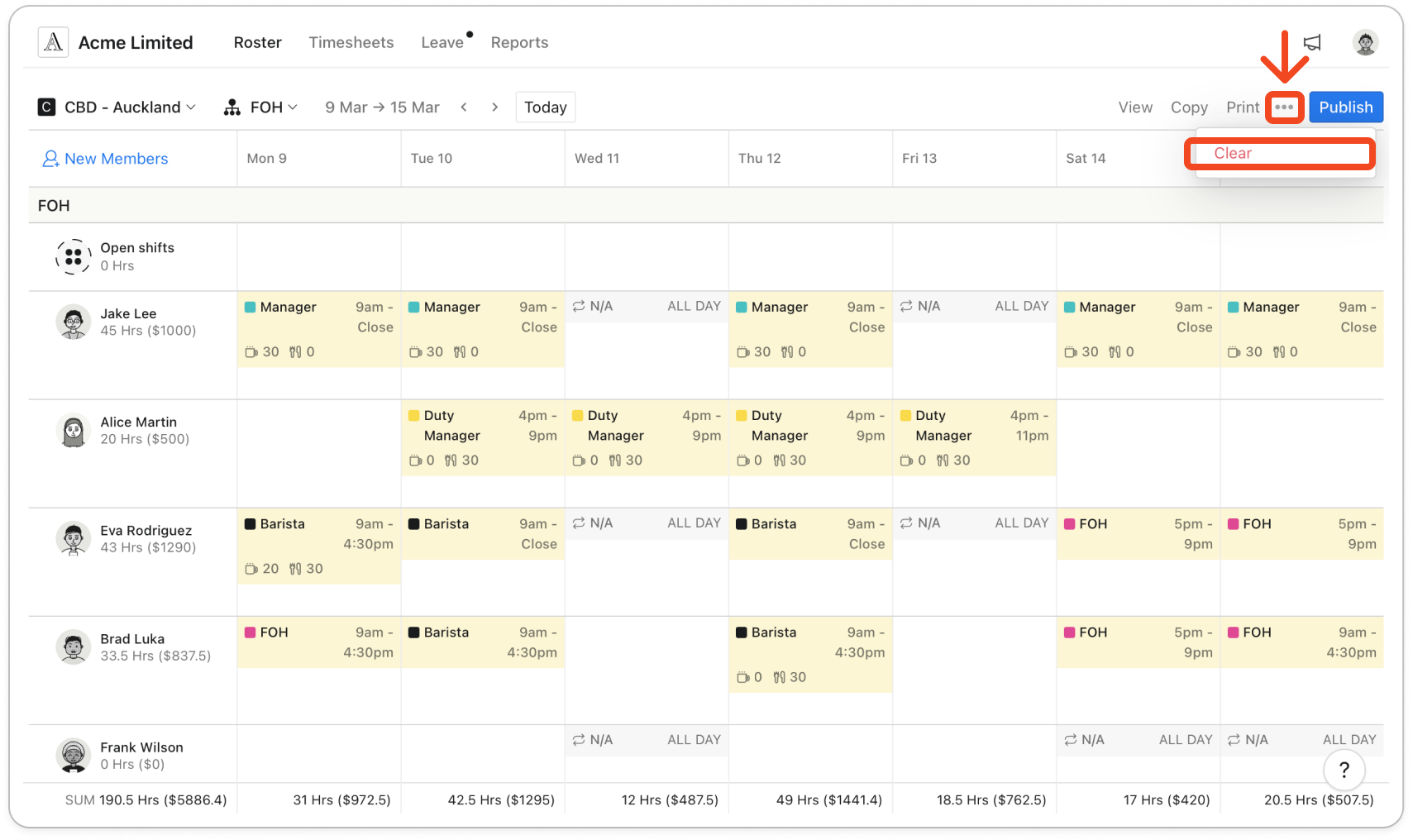
- Click the three-dot icon next to Print, then click Clear.
- Timble says "The shifts in the following departments will be deleted based on your selection:" and lists them, then asks "Are you sure you want to clear this roster?" Check the list, then click Clear roster.
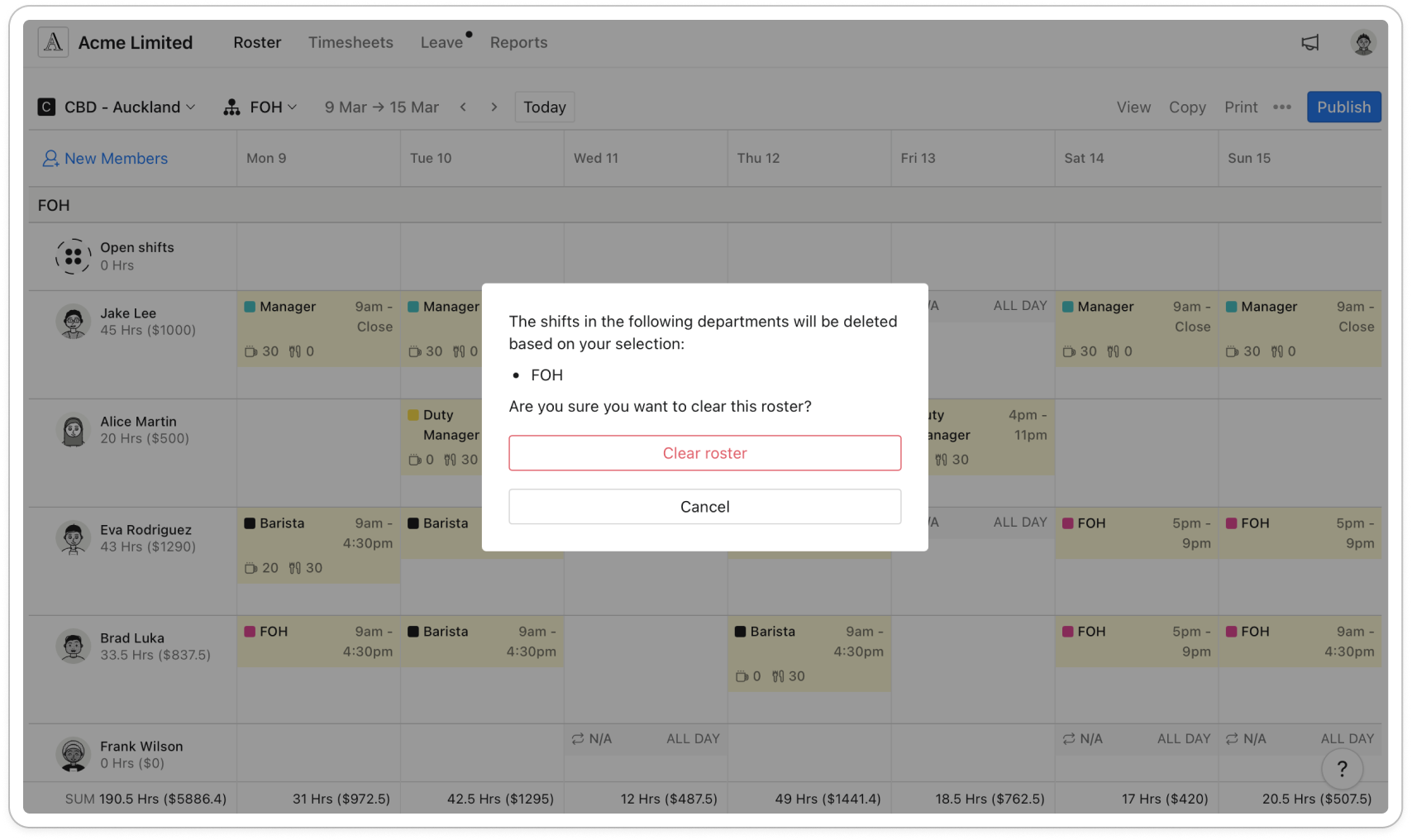
Important: Clearing deletes every shift and open shift in those departments for the week on screen, or the fortnight in the fortnightly view, including shifts you have already published. Unassigned shifts and the week's hour budget stay. You can't undo it.


