.svg)
Decide whether everyone on your team can clock in on their own phone, or only the members you choose.
- Click your profile picture in the top right, then click Settings.
- Click Time Clock App.
- Under Time clock(personal devices), make sure Enable member time clock is turned on. The Access settings button only appears once that setting is on.
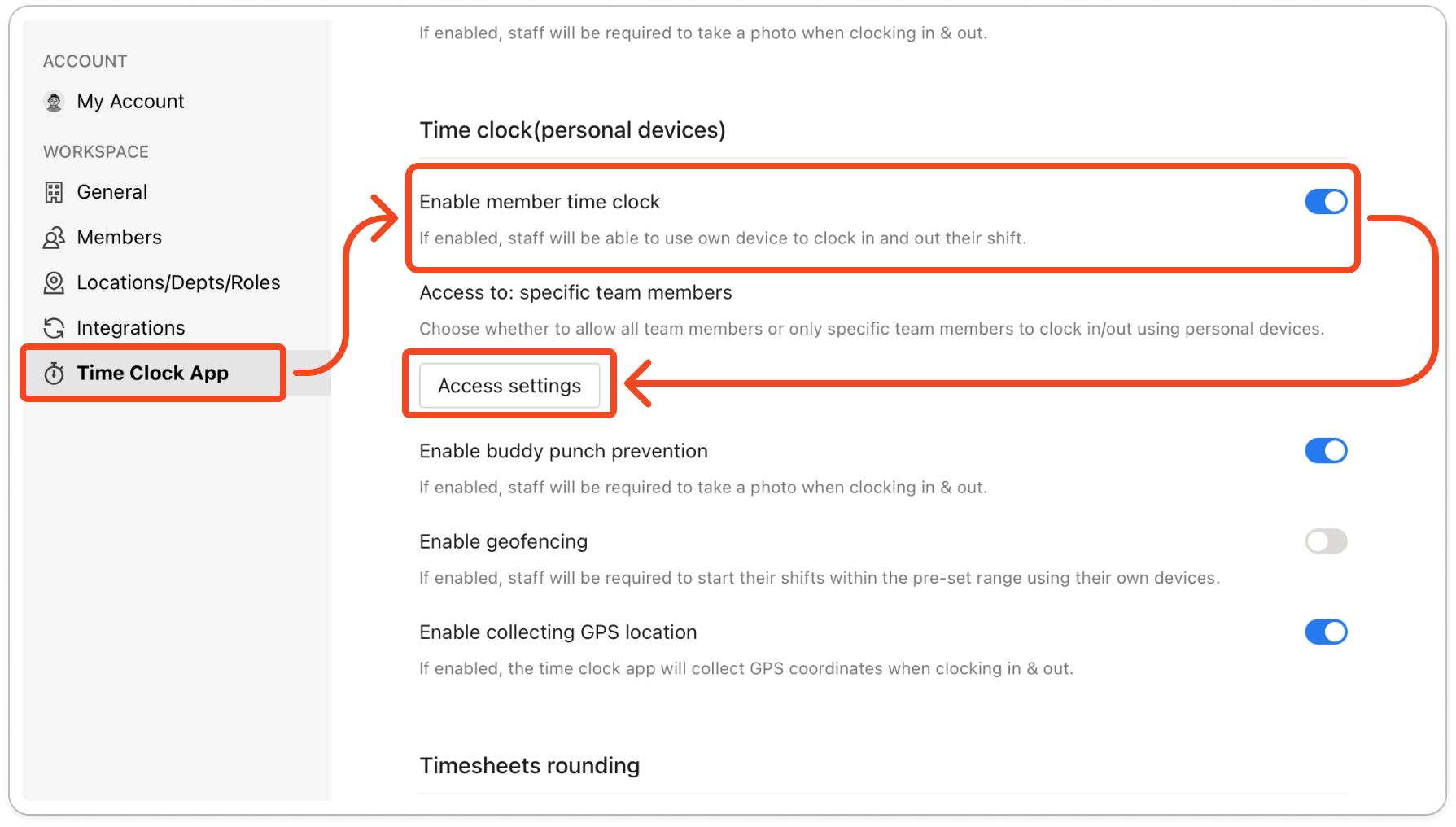
- Click Access settings.
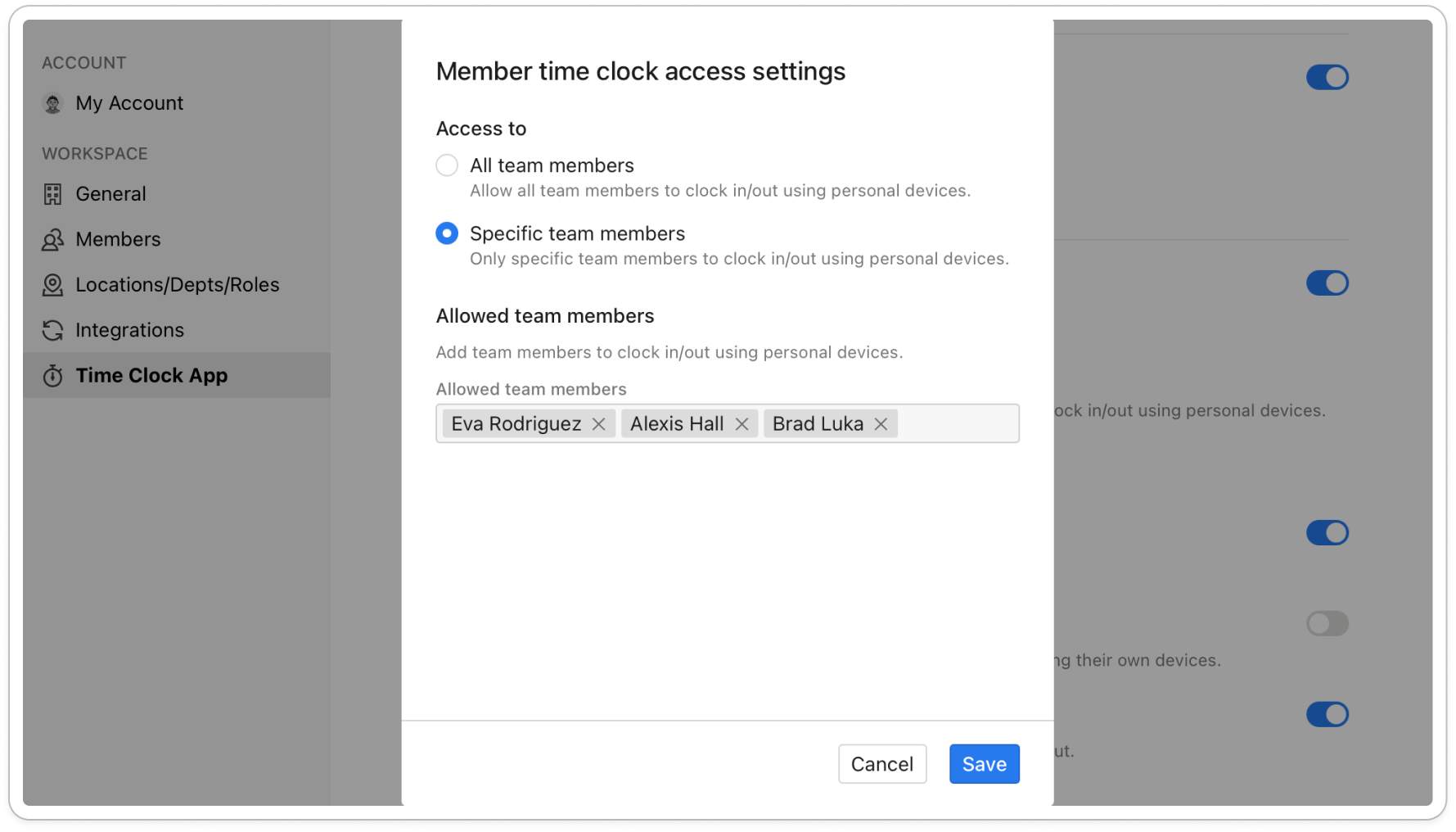
- In the Member time clock access settings window, choose one of the two options under Access to:
- All team members lets every member clock in on their own phone.
- Specific team members lets only the members you add clock in on their own phones.
Note: Saving your choice as All team members clears the list of allowed members. If you switch back to Specific team members later, you need to add those members again.
- If you chose Specific team members, click the Allowed team members box, then search by name and click each member you want to add. To take someone off the list, click the close icon on their name. The list needs at least one member.
Note: Every active team member appears in the Select members list, including admins and managers. If you or your managers clock in on your own phones, add yourselves to the allowed team members as well.
- Click Save. The Access to: line on the Time Clock App tab changes to match your choice.
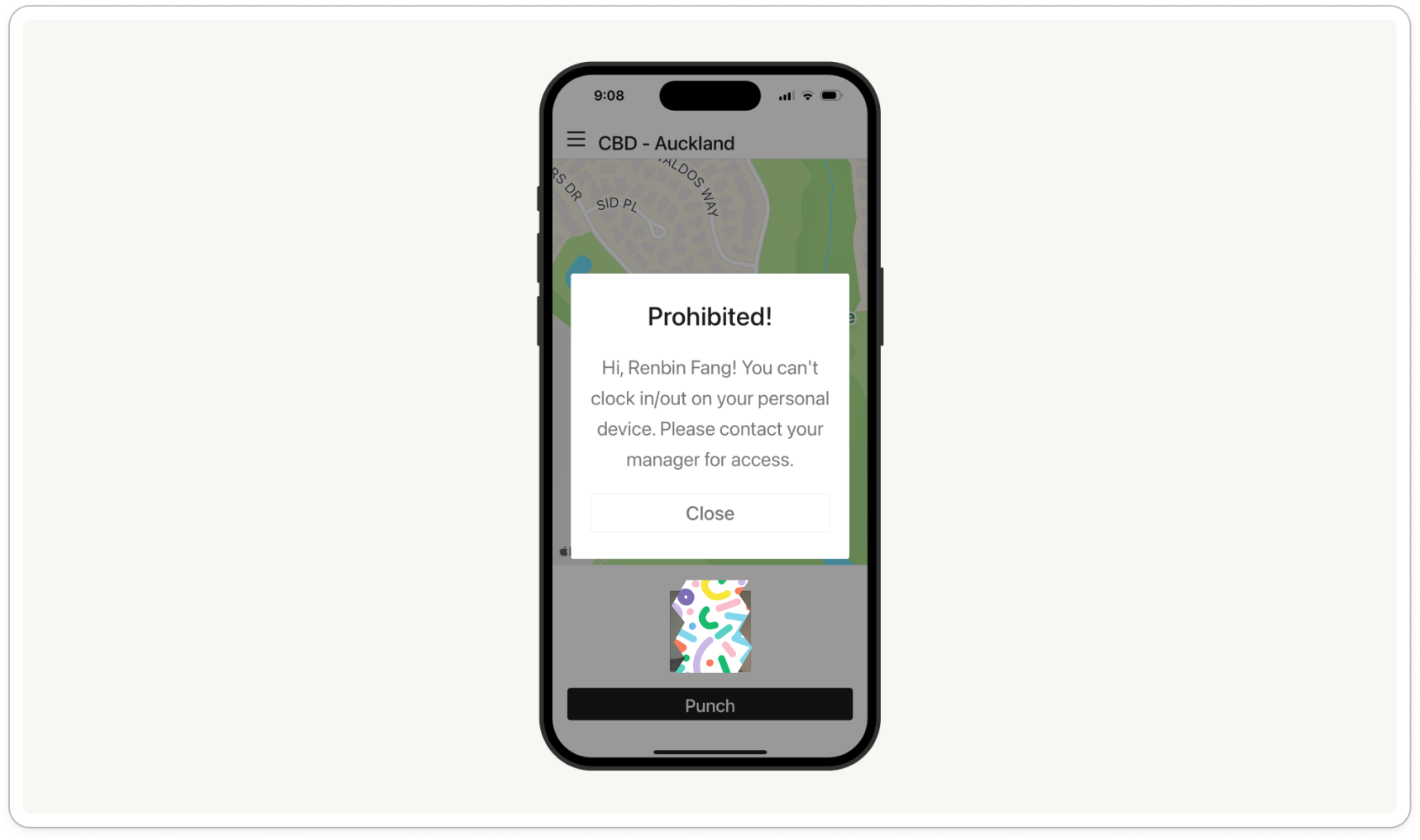
Note: The allowed team members list only applies to clocking in on a personal phone, not on the time clock tablet. A member who is not on the list can still open the time clock app. When they tap Punch, they see Prohibited! and the message "You can't clock in/out on your personal device. Please contact your manager for access."