.svg)
Decide whether timesheet breaks come from the breaks set on each rostered shift, or from members logging their own breaks on the time clock app.
- Click your profile picture in the top right, then click Settings.
- Click Time Clock App.
- Under Time clock settings, find Rest and meal breaks and pick an option from the list:
- From rostered shifts: when a member clocks in for a rostered shift, their timesheet copies the Rest break (paid) and Meal break (unpaid) minutes from that shift. When a member clocks in without a rostered shift, their timesheet starts with no breaks.
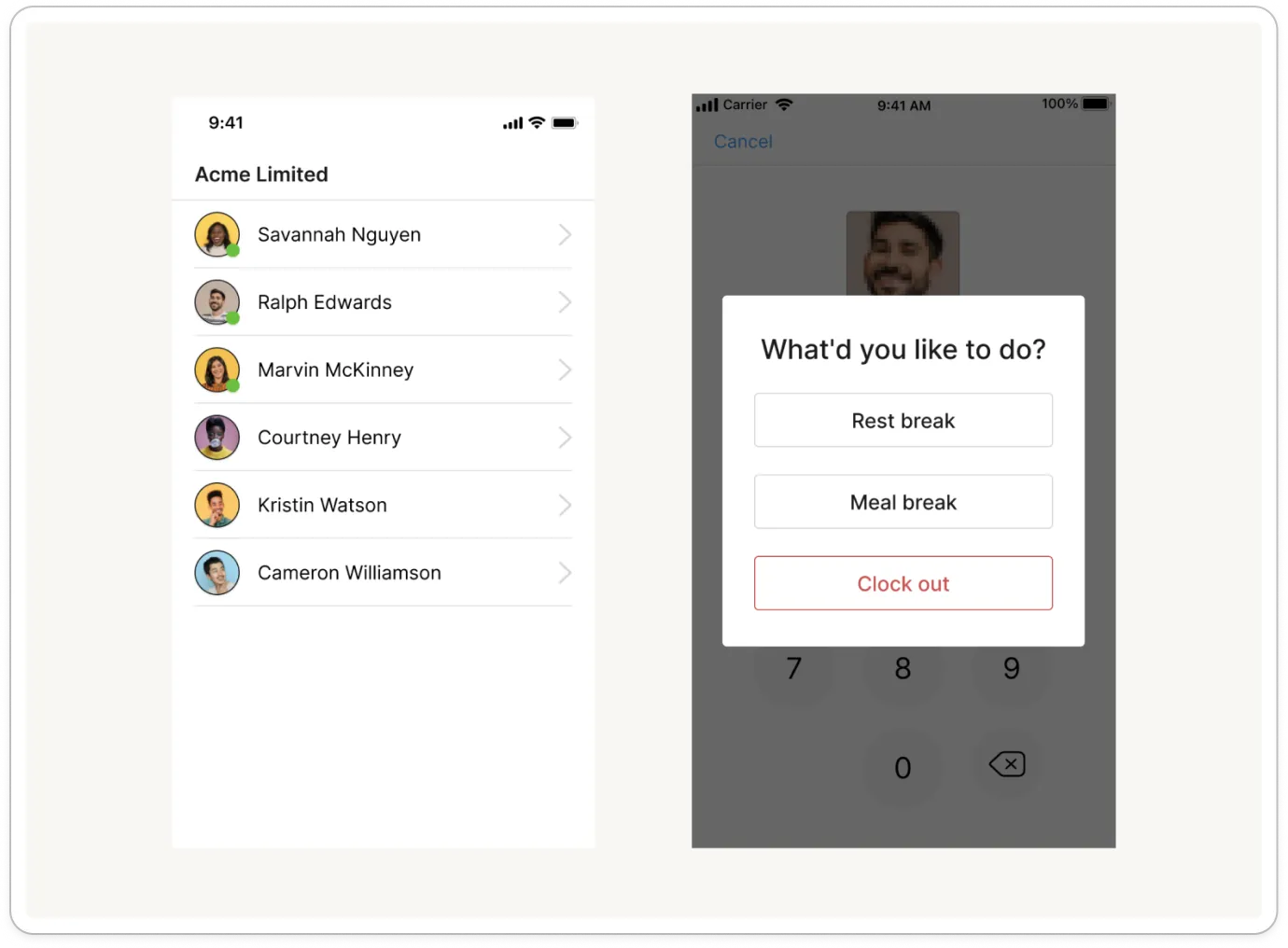
- Log manually: every timesheet starts with no breaks. When a member who is already clocked in opens the time clock app again, the app asks "What'd you like to do?" and shows Rest break, Meal break and Clock out. The break starts when the member taps Rest break or Meal break, and it ends the next time they use the time clock app. Those minutes are then added to their timesheet.
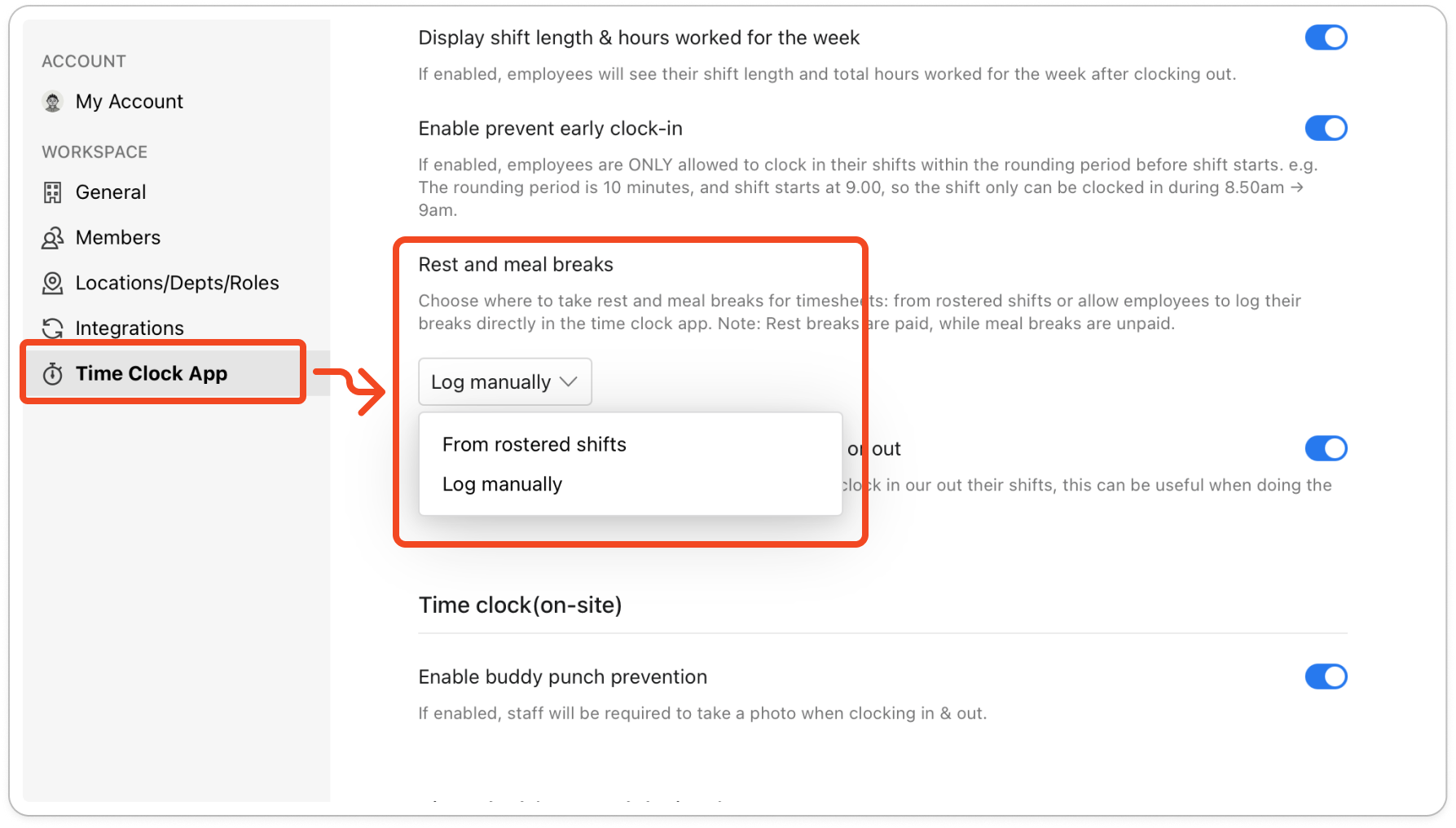
Your choice saves as soon as you pick it, so this tab has no Update button.
Note: Rest breaks are paid and meal breaks are unpaid, so only meal break minutes are taken off the hours on a timesheet. A manager can still change either break when they edit a timesheet.