.svg)
On the web
- Log in to the web app at app.timble.co.nz. Click your profile picture in the top right, then click Settings.
Note: The mobile app has no way to change your email address. Use the web app instead, on a computer if you can.
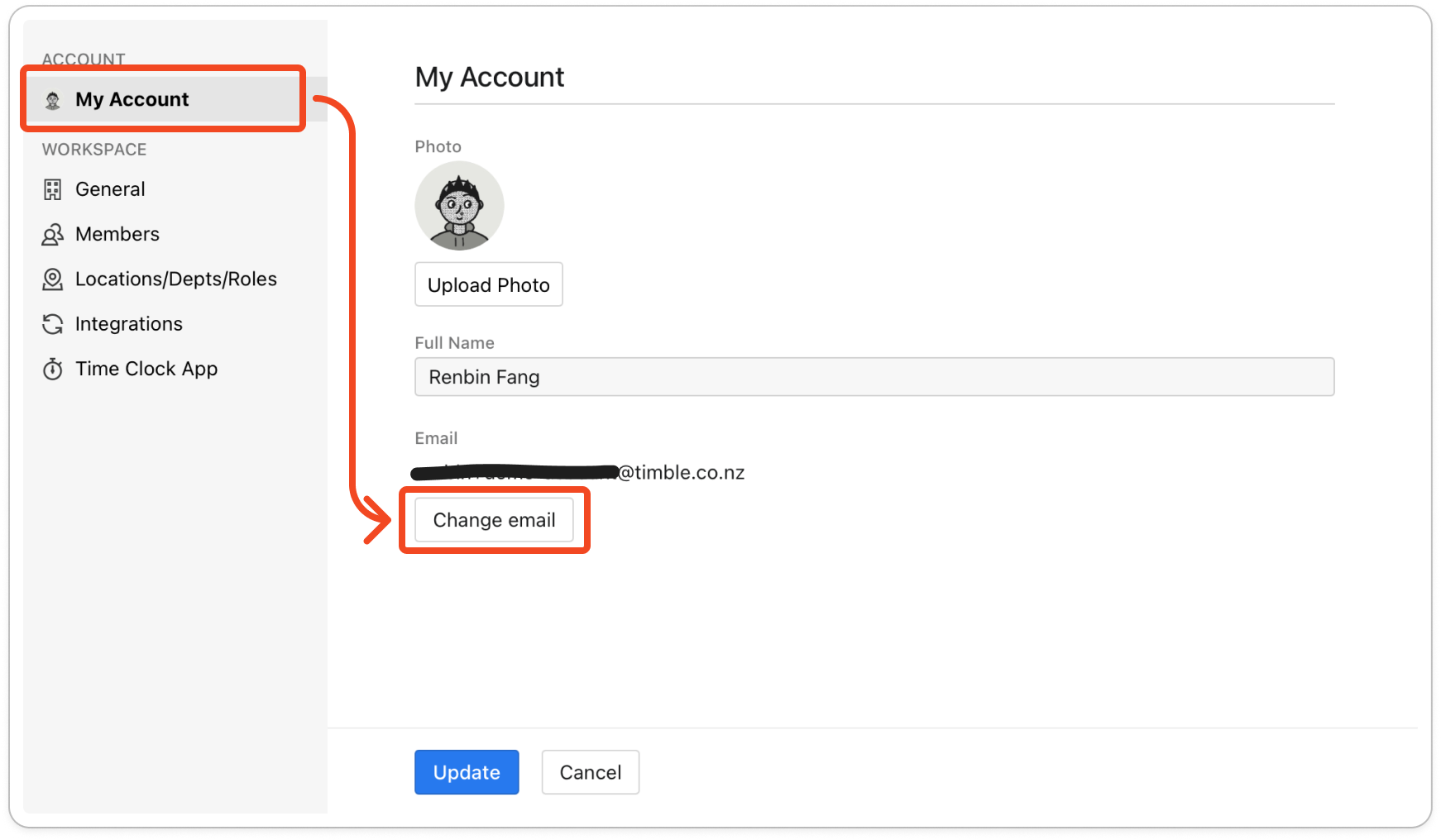
- Settings opens on My Account if you're a member or a manager. If you're an admin, Settings opens on another tab, so click My Account at the top of the side bar.
- Under Email, click Change email.
- In the Change Email window, type your new email address and your Timble password, then click Send verification code.
- Check the inbox of your new email address for the verification code. Type the code into the box that appears in the Change Email window.
Tip: The code lasts 12 hours. If it has run out, Timble says "Verification code expired." Close the window and start again from step 3 to get a new code.
- Click Change email. Timble logs you out straight away. Log in again with your new email address and your usual password.


